***
title: Manage Postman workspaces
updated: 2025-06-30T00:00:00.000Z
max-toc-depth: 2
----------------
Whether you're a team or admin user of Postman workspaces, you have many options to establish and enhance collaboration in your workspaces. Learn more about managing the workspace roles, editing and sharing workspaces, responding to requests to create workspaces, and moving elements and whole workspaces.
To learn how to make a new workspace, go to [Create a workspace in Postman](/docs/collaborating-in-postman/using-workspaces/create-workspaces/). For more information about workspace usage, see [Use Postman workspaces](/docs/collaborating-in-postman/using-workspaces/internal-workspaces/use-workspaces/). For guidance on using workspace types to enable collaboration, see [Postman Best Practices for types of workspaces](https://www.postman.com/postman-best-practices/).
If you're on a Postman Enterprise plan, see [Create an Organization in Postman](/docs/administration/managing-your-team/create-org/) for slight differences in the user experience of creating workspaces in organizations.
## Edit workspace details
A summary and description help others understand what your workspace is for. You must be a [Workspace Admin](/docs/administration/roles-and-permissions/#workspace-roles) to edit workspace details.
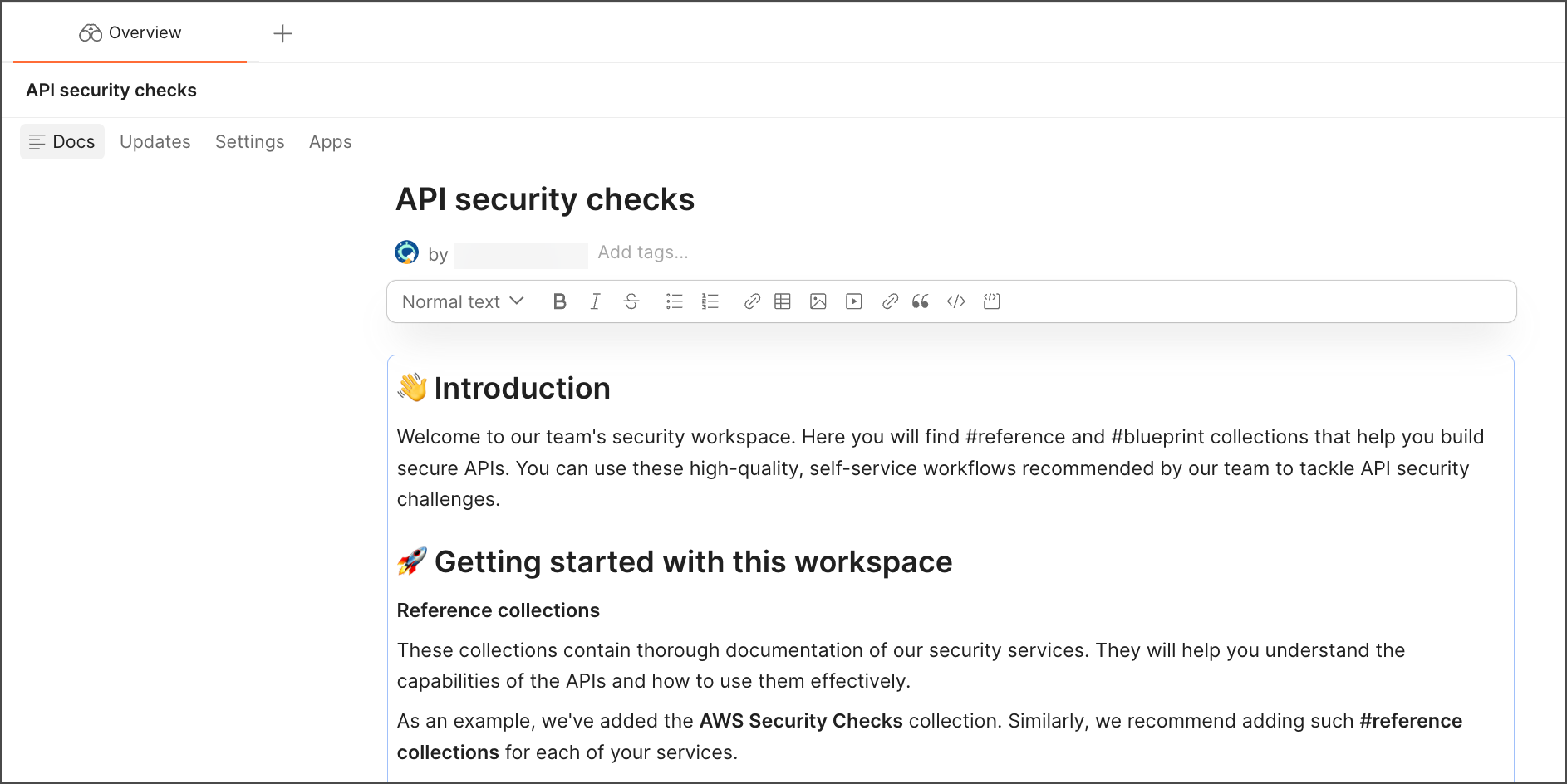
On the workspace's **Overview** tab, click **Docs**. Select the workspace name and enter a new name. Select the summary and description to describe your workspace in Markdown, or use **Write with AI** to autogenerate content. You can also add tags ([Enterprise plans only](https://www.postman.com/pricing/)) to make your workspace more distinct. Save the content by clicking outside each section.
## Change workspace visibility
The visibility setting for a workspace determines who can access it. You must be a [Workspace Admin](/docs/administration/managing-your-team/team-members/manage-roles/#manage-workspace-roles) to change the visibility for a workspace.
1. Click **Workspaces** in the Postman header, and then select a workspace.
2. On the workspace's **Overview** tab, click **Settings**.
3. Click **Change** to select a different type of the workspace:
* **Internal** - Visible to you, your team, or specific team members you select.
* **Partner** - Only invited team members and [partners](/docs/collaborating-in-postman/using-workspaces/partner-workspaces/overview/) can access ([Enterprise plans only](https://www.postman.com/pricing/)).
* **Public** - Everyone can view.
4. Change who can access your workspace:
* Everyone in your organization (Enterprise plans only)
* Everyone in your team
* Only you and invited people
 5. Click **Save Changes**.
## Change workspace themes
You can customize the visual experience for your workspace members in order to:
* Reflect team branding or corporate identity in public workspaces.
* Distinguish Partner Workspaces integrated with different third-party services or clients.
* Represent different stages of a workflow in workspaces, such as planning, development, testing, and deployment.
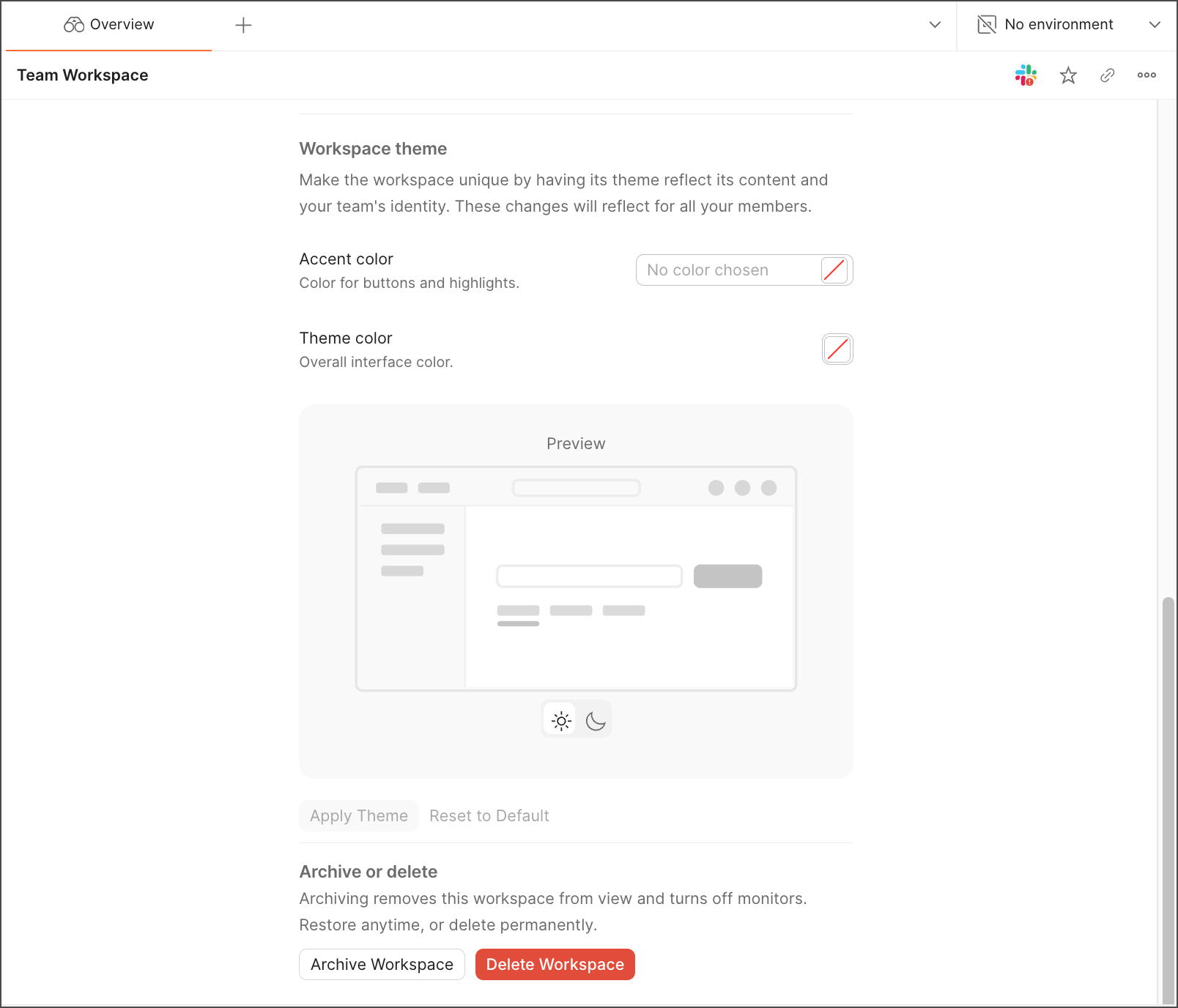
To change the theme, in your workspace's **Overview** tab, click **Settings** and navigate to **Workspace theme**.
For **Accent color**, select a hex value to style the color of buttons and highlights for all primary actions. You can also select a **Theme color** using a color picker. Click **Apply Theme** to set the selection.
5. Click **Save Changes**.
## Change workspace themes
You can customize the visual experience for your workspace members in order to:
* Reflect team branding or corporate identity in public workspaces.
* Distinguish Partner Workspaces integrated with different third-party services or clients.
* Represent different stages of a workflow in workspaces, such as planning, development, testing, and deployment.
To change the theme, in your workspace's **Overview** tab, click **Settings** and navigate to **Workspace theme**.
For **Accent color**, select a hex value to style the color of buttons and highlights for all primary actions. You can also select a **Theme color** using a color picker. Click **Apply Theme** to set the selection.
 The version of the theme that your workspace members see depends on the current app theme they set. If a member selects a dark theme in the [Postman app settings](/docs/getting-started/installation/settings/#themes), they see a dark variant of your workspace theme. Toggle the preview to visualize both the light and dark variants of your custom workspace theme.
To restore the default theme, click **Reset to Default**.
Changing the colors of the workspace theme sets the workspace user experience for all workspace visitors and overrides the colors of the [application theme](/docs/getting-started/installation/settings/#themes) set by workspace members. Their application theme colors are restored when they leave the workspace.
## Share workspaces
You can invite team members, [groups](/docs/administration/managing-your-team/user-groups/), and external users to collaborate in a workspace by navigating to the workspace and selecting **Invite** in the Postman header.
The version of the theme that your workspace members see depends on the current app theme they set. If a member selects a dark theme in the [Postman app settings](/docs/getting-started/installation/settings/#themes), they see a dark variant of your workspace theme. Toggle the preview to visualize both the light and dark variants of your custom workspace theme.
To restore the default theme, click **Reset to Default**.
Changing the colors of the workspace theme sets the workspace user experience for all workspace visitors and overrides the colors of the [application theme](/docs/getting-started/installation/settings/#themes) set by workspace members. Their application theme colors are restored when they leave the workspace.
## Share workspaces
You can invite team members, [groups](/docs/administration/managing-your-team/user-groups/), and external users to collaborate in a workspace by navigating to the workspace and selecting **Invite** in the Postman header.
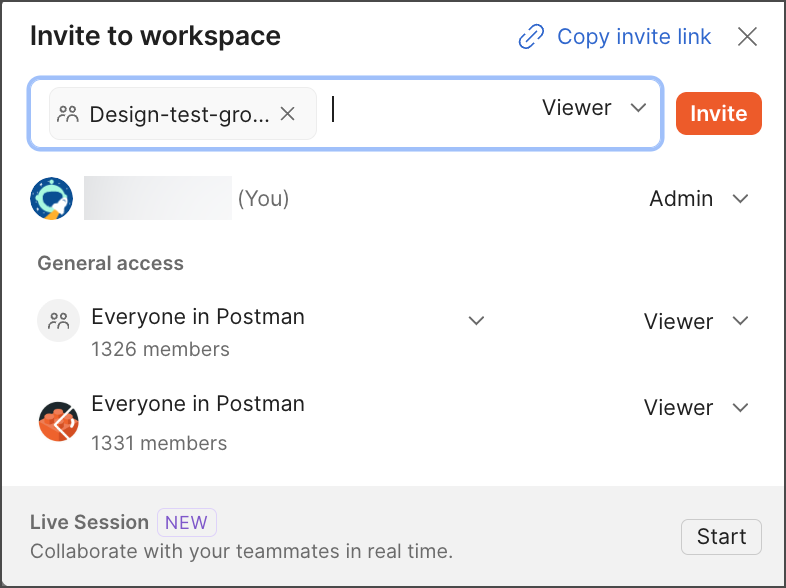 Your ability to share workspaces with teammates depends on your [workspace role](/docs/administration/roles-and-permissions/#workspace-roles):
* **Workspace Admin** - Can invite Postman teammates or external users to internal and public workspaces, and assign them a workspace role. If a Workspace Admin invites an external user to a workspace, Postman shares this request with [Admins](/docs/administration/roles-and-permissions/#team-roles). Once approved, an invite to join the team is sent to the individual.
Workspace Admins can also use the [Postman VS Code extension](/docs/developer/vs-code-extension/overview/) to invite Postman teammates to workspaces, and assign them a workspace role.
* **Workspace Editor** - Can invite external users to internal and public workspaces, but can't assign them workspace roles. For internal workspaces, Workspace Editors using the [Postman web app](/docs/getting-started/installation/installation-and-updates/#use-the-postman-web-app) can copy and share a link to the workspace with a teammate, who can then [request access to the workspace](/docs/collaborating-in-postman/requesting-access-to-elements/).
* **Workspace Viewer** - Can't invite teammates to internal workspaces. For internal workspaces not set to be accessed by everyone, Workspace Viewers using the [Postman web app](/docs/getting-started/installation/installation-and-updates/#use-the-postman-web-app) can copy and share a link to the workspace with a teammate, who can then [request access to the workspace](/docs/collaborating-in-postman/requesting-access-to-elements/).
Individual team members and groups you invite are notified of your request to collaborate.
External users who aren't on your Postman team will receive an invitation to join if you're an [Admin](/docs/administration/roles-and-permissions/#team-roles) or [Super Admin](/docs/administration/roles-and-permissions/#team-roles). On Team plans, team members with the Developer role can invite external users as Developers automatically, without the need for approval by an Admin.
You can also invite collaborators by selecting
Your ability to share workspaces with teammates depends on your [workspace role](/docs/administration/roles-and-permissions/#workspace-roles):
* **Workspace Admin** - Can invite Postman teammates or external users to internal and public workspaces, and assign them a workspace role. If a Workspace Admin invites an external user to a workspace, Postman shares this request with [Admins](/docs/administration/roles-and-permissions/#team-roles). Once approved, an invite to join the team is sent to the individual.
Workspace Admins can also use the [Postman VS Code extension](/docs/developer/vs-code-extension/overview/) to invite Postman teammates to workspaces, and assign them a workspace role.
* **Workspace Editor** - Can invite external users to internal and public workspaces, but can't assign them workspace roles. For internal workspaces, Workspace Editors using the [Postman web app](/docs/getting-started/installation/installation-and-updates/#use-the-postman-web-app) can copy and share a link to the workspace with a teammate, who can then [request access to the workspace](/docs/collaborating-in-postman/requesting-access-to-elements/).
* **Workspace Viewer** - Can't invite teammates to internal workspaces. For internal workspaces not set to be accessed by everyone, Workspace Viewers using the [Postman web app](/docs/getting-started/installation/installation-and-updates/#use-the-postman-web-app) can copy and share a link to the workspace with a teammate, who can then [request access to the workspace](/docs/collaborating-in-postman/requesting-access-to-elements/).
Individual team members and groups you invite are notified of your request to collaborate.
External users who aren't on your Postman team will receive an invitation to join if you're an [Admin](/docs/administration/roles-and-permissions/#team-roles) or [Super Admin](/docs/administration/roles-and-permissions/#team-roles). On Team plans, team members with the Developer role can invite external users as Developers automatically, without the need for approval by an Admin.
You can also invite collaborators by selecting  **Copy invite link** and sharing the link with them outside Postman. When your collaborators click the link, Postman prompts them to sign in or sign up.
If you're an Admin or a Developer inviting another Developer on a Team plan, they'll be automatically added to your team. If you aren't an Admin or a Developer, your request to add external users to your Postman team is shared with your Admins for approval.
Inviting collaborators to [Partner Workspaces](/docs/collaborating-in-postman/using-workspaces/partner-workspaces/overview/) is different from inviting them to other types of workspaces. To learn more, see [Invite collaborators to a Partner Workspace](/docs/collaborating-in-postman/using-workspaces/partner-workspaces/setup/#invite-collaborators-to-a-partner-workspace).
## Move elements to workspaces
Workspaces can contain elements such as collections, APIs, environments, mock servers, and flows. An element can exist only in a single workspace. If needed, you can move elements to a different workspace.
You must be a Super Admin or Workspace Admin to move an API, collection, environment, mock server, or flow to a workspace.
An API's collections move with the API to the new workspace. Some items related to the element you're moving won't automatically move. You must manually move or reconfigure the following in the new workspace:
* Monitors can't be moved to a new workspace. If you move a collection that has an active monitor, the associated monitor is paused and stays in the original workspace.
* If you move an environment that's associated with an element or integration, the element or integration using the environment may no longer work.
To move an element to a different workspace, do the following:
1. Click **Collections**, **APIs**, **Environments**, **Mock Servers**, or **Flows** in the sidebar.
2. Click
**Copy invite link** and sharing the link with them outside Postman. When your collaborators click the link, Postman prompts them to sign in or sign up.
If you're an Admin or a Developer inviting another Developer on a Team plan, they'll be automatically added to your team. If you aren't an Admin or a Developer, your request to add external users to your Postman team is shared with your Admins for approval.
Inviting collaborators to [Partner Workspaces](/docs/collaborating-in-postman/using-workspaces/partner-workspaces/overview/) is different from inviting them to other types of workspaces. To learn more, see [Invite collaborators to a Partner Workspace](/docs/collaborating-in-postman/using-workspaces/partner-workspaces/setup/#invite-collaborators-to-a-partner-workspace).
## Move elements to workspaces
Workspaces can contain elements such as collections, APIs, environments, mock servers, and flows. An element can exist only in a single workspace. If needed, you can move elements to a different workspace.
You must be a Super Admin or Workspace Admin to move an API, collection, environment, mock server, or flow to a workspace.
An API's collections move with the API to the new workspace. Some items related to the element you're moving won't automatically move. You must manually move or reconfigure the following in the new workspace:
* Monitors can't be moved to a new workspace. If you move a collection that has an active monitor, the associated monitor is paused and stays in the original workspace.
* If you move an environment that's associated with an element or integration, the element or integration using the environment may no longer work.
To move an element to a different workspace, do the following:
1. Click **Collections**, **APIs**, **Environments**, **Mock Servers**, or **Flows** in the sidebar.
2. Click  **View more actions** next to an element and then click **Move**.
3. Select the workspace where you want to move the element. Then click **Move** (**Collection**, **API**, **Environment**, **Mock Server**, or **Flow**).
You can move elements to partner and public workspaces you have access to. You can't move elements from a partner or public workspace to an internal workspace.
**View more actions** next to an element and then click **Move**.
3. Select the workspace where you want to move the element. Then click **Move** (**Collection**, **API**, **Environment**, **Mock Server**, or **Flow**).
You can move elements to partner and public workspaces you have access to. You can't move elements from a partner or public workspace to an internal workspace.
 ## Add workspaces to your Private API Network
You can also share workspaces with your teammates by adding them to your team's [Private API Network](/docs/collaborating-in-postman/private-api-network/overview/). To learn more, see [Request to add a workspace from the workbench](/docs/collaborating-in-postman/private-api-network/private-network-requests/#request-to-add-a-workspace-from-the-workbench).
## Archive or delete inactive workspaces
Archiving workspaces is available on Enterprise plans. For more information, see [Postman pricing](https://www.postman.com/pricing/).
You can archive or delete workspaces that are no longer active.
* Archiving a workspace removes it from your active workspace list and places it in the **Archived workspaces** section of your workspaces dashboard. You can restore archived workspaces at any time.
* Deleting a workspace removes the workspace and all data in it from Postman. Use caution, because once you delete a workspace it's gone forever.
You must be a [Workspace Admin](/docs/administration/roles-and-permissions/#workspace-roles) to archive or delete a workspace.
To archive or delete a single workspace, do the following:
1. Click **Workspaces** in the Postman header, and then select a workspace.
2. On the workspace's **Overview** tab, click **Settings**.
3. At the bottom of the **Workspace settings** screen, click **Archive Workspace** or **Delete Workspace**.
## Add workspaces to your Private API Network
You can also share workspaces with your teammates by adding them to your team's [Private API Network](/docs/collaborating-in-postman/private-api-network/overview/). To learn more, see [Request to add a workspace from the workbench](/docs/collaborating-in-postman/private-api-network/private-network-requests/#request-to-add-a-workspace-from-the-workbench).
## Archive or delete inactive workspaces
Archiving workspaces is available on Enterprise plans. For more information, see [Postman pricing](https://www.postman.com/pricing/).
You can archive or delete workspaces that are no longer active.
* Archiving a workspace removes it from your active workspace list and places it in the **Archived workspaces** section of your workspaces dashboard. You can restore archived workspaces at any time.
* Deleting a workspace removes the workspace and all data in it from Postman. Use caution, because once you delete a workspace it's gone forever.
You must be a [Workspace Admin](/docs/administration/roles-and-permissions/#workspace-roles) to archive or delete a workspace.
To archive or delete a single workspace, do the following:
1. Click **Workspaces** in the Postman header, and then select a workspace.
2. On the workspace's **Overview** tab, click **Settings**.
3. At the bottom of the **Workspace settings** screen, click **Archive Workspace** or **Delete Workspace**.
 To delete a [public workspace](/docs/collaborating-in-postman/using-workspaces/public-workspaces/), you must first change the [workspace visibility](#change-workspace-visibility) to internal.
If you archive a workspace, you can restore it by doing the following:
1. On the workspace's **Overview** tab, click **Settings**.
2. At the bottom of the **Workspace settings** screen, click **Restore Workspace**.
To restore an archived workspace from the workspaces dashboard, do the following:
1. Click **Workspaces** in the Postman header, and then click **View all workspaces**.
2. Select the **Archived workspaces** tab.
3. Click next to the workspace you want to restore, then select **Restore**.
To delete a [public workspace](/docs/collaborating-in-postman/using-workspaces/public-workspaces/), you must first change the [workspace visibility](#change-workspace-visibility) to internal.
If you archive a workspace, you can restore it by doing the following:
1. On the workspace's **Overview** tab, click **Settings**.
2. At the bottom of the **Workspace settings** screen, click **Restore Workspace**.
To restore an archived workspace from the workspaces dashboard, do the following:
1. Click **Workspaces** in the Postman header, and then click **View all workspaces**.
2. Select the **Archived workspaces** tab.
3. Click next to the workspace you want to restore, then select **Restore**.
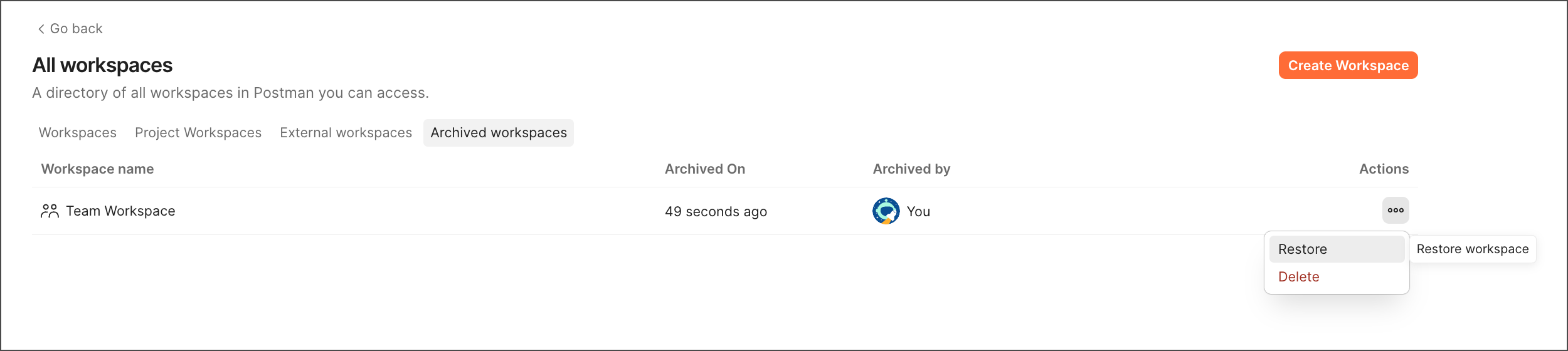 You can also permanently delete a workspace in the **Archived workspaces** tab.