***
title: Create a new API specification
updated: 2026-02-05T00:00:00.000Z
max-toc-depth: 2
----------------
[Create a specification](#create-a-new-specification) in Spec Hub to design and test your API's structure. You can create specifications in OpenAPI, AsyncAPI, protobuf, and GraphQL [format](/docs/design-apis/specifications/overview#supported-specification-formats), then [share your specification with collaborators](#share-a-specification).
You can also [import a specification](/docs/design-apis/specifications/import-a-specification/) into Spec Hub.
## Show specifications in the sidebar
By default, specifications aren't visible in the Postman sidebar. You can change this in your workspace settings.
1. Select the name of the current workspace in the sidebar, then click the **Settings** tab in the workbench.
2. Under **Configure sidebar**, turn on the toggle next to  **Specs**.
3. Click **Specs** in the sidebar to view and work with specifications.
## Create a new specification
You can create OpenAPI, AsyncAPI, protobuf, and GraphQL specifications in Spec Hub. You can also [import an existing specification](/docs/design-apis/specifications/import-a-specification/) into Postman.
1. Click **Specs** in the sidebar.
2. Click
**Specs**.
3. Click **Specs** in the sidebar to view and work with specifications.
## Create a new specification
You can create OpenAPI, AsyncAPI, protobuf, and GraphQL specifications in Spec Hub. You can also [import an existing specification](/docs/design-apis/specifications/import-a-specification/) into Postman.
1. Click **Specs** in the sidebar.
2. Click  **Create new specification** and select the type of specification you want to create. Postman creates a new specification with boilerplate content.
3. To rename your specification, click
**Create new specification** and select the type of specification you want to create. Postman creates a new specification with boilerplate content.
3. To rename your specification, click  **View more actions** next to the specification in the sidebar and select **Rename**. Type a new name and press **Return** or **Enter**.
4. (Optional) Select the filename in the workbench, enter a new name, and press **Return** or **Enter**.
5. Edit or replace the content in the specification as needed for your API. Learn more about [editing your specification](/docs/design-apis/specifications/edit-a-specification/).
Your [Postman plan](https://www.postman.com/pricing/) gives you a limited number of specifications in your team's internal workspaces. Learn more about [resource usage in Postman](/docs/billing/resource-usage/#specifications).
You can't change the specification's type after creating a specification. Create a new specification instead.
## Share a specification
You can share a specification with collaborators. Click **Specs** in the sidebar and select a specification. Then click
**View more actions** next to the specification in the sidebar and select **Rename**. Type a new name and press **Return** or **Enter**.
4. (Optional) Select the filename in the workbench, enter a new name, and press **Return** or **Enter**.
5. Edit or replace the content in the specification as needed for your API. Learn more about [editing your specification](/docs/design-apis/specifications/edit-a-specification/).
Your [Postman plan](https://www.postman.com/pricing/) gives you a limited number of specifications in your team's internal workspaces. Learn more about [resource usage in Postman](/docs/billing/resource-usage/#specifications).
You can't change the specification's type after creating a specification. Create a new specification instead.
## Share a specification
You can share a specification with collaborators. Click **Specs** in the sidebar and select a specification. Then click  **Copy link** in the workbench.
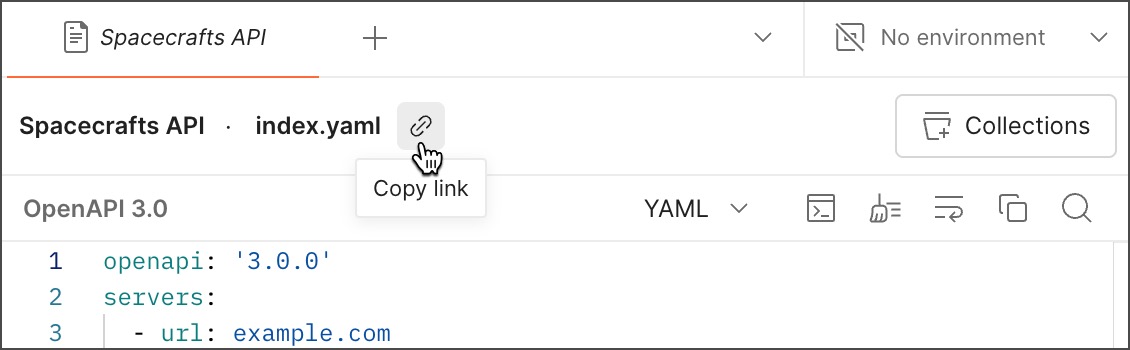
For more details about sharing elements, see [Share your work in Postman](/docs/collaborating-in-postman/sharing/).
## Rename a specification
1. Click **Specs** in the sidebar.
2. Next to your specification, select **View more actions > Rename**.
3. Enter a new name for your specification.
4. Press **Return** or **Enter**.
## Delete a specification
1. Click **Specs** in the sidebar.
2. Next to your specification, select **View more actions > Delete**.
3. Click **Delete** to confirm.
## Comment on a specification
You can add one or more [comments](/docs/collaborating-in-postman/comments/) to a specification in Spec Hub. Use comments to discuss your specifications with collaborators in Postman, keeping the conversation in context and available to other stakeholders.
To add a comment to a specification, do the following:
1. Click **Specs** in the sidebar, then select the specification that you want to comment on.
2. Click
**Copy link** in the workbench.

For more details about sharing elements, see [Share your work in Postman](/docs/collaborating-in-postman/sharing/).
## Rename a specification
1. Click **Specs** in the sidebar.
2. Next to your specification, select **View more actions > Rename**.
3. Enter a new name for your specification.
4. Press **Return** or **Enter**.
## Delete a specification
1. Click **Specs** in the sidebar.
2. Next to your specification, select **View more actions > Delete**.
3. Click **Delete** to confirm.
## Comment on a specification
You can add one or more [comments](/docs/collaborating-in-postman/comments/) to a specification in Spec Hub. Use comments to discuss your specifications with collaborators in Postman, keeping the conversation in context and available to other stakeholders.
To add a comment to a specification, do the following:
1. Click **Specs** in the sidebar, then select the specification that you want to comment on.
2. Click  **Comments** in the right sidebar.
3. Enter your comment and click **Comment**.
You can also add comments to collections you've added to your API and to requests and folders in that collection. Learn more about [commenting on a collection](/docs/collaborating-in-postman/comments/#global-comments).
**Comments** in the right sidebar.
3. Enter your comment and click **Comment**.
You can also add comments to collections you've added to your API and to requests and folders in that collection. Learn more about [commenting on a collection](/docs/collaborating-in-postman/comments/#global-comments).