***
title: Integrate Postman with Bitbucket
updated: 2025-09-09T00:00:00.000Z
slug: docs/integrations/available-integrations/bitbucket
max-toc-depth: 2
----------------
You can back up your Postman Collections to your Bitbucket repository. Once the integration is configured, any changes to your collection in Postman also appear in your Bitbucket repository.
## API sync with Bitbucket
You can connect a Bitbucket repository to an API in the API Builder. Once connected, you can sync your API's definition and associated collections between Postman and Bitbucket. You can switch branches, pull changes from the repository, and push changes to the repository, all from within Postman. To learn more about syncing your API with Bitbucket, see [API version control overview](/docs/design-apis/api-builder/versioning-an-api/overview/).
## Backing up collections to Bitbucket
To back up your collections to a Bitbucket repository, do the following:
1. From the **[Home](https://go.postman.co/home)** page, click **[Integrations](https://go.postman.co/integrations)**.
2. Click **[Browse All Integrations](https://go.postman.co/integrations/browse?category=all)**.
3. Search for and select **Bitbucket**.
4. Next to **Backup a collection**, click **Add Integration**.

5. Enter your Bitbucket authentication and click **Authenticate and Proceed**.
API tokens are the long term replacement for App passwords. Learn [how to create an API token in Bitbucket](https://support.atlassian.com/bitbucket-cloud/docs/api-tokens/). Learn more about [Bitbucket's transition to API tokens](https://www.atlassian.com/blog/bitbucket/bitbucket-cloud-transitions-to-api-tokens-enhancing-security-with-app-password-deprecation).
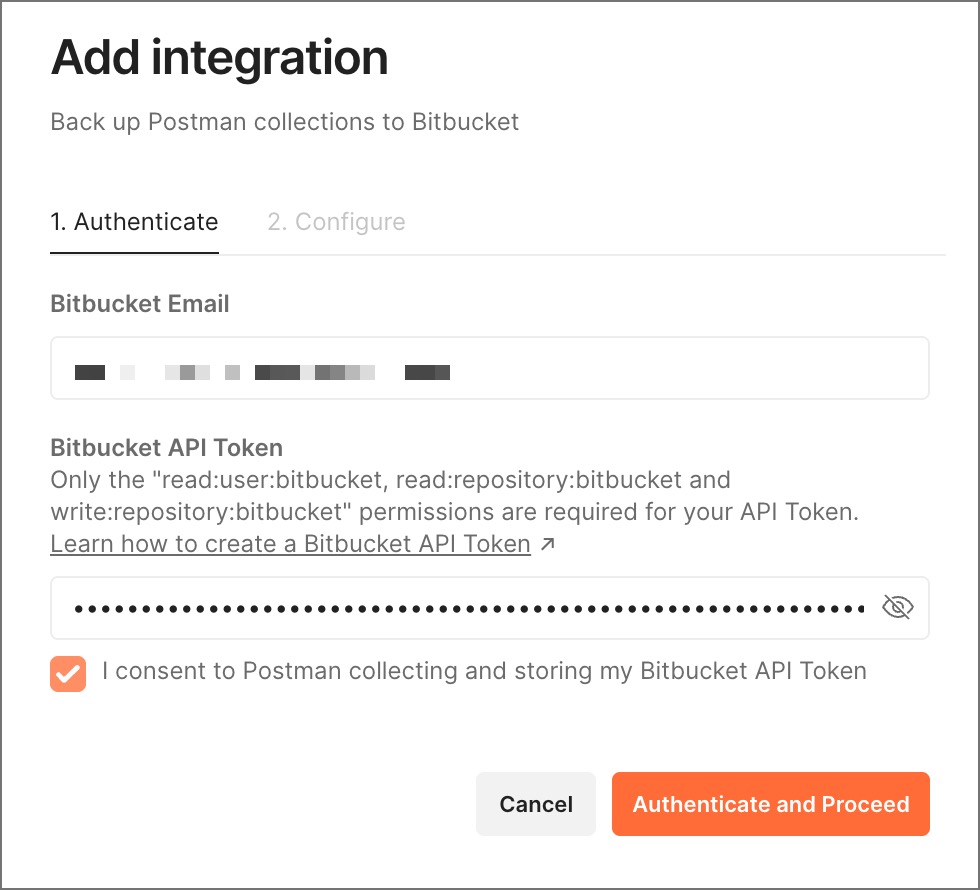 6. Select your collection to back up, the repository you'd like to back it up to, and choose the directory, filename, and branch. Select **Add Integration**.
 Postman often checks your collection for changes. If Postman identifies changes when it checks your collection, the changes automatically commit to your repository in JSON format.
To view your collections in Bitbucket, go to your [Bitbucket dashboard](https://bitbucket.org/dashboard/overview) > **Repositories**. Select your repository, then click **Commits**.

You can click a commit to view your stored collection in JSON format.
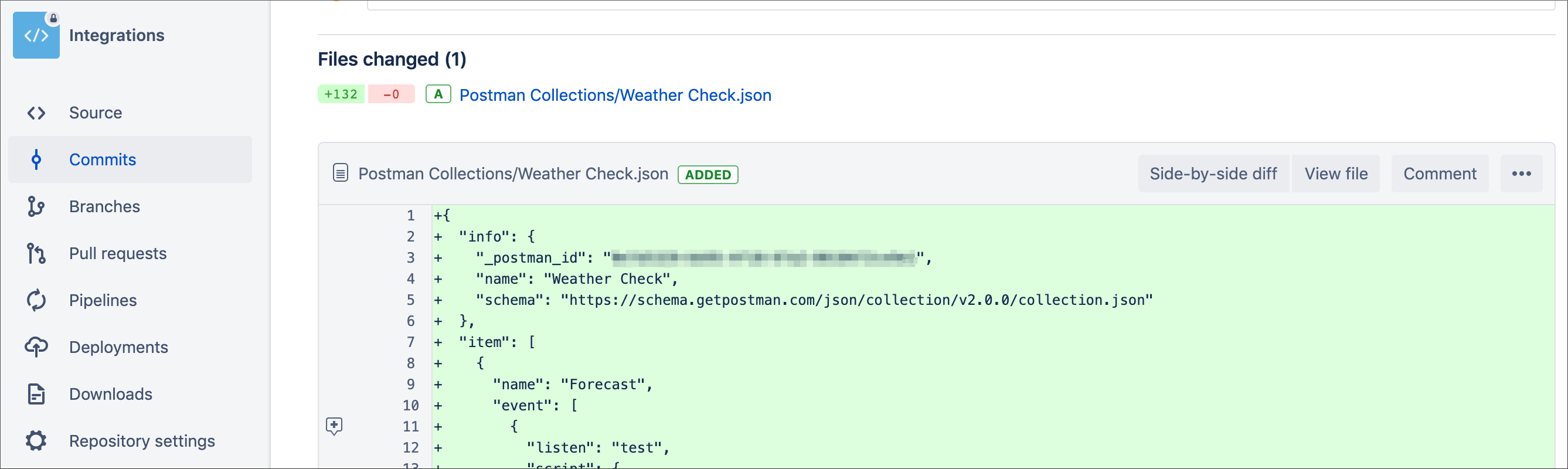
**You can view your configured integrations on the [Browse Integrations](https://go.postman.co/integrations/browse) page.** You can also view integrations that have been configured for a collection by opening the collection and clicking the information icon
Postman often checks your collection for changes. If Postman identifies changes when it checks your collection, the changes automatically commit to your repository in JSON format.
To view your collections in Bitbucket, go to your [Bitbucket dashboard](https://bitbucket.org/dashboard/overview) > **Repositories**. Select your repository, then click **Commits**.

You can click a commit to view your stored collection in JSON format.

**You can view your configured integrations on the [Browse Integrations](https://go.postman.co/integrations/browse) page.** You can also view integrations that have been configured for a collection by opening the collection and clicking the information icon  in the right sidebar. Learn more about [viewing or editing integrations](/docs/integrations/intro-integrations/#view-or-edit-integrations).