***
title: Loops for polling
updated: 2025-10-03T00:00:00.000Z
topictype: procedure
slug: docs/postman-flows/build-flows/structure/loops/loops-polling
max-toc-depth: 2
----------------
You can use Postman Flows to build a "while do" loop that polls an API for new values until a condition is satisfied.
Like the previous topic, [Loops for pagination](/docs/postman-flows/build-flows/structure/loops/loops-pagination/), this topic describes a design pattern that allows you break out of a loop:
* Use an **HTTP Request** block to obtain a value from the Postman Echo API – that is, to poll the API.
* Use a **Condition** block to test whether the value satisfies a condition. If the test returns `false`, iterate: return to the beginning of the loop and poll the API again. If the test returns `true`, break out of the loop and stop.
As long as the loop keeps polling, you know that the condition hasn't been satisfied yet. In a sense, this enables your flow to manipulate state across multiple iterations of the loop.
## Build a loop for polling
Here's how the finished loop will look:
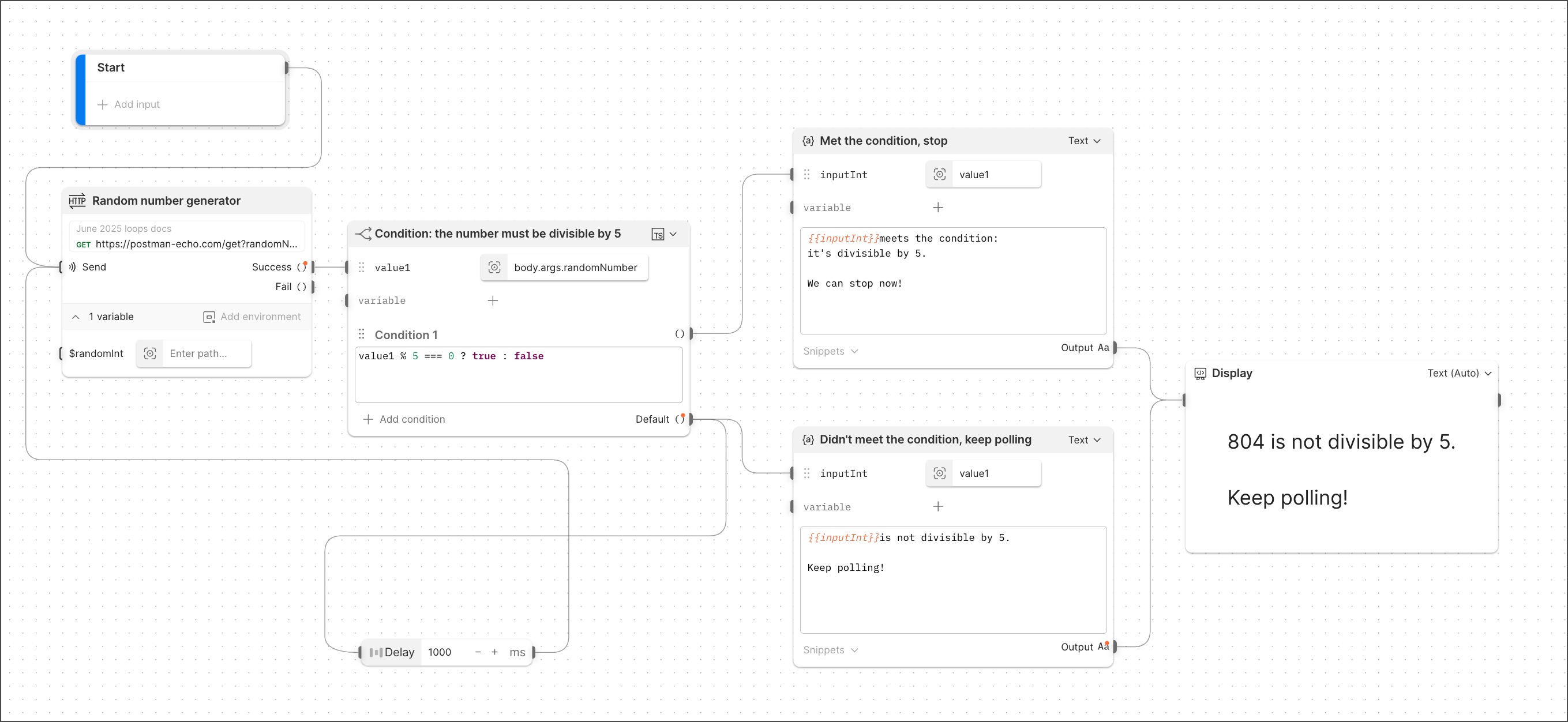 Before building the flow, create an HTTP GET request in a collection of your choice. Configure the request with the following URL:
```javascript
https://postman-echo.com/get?randomNumber={{$randomInt}}
```
Rename the request "Random number generator" and click **Save**.
Create a new flow.
### Construct the loop
In this section you'll add blocks to build a loop, including a **Condition** block to determine whether to continue iterating or stop.
1. Create an **HTTP Request** block, choosing the "Random number generator" HTTP request you created above. This renames the block as **Random number generator**.
2. Connect the output of the **Start** block to the **Send** input of the **Random number generator** block.
3. Connect a **Condition** block to the **Random number generator** block's **Success** output and rename it "Condition: the number must be divisible by 5". In the **value1** input's inline **Select** block, enter the path `body.args.randomNumber`.
4. Paste the following expression into the TypeScript window:
```javascript
value1 % 5 === 0 ? true : false
```
When `value1` is divisible by 5, the expression returns `true` and the loop terminates. Otherwise the expression returns `false` and the flow iterates again, polling the API for a new value.
5. Connect a **Delay** block to the `Default` output of the **Condition: the number must be divisible by 5** block and set its value to 1000 milliseconds.
6. Connect the **Delay** block's output to the `Send` input of the **Random number generator** block. Note that this connection loops back to the beginning, making the flow a true loop in form, not only in function.
### Add blocks to display status
The blocks you add in this section will enable you to follow the loop's action throughout its lifecycle.
1. Connect a **Template** block to the `Condition 1` output of the **Random number generator** block and rename it **Met the condition, stop**. Rename `key` as `inputInt`. In the inline **Select** block, click `Enter path...` and select `value1`. Paste the following expression into the text window:
```javascript
{{inputInt}} meets the condition:
it's divisible by 5.
We can stop now!
```
2. Connect a **Template** block to the `Default` output of the **Random number generator** block and rename it **Didn't meet the condition, keep polling**. Rename `key` as `inputInt`. In the inline **Select** block, click `Enter path...` and select `value1`. Paste the following expression into the text window:
```javascript
{{inputInt}} is not divisible by 5.
Keep polling!
```
3. Connect a **Display** block to both the **Met the condition, stop** and the **Didn't meet the condition, keep polling** block. From
Before building the flow, create an HTTP GET request in a collection of your choice. Configure the request with the following URL:
```javascript
https://postman-echo.com/get?randomNumber={{$randomInt}}
```
Rename the request "Random number generator" and click **Save**.
Create a new flow.
### Construct the loop
In this section you'll add blocks to build a loop, including a **Condition** block to determine whether to continue iterating or stop.
1. Create an **HTTP Request** block, choosing the "Random number generator" HTTP request you created above. This renames the block as **Random number generator**.
2. Connect the output of the **Start** block to the **Send** input of the **Random number generator** block.
3. Connect a **Condition** block to the **Random number generator** block's **Success** output and rename it "Condition: the number must be divisible by 5". In the **value1** input's inline **Select** block, enter the path `body.args.randomNumber`.
4. Paste the following expression into the TypeScript window:
```javascript
value1 % 5 === 0 ? true : false
```
When `value1` is divisible by 5, the expression returns `true` and the loop terminates. Otherwise the expression returns `false` and the flow iterates again, polling the API for a new value.
5. Connect a **Delay** block to the `Default` output of the **Condition: the number must be divisible by 5** block and set its value to 1000 milliseconds.
6. Connect the **Delay** block's output to the `Send` input of the **Random number generator** block. Note that this connection loops back to the beginning, making the flow a true loop in form, not only in function.
### Add blocks to display status
The blocks you add in this section will enable you to follow the loop's action throughout its lifecycle.
1. Connect a **Template** block to the `Condition 1` output of the **Random number generator** block and rename it **Met the condition, stop**. Rename `key` as `inputInt`. In the inline **Select** block, click `Enter path...` and select `value1`. Paste the following expression into the text window:
```javascript
{{inputInt}} meets the condition:
it's divisible by 5.
We can stop now!
```
2. Connect a **Template** block to the `Default` output of the **Random number generator** block and rename it **Didn't meet the condition, keep polling**. Rename `key` as `inputInt`. In the inline **Select** block, click `Enter path...` and select `value1`. Paste the following expression into the text window:
```javascript
{{inputInt}} is not divisible by 5.
Keep polling!
```
3. Connect a **Display** block to both the **Met the condition, stop** and the **Didn't meet the condition, keep polling** block. From  **Additional Settings**, select **Text size > Large**.
Run the flow. You'll see each block activate in sequence and the loop iterate until the API it's polling produces a number that's divisible by 5. At that point, the condition you specified is satisfied and the loop terminates.
**Additional Settings**, select **Text size > Large**.
Run the flow. You'll see each block activate in sequence and the loop iterate until the API it's polling produces a number that's divisible by 5. At that point, the condition you specified is satisfied and the loop terminates.