***
title: Make a GraphQL call with an HTTP request
updated: 2026-02-11T00:00:00.000Z
max-toc-depth: 2
----------------
Postman's [GraphQL client](/docs/sending-requests/graphql/graphql-overview/) is tailored for making GraphQL requests, but you can also create GraphQL requests using Postman's [HTTP request interface](/docs/sending-requests/create-requests/request-basics/). The HTTP request interface might be better for some use cases, like working with legacy systems or projects that include both GraphQL and non-GraphQL APIs.
## Use Postman's HTTP request for GraphQL
Postman has built-in support for [sending GraphQL queries in the request body](#send-graphql-queries-in-the-http-request-body), [using GraphQL variables](#use-graphql-variables), and [introspection and importing GraphQL schemas](#import-graphql-schemas).
### Send GraphQL queries in the HTTP request body
1. Click **New > HTTP** and enter a GraphQL endpoint URL in the URL box.
2. Select **POST** from the request method dropdown list.
3. Under the **Body** tab, select the **GraphQL** body type.
4. Enter your GraphQL query in the **Query** editor. The editor enables you to write and edit queries and variables separately.
5. Click **Send**.
### Use GraphQL variables
1. Enter your GraphQL variables in the **GraphQL variables** editor.
2. In the **Query** editor, declare the GraphQL variable in your query. For more information on how to use GraphQL variables, see the [GraphQL variables documentation](https://graphql.org/learn/queries/#variables).
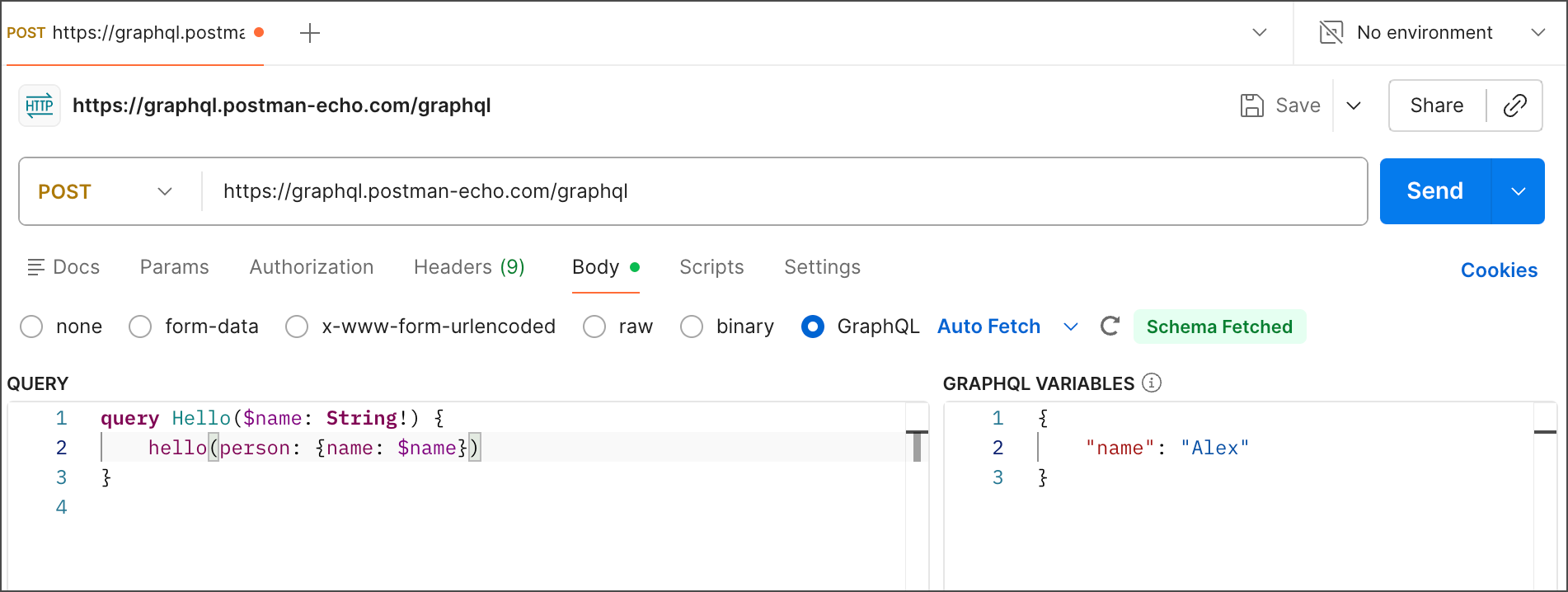
You can also [use Postman variables](/docs/sending-requests/variables/variables/) as data inputs for GraphQL variables using `{{variable}}` syntax.
### Import GraphQL schemas
To enable autocompletion while writing queries, your request needs a GraphQL schema. When you enter a GraphQL endpoint URL in the URL box, Postman automatically fetches the GraphQL schema using introspection. When Postman successfully auto-fetches a schema, a notification appears next to the schema selection list. If your schema has changed, click  **Refresh** to pull in the changes.
You also have the option to manually import a schema into your request. After creating or importing a GraphQL API into your workspace, you can use that API's schema for your request instead of the auto-fetched schema.
To import a GraphQL schema into your request manually, do the following:
1. [Create](/docs/design-apis/specifications/create-a-specification/) or [import](/docs/design-apis/specifications/import-a-specification/) a GraphQL API in your workspace.
2. Click **New > HTTP** and enter a GraphQL endpoint URL in the URL box.
3. Select **POST** from the request method dropdown list.
4. Under the **Body** tab, select the **GraphQL** body type.
5. Click
**Refresh** to pull in the changes.
You also have the option to manually import a schema into your request. After creating or importing a GraphQL API into your workspace, you can use that API's schema for your request instead of the auto-fetched schema.
To import a GraphQL schema into your request manually, do the following:
1. [Create](/docs/design-apis/specifications/create-a-specification/) or [import](/docs/design-apis/specifications/import-a-specification/) a GraphQL API in your workspace.
2. Click **New > HTTP** and enter a GraphQL endpoint URL in the URL box.
3. Select **POST** from the request method dropdown list.
4. Under the **Body** tab, select the **GraphQL** body type.
5. Click  next to **Auto Fetch** to open the schema selection dropdown list.
6. Select your schema from the dropdown list.
You may need to refresh by clicking **Refresh**.
When you write your query, Postman suggests autocomplete options from the data in the selected GraphQL schema.
## Use JSON in the request body
1. Open a new request tab in Postman and enter your GraphQL endpoint URL in the address field.
2. Select **POST** from the request method dropdown list.
3. Under the **Headers** tab, enter the `application/graphql` value for the `Content-type` key.
4. Under the **Body** tab, select the **raw** body type. Choose **JSON** from the format dropdown list.
5. Construct your query in the request body using proper JSON formatting.
## Use a GraphQL content type header
1. Click **New > HTTP** and enter a GraphQL endpoint URL in the URL box.
2. Select **POST** from the request method dropdown list.
3. Under the **Body** tab, select the **GraphQL** body type.
4. Under the **Headers** tab, enter the `application/graphql` value for the `Content-type` key.
5. Under the **Body** tab, select the **raw** body type. Choose **Text** from the format dropdown list.
6. Build your query in the request body using standard GraphQL formatting.
## Import the query as a cURL request
1. Click **Import**.
2. Paste your cURL command in the request bar. Your cURL command must contain a GraphQL endpoint URL and must specify the `POST` request method. Postman opens the request in a new tab with the specified GraphQL endpoint URL and the `POST` request method selected.
next to **Auto Fetch** to open the schema selection dropdown list.
6. Select your schema from the dropdown list.
You may need to refresh by clicking **Refresh**.
When you write your query, Postman suggests autocomplete options from the data in the selected GraphQL schema.
## Use JSON in the request body
1. Open a new request tab in Postman and enter your GraphQL endpoint URL in the address field.
2. Select **POST** from the request method dropdown list.
3. Under the **Headers** tab, enter the `application/graphql` value for the `Content-type` key.
4. Under the **Body** tab, select the **raw** body type. Choose **JSON** from the format dropdown list.
5. Construct your query in the request body using proper JSON formatting.
## Use a GraphQL content type header
1. Click **New > HTTP** and enter a GraphQL endpoint URL in the URL box.
2. Select **POST** from the request method dropdown list.
3. Under the **Body** tab, select the **GraphQL** body type.
4. Under the **Headers** tab, enter the `application/graphql` value for the `Content-type` key.
5. Under the **Body** tab, select the **raw** body type. Choose **Text** from the format dropdown list.
6. Build your query in the request body using standard GraphQL formatting.
## Import the query as a cURL request
1. Click **Import**.
2. Paste your cURL command in the request bar. Your cURL command must contain a GraphQL endpoint URL and must specify the `POST` request method. Postman opens the request in a new tab with the specified GraphQL endpoint URL and the `POST` request method selected.