***
title: Export and import vault secrets
updated: 2025-10-08T00:00:00.000Z
max-toc-depth: 2
----------------
Since vault secrets are only available locally, they aren't preserved when you sign out of Postman, switch between the Postman desktop and web apps, or switch to a different machine. [Export your vault secrets](#export-vault-secrets) from your Postman Vault to preserve them in a JSON file for later, either in encrypted or plaintext format. Then [import your vault secrets](#import-vault-secrets) back in to your Postman Vault after you've signed in or switched to a different Postman app or machine.
As an Admin on a Team or Enterprise plan, you can [manage whether your teammates can export vault secrets](/docs/administration/managing-your-team/manage-team-workspaces/#manage-exporting-vault-secrets).
## Export vault secrets
1. Open your Postman Vault.
2. Click  **View more actions** in the upper right of your Postman Vault, then select **Export**.
3. Choose how you'd like to download your vault secrets:
* **Encrypted** (recommended) - Download your vault secrets in encrypted format. Set a password with a minimum of 12 alphanumeric characters. Postman requires the password when importing the JSON file into Postman.
* **Unencrypted** - Download your vault secrets in plaintext format.
**View more actions** in the upper right of your Postman Vault, then select **Export**.
3. Choose how you'd like to download your vault secrets:
* **Encrypted** (recommended) - Download your vault secrets in encrypted format. Set a password with a minimum of 12 alphanumeric characters. Postman requires the password when importing the JSON file into Postman.
* **Unencrypted** - Download your vault secrets in plaintext format.
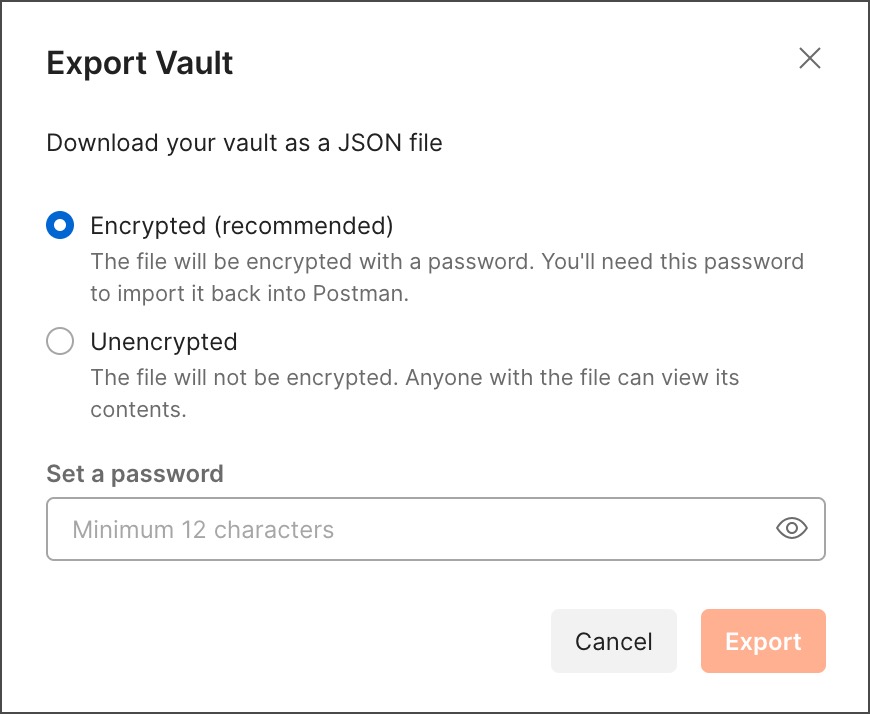 If you're on a Team or Enterprise plan, an Admin may have [restricted options for exporting your vault secrets](#manage-exporting-vault-secrets).
4. Click **Export** to download your vault secrets as a JSON file.
## Import vault secrets
You can import vault secrets into your Postman Vault using the JSON file you downloaded when [exporting your vault secrets](#export-vault-secrets).
To import vault secrets into your Postman Vault, do the following:
1. Open your Postman Vault.
2. Optionally, you can clear all of the vault secrets from your Postman Vault. Click **View more actions** in the upper right of your Postman Vault, select **Clear**, and click **Clear** to confirm.
3. Click **Import** in the sidebar.
4. Select or drag a file or folder, enter a link to a specification file, paste raw text, or import from a remote repository.
Vault secrets created with a [Postman Vault integration](/docs/sending-requests/postman-vault/postman-vault-integrations/) are only supported in the Postman desktop app. After importing your vault secrets, you'll need to [reauthenticate with your external vault](/docs/sending-requests/postman-vault/manage-postman-vault-integrations/#reauthenticate-with-an-external-vault) from the desktop app.
5. If you're importing vault secrets from an encrypted JSON file, enter your password.
6. Click **Import**.
7. Postman notifies you if you're importing duplicate vault secrets. You can take the following actions:
* Select the checkbox next to **Apply to all *number of vault secrets* conflicts** to apply the same decision (replace or keep) to multiple vault secrets you're importing.
* Click **Replace** to delete the existing vault secret with the same name and replace it with the new vault secret.
* Click **Keep** to keep the new and existing vault secrets with the same name. In your Postman Vault, the existing vault secret has a warning icon
If you're on a Team or Enterprise plan, an Admin may have [restricted options for exporting your vault secrets](#manage-exporting-vault-secrets).
4. Click **Export** to download your vault secrets as a JSON file.
## Import vault secrets
You can import vault secrets into your Postman Vault using the JSON file you downloaded when [exporting your vault secrets](#export-vault-secrets).
To import vault secrets into your Postman Vault, do the following:
1. Open your Postman Vault.
2. Optionally, you can clear all of the vault secrets from your Postman Vault. Click **View more actions** in the upper right of your Postman Vault, select **Clear**, and click **Clear** to confirm.
3. Click **Import** in the sidebar.
4. Select or drag a file or folder, enter a link to a specification file, paste raw text, or import from a remote repository.
Vault secrets created with a [Postman Vault integration](/docs/sending-requests/postman-vault/postman-vault-integrations/) are only supported in the Postman desktop app. After importing your vault secrets, you'll need to [reauthenticate with your external vault](/docs/sending-requests/postman-vault/manage-postman-vault-integrations/#reauthenticate-with-an-external-vault) from the desktop app.
5. If you're importing vault secrets from an encrypted JSON file, enter your password.
6. Click **Import**.
7. Postman notifies you if you're importing duplicate vault secrets. You can take the following actions:
* Select the checkbox next to **Apply to all *number of vault secrets* conflicts** to apply the same decision (replace or keep) to multiple vault secrets you're importing.
* Click **Replace** to delete the existing vault secret with the same name and replace it with the new vault secret.
* Click **Keep** to keep the new and existing vault secrets with the same name. In your Postman Vault, the existing vault secret has a warning icon  next to its name, indicating that it's being overwritten by the new vault secret.