> For clean Markdown content of this page, append .md to this URL. For the complete documentation index, see https://learning.postman.com/llms.txt. For full content including API reference and SDK examples, see https://learning.postman.com/llms-full.txt.
# View collection activity and elements with the Overview tab
A collection's **Overview** tab provides a summary of the collection's purpose, recent activity, and related elements. Collaborators can check this tab to view the collection's description, recent changes, pinned environments, monitors, mocks, and more.
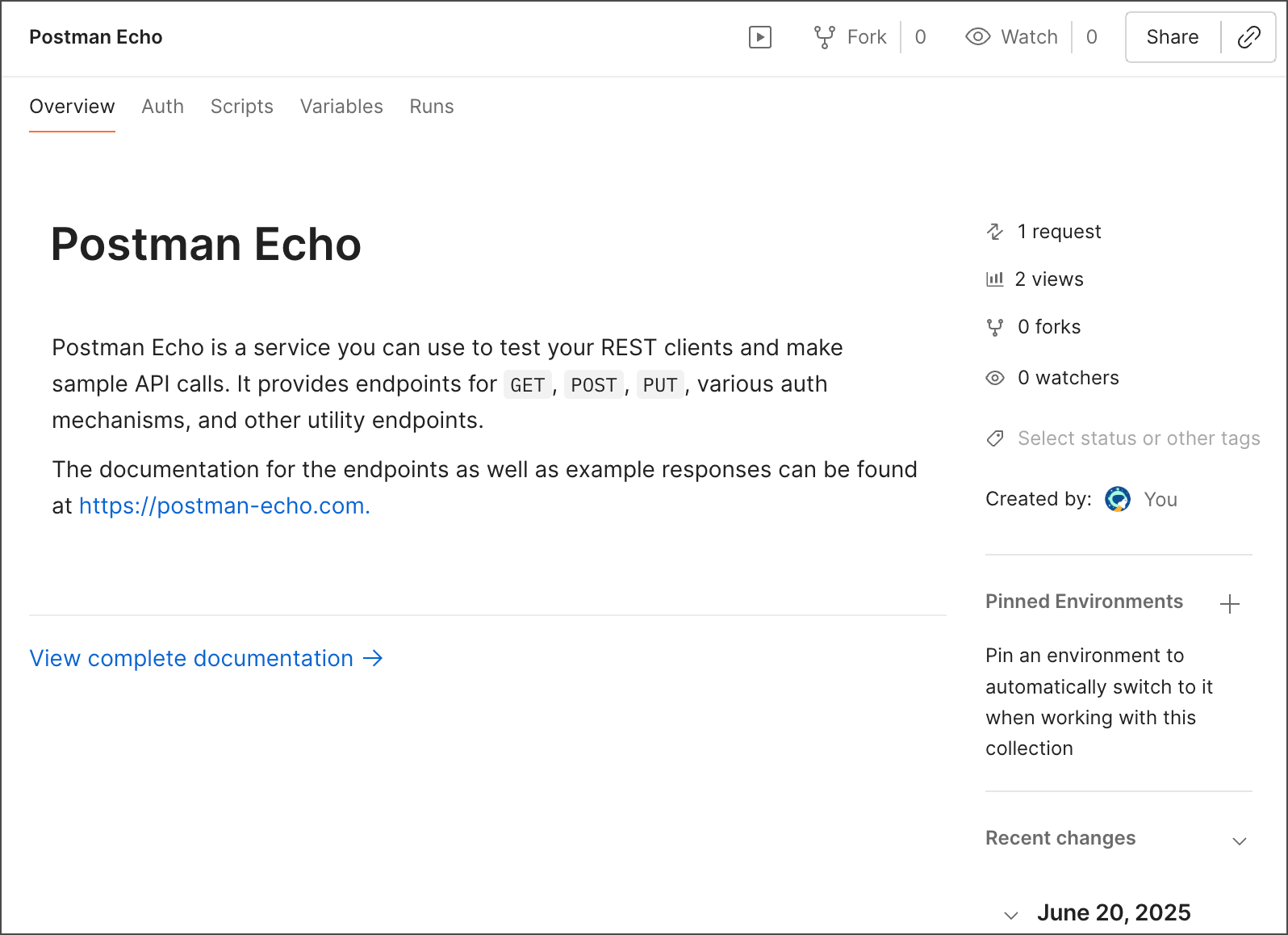 On the **Overview** tab you can view the following collection information:
* **Description** - Explains what the collection is and how it can be used. To learn more, see [Add descriptions to a collection](/docs/publishing-your-api/document-a-collection/#add-descriptions-to-a-collection).
* **View complete documentation** - Click to view all of the collection's [documentation](/docs/publishing-your-api/document-a-collection/).
* **Number of requests, views, forks, and watchers** - Shows how many requests the collection contains, how many views, how many collection [forks](/docs/collaborating-in-postman/using-version-control/forking-elements/) exist, and how many Postman users are watching the collection.
* **Created by** - Shows who created the collection.
* **Recent changes** - Lists the most recent changes to the collection. Click **View all changes** to view the complete [changelog](/docs/use/use-collections/manage-collections/#use-the-changelog).
* **Pinned Environments** - Shows the [pinned environments in the collection](/docs/use/send-requests/variables/pinned-environments/). Click
On the **Overview** tab you can view the following collection information:
* **Description** - Explains what the collection is and how it can be used. To learn more, see [Add descriptions to a collection](/docs/publishing-your-api/document-a-collection/#add-descriptions-to-a-collection).
* **View complete documentation** - Click to view all of the collection's [documentation](/docs/publishing-your-api/document-a-collection/).
* **Number of requests, views, forks, and watchers** - Shows how many requests the collection contains, how many views, how many collection [forks](/docs/collaborating-in-postman/using-version-control/forking-elements/) exist, and how many Postman users are watching the collection.
* **Created by** - Shows who created the collection.
* **Recent changes** - Lists the most recent changes to the collection. Click **View all changes** to view the complete [changelog](/docs/use/use-collections/manage-collections/#use-the-changelog).
* **Pinned Environments** - Shows the [pinned environments in the collection](/docs/use/send-requests/variables/pinned-environments/). Click  to open the environment dropdown list, where you can pin other environments to the collection. You can also select
  **View more actions** next to an environment to set it as the default pinned environment, set it as the active environment, or unpin it.
* **Publish to API Network** - To [add your collection](/docs/collaborating-in-postman/private-api-network/private-network-requests/) to your team's Private API Network, select **Publish to API Network > Request to Publish**.
For Postman users with the Admin role, this will be **Publish Collection** instead of **Request to Publish**.
* **Specification** - Click to display the OpenAPI 3.0 specification you generated from the collection in Spec Hub. Click **Update** to update the generated specification if it isn't in sync with the collection. To learn more, see [Generate an API specification from your collection](/docs/design-apis/collections/generate-specifications/).
* **Monitors** - Click to display monitors created for the collection. Select a monitor from the list to open it. Click to [create a new monitor](/docs/monitoring-your-api/setting-up-monitor/).
* **Mocks** - Click to display any mock servers created for the collection. Select a mock server to open it. Click to [create a new mock server](/docs/design-apis/mock-apis/set-up-mock-servers/).
**View more actions** next to an environment to set it as the default pinned environment, set it as the active environment, or unpin it.
* **Publish to API Network** - To [add your collection](/docs/collaborating-in-postman/private-api-network/private-network-requests/) to your team's Private API Network, select **Publish to API Network > Request to Publish**.
For Postman users with the Admin role, this will be **Publish Collection** instead of **Request to Publish**.
* **Specification** - Click to display the OpenAPI 3.0 specification you generated from the collection in Spec Hub. Click **Update** to update the generated specification if it isn't in sync with the collection. To learn more, see [Generate an API specification from your collection](/docs/design-apis/collections/generate-specifications/).
* **Monitors** - Click to display monitors created for the collection. Select a monitor from the list to open it. Click to [create a new monitor](/docs/monitoring-your-api/setting-up-monitor/).
* **Mocks** - Click to display any mock servers created for the collection. Select a mock server to open it. Click to [create a new mock server](/docs/design-apis/mock-apis/set-up-mock-servers/).