For AI agents: a documentation index is available at the root level at /llms.txt and /llms-full.txt. Append /llms.txt to any URL for a page-level index, or .md for the markdown version of any page.
Postman
PricingEnterprise
Contact SalesSign InSign Up for Free
HomeDocs
HomeDocs
      • Overview
        • Overview
        • Create a WebSocket request
        • Create a Socket.IO request
        • Work with WebSocket messages
        • Listen to Socket.IO events
        • Use variables in WebSocket requests
        • Add details to a WebSocket request
        • Save WebSocket requests
        • Document WebSocket requests
        • Troubleshoot WebSocket requests
      • Webhooks
Postman API Platform

Product

  • Postman Overview
  • Enterprise
  • Spec Hub
  • Flows
  • Agent Mode
  • API Catalog
  • Fern
  • Postman CLI
  • Integrations
  • Workspaces
  • Plans and pricing

API Network

  • App Security
  • Artificial Intelligence
  • Communication
  • Data Analytics
  • Database
  • Developer Productivity
  • DevOps
  • Ecommerce
  • eSignature
  • Financial Services
  • Payments
  • Travel

Resources

  • Postman Docs
  • Academy
  • Community
  • Templates
  • Intergalactic
  • Videos
  • MCP Servers

Legal and Security

  • Legal Terms Hub
  • Terms of Service
  • Postman Product Terms
  • Security
  • Website Terms of Use

Company

  • About
  • Careers and culture
  • Contact us
  • Partner program
  • Customer stories
  • Student programs
  • Press and media
Twitter iconLinkedIn iconGithub iconYouTube iconInstagram iconDiscord icon
Download Postman
Privacy Policy

© 2026 Postman, Inc.

Send requestsWebSocket

Create a WebSocket Request

||View as Markdown|
Was this page helpful?
Previous

Send WebSocket requests with Postman

Next

Create a Socket.IO request

Built with

You can create a WebSocket request from the sidebar in Postman.

  1. Click New > WebSocket to open a raw WebSocket request in a new tab. You can also click New > Socket.IO to open a Socket.IO request in a new tab. (In the Postman desktop app, you can also press ⌘+N or Ctrl+N.)
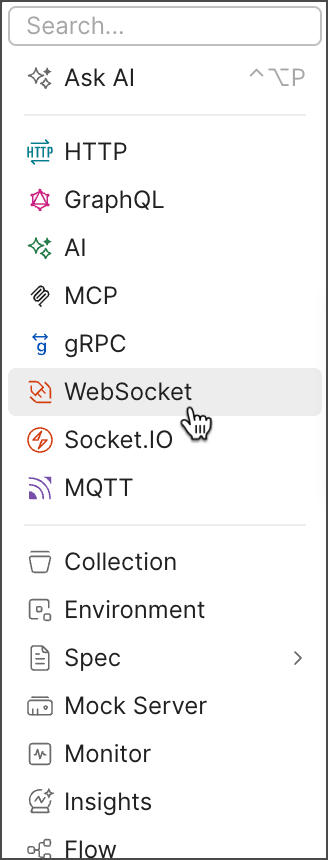
    New WebSocket request
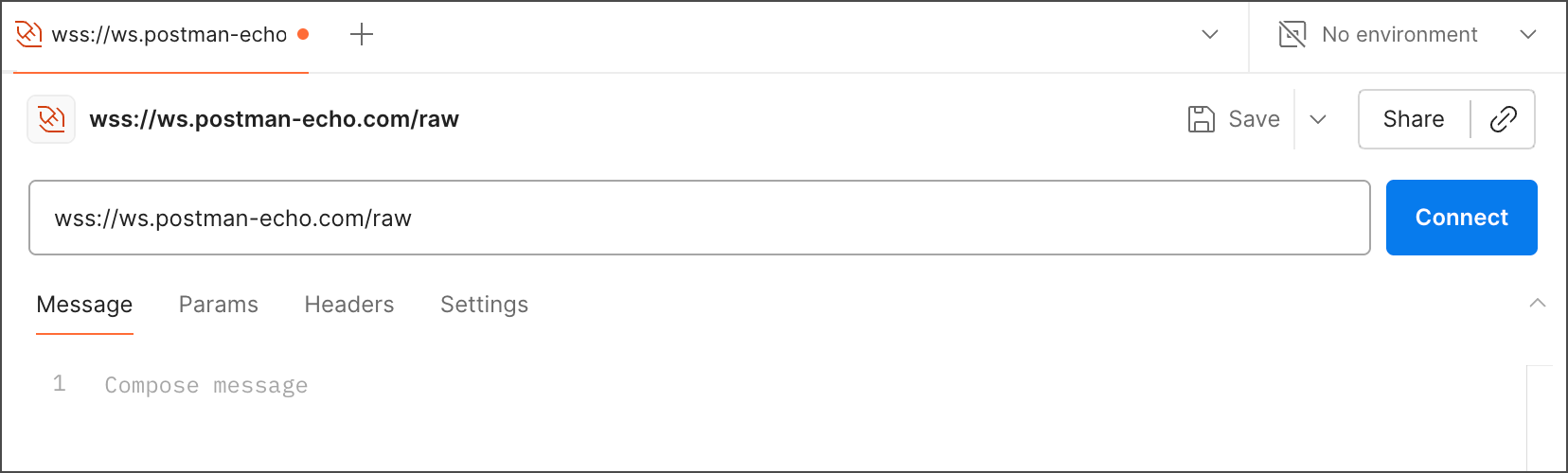
  2. Enter the WebSocket server URL. A WebSocket URL begins with ws:// or wss://.

    New WebSocket request
  3. Click Connect.

To disconnect your WebSocket request’s connection, click Disconnect.

If you’re using the Postman web app, consider using the Postman Desktop Agent for the best experience. See About the Postman Agent for more information.