Send your first API request
Postman’s API client enables you to create and send API requests, including HTTP, GraphQL, and gRPC requests. Using Postman, you can send a request to an endpoint, retrieve data from a data source, or test an API’s functionality. You don’t need to enter commands in a terminal or write any code. When you create a new request and click Send, the API response returns directly in Postman.
Send an API request
Make sure you’ve downloaded and installed the Postman desktop app. When you’re ready, open the Postman desktop app and send your first API request.
- Click
 Add in the workbench to open a new tab.
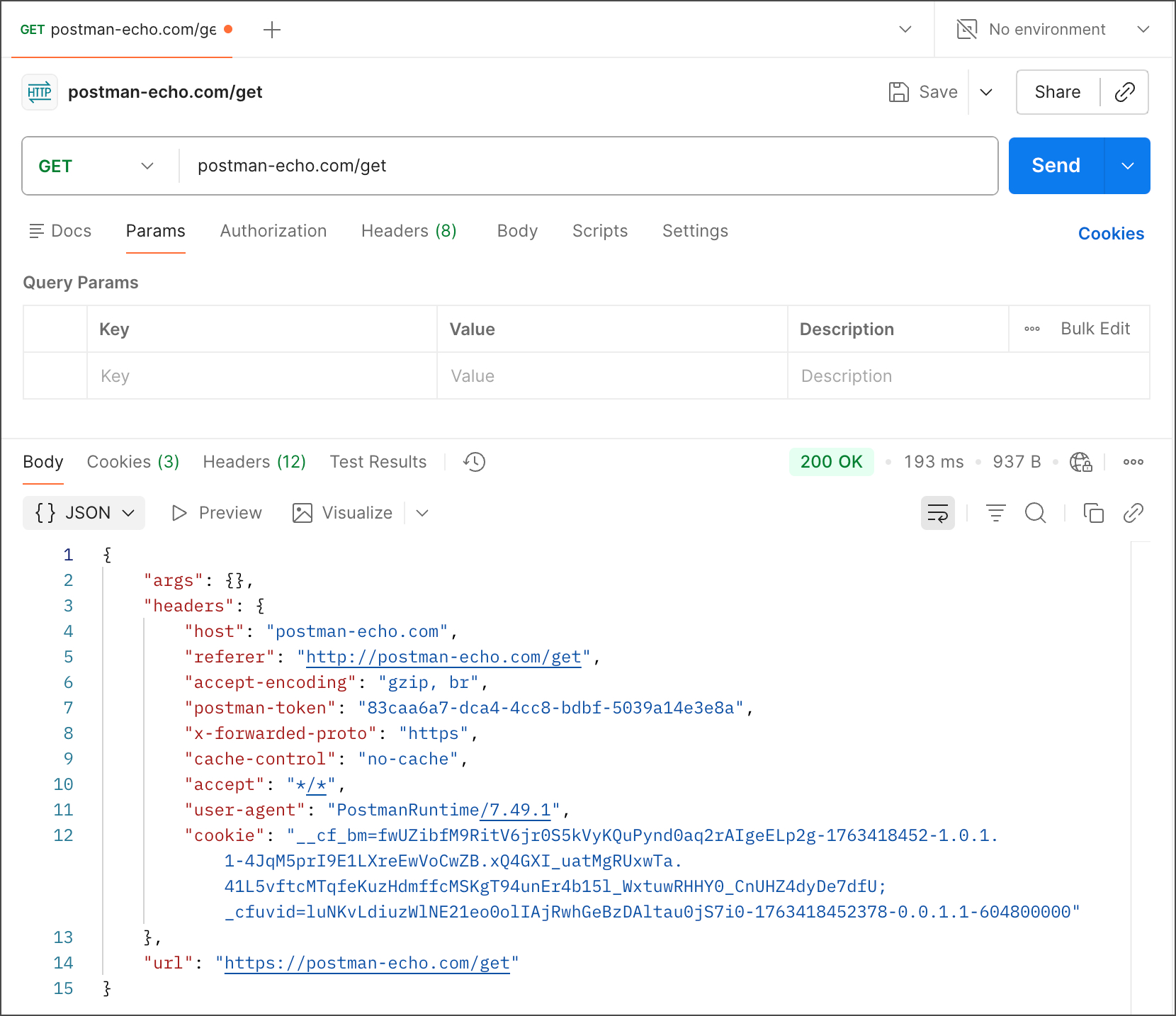
 - Enter “postman-echo.com/get” for the request URL.
- Click Send.
Postman displays the response data sent from the server in the lower pane.
How it works
In this example, Postman acts as the client application and communicates with an API server. Here’s what happened when you clicked Send:
- Postman sent a GET request to the Postman Echo API server located at
postman-echo.com. - The API server received the request, processed it, and returned a response to Postman.
- Postman received the response and displayed it in the Response pane.
You used Postman to send an API request and got a response from the API server.
Next steps
You’ve sent your first API request, and you’re ready to do more with Postman!
- Send more requests to the Postman Echo API, a handy tool you can use to test API requests in Postman. To learn more about using the Echo API, see the Postman Echo API documentation.
- When you’re ready to learn more about building and sending requests in Postman, see Create and send API requests in Postman.

Need help debugging? Connect with developers