
Create a count-based loop with the Repeat block
You can build a flow that loops over a count. For example, you can run a flow that loops over a count of three and generates a list of three random numbers.
This tutorial’s goal is to teach you how to set up and use count-based loops. To achieve this goal, you’ll build a flow that uses a loop to count to three.
Create a new flow
To create a new flow, do the following:
- Choose an existing workspace or create a new one.
- Click
 in the left sidebar and select
  Flow.
Flow.
When a flow is created, the canvas opens with a Start block. You won’t need to connect the Start block to any other blocks in this tutorial, but you can use it to trigger your flow in the future.
Add a Repeat block
The Repeat block lets you build a loop that iterates over a count. For example, to run a loop three times, set the count to three.
In the next step, you’ll use the Number block to define this count.
To add a Repeat block, do the following:
- Right-click the canvas, and search for “repeat”.
- Click
 Repeat.
A Collect block automatically appears on the canvas. You’ll connect it later.
Connect a Number block
When you connect two blocks, you connect one block’s input to another block’s output. Inputs are on the block’s left side and outputs are on its right side.
In this step, you’ll use the Number block to define the number of times you want to run your loop.
To connect a Number block, do the following:
- Hover over the Repeat block’s Count input port. The pointer changes to a crosshair.
- Drag the port from the Repeat block’s Count input port to the location where you want to place the Number block.
- Search for “number” and press Return or Enter to add
 Number from the list.
 - Enter a whole number. For example, if you want your loop to repeat three times, enter 3.
Connect an Evaluate block
Many programming languages start counting with an index value of zero (for example, 0, 1, 2).
In the following steps, you’ll use an Evaluate block to add one to the count to start counting with an index value of one (for example, 1, 2, 3).
To connect an Evaluate block, do the following:
-
Hover over the Repeat block’s output port. The pointer changes to a crosshair.
-
Drag the port to the location where you want to place the Evaluate block.
-
Select
 Evaluate from the list. If you want to search for the block, enter “Evaluate” in search.
 -
Rename the variable. For example, enter index.
-
Add the following to the code editor:
This code takes the index, which starts at zero, and adds one.
Alternatively, use the Flows Query Language (FQL) $now() function to timestamp the loop. This is another great way to conceptualize what happens when you run a loop.
Connect a Collect block
The Collect block saves multiple outputs to a list. In this step, your loop will run three times, output three values, and use this block to save these values to a list.
To connect a Collect block, do the following:
- Hover over the Evaluate block’s Result output port. The pointer changes to a crosshair.
- Drag the port to the location where you want to place the Collect block.
- Select
 Collect from the list. If you want to search for the block, enter “Collect” in search.
Connect a Display block
The Display block displays incoming data, such as the Collect block’s outgoing list.
To connect a Display block, do the following:
- Hover over the Collect block’s output port. The pointer changes to a crosshair.
- Drag the port to the location where you want to place the Display block.
- Select
 Display from the list. If you want to search for the block, enter “Display” in search.
To auto-arrange the blocks on the canvas, click  Auto-organize flow in the canvas toolbar.
Run the flow
From the canvas toolbar, click  Run.
Run.
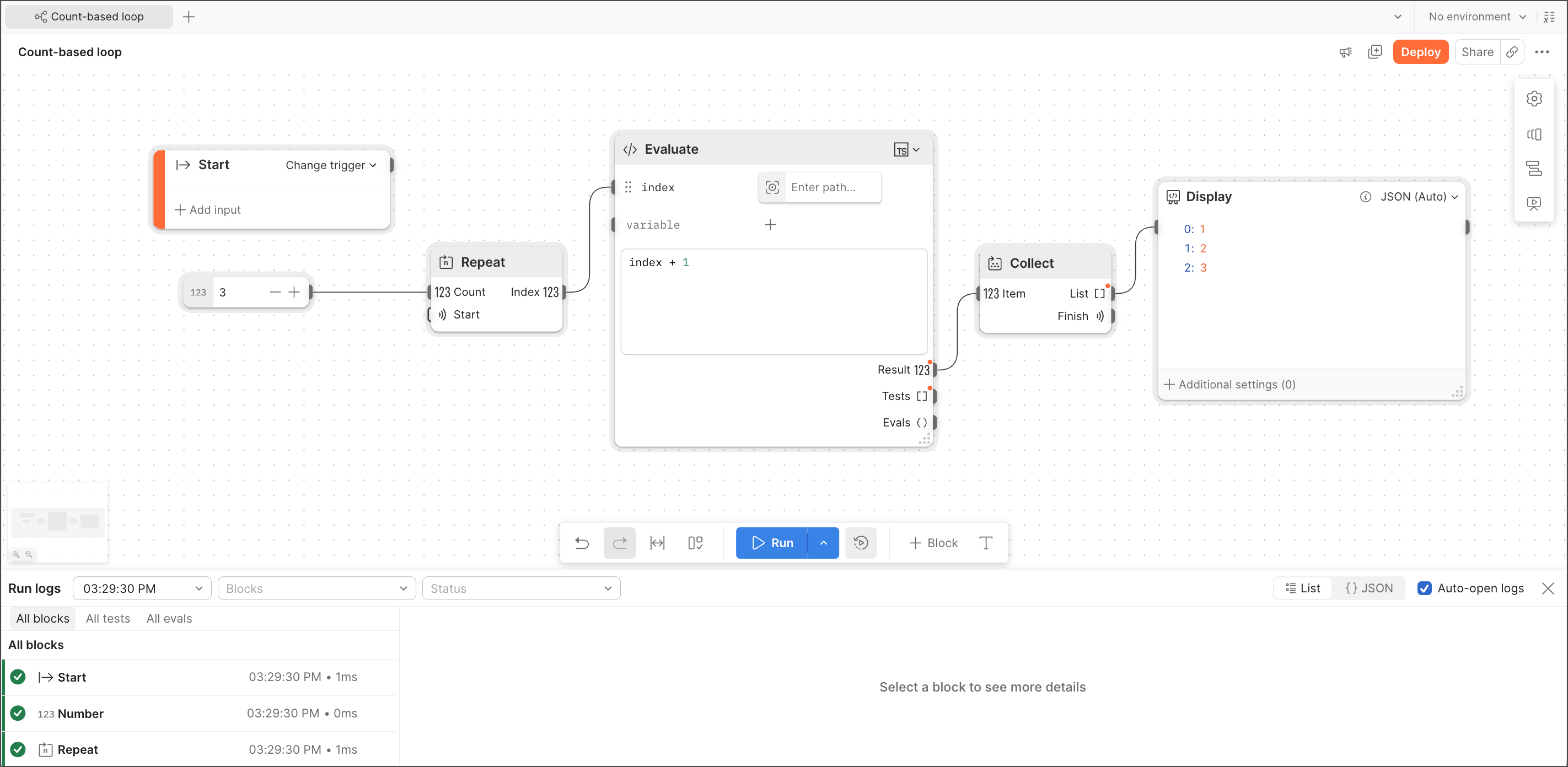
Congratulations! You created a count-based loop and displayed the result in a Display block.