Create a list-based loop with the For block
You can build a flow that loops over a list. For example, you can run a flow that loops over a list of email addresses and emails each person in the list.
This tutorial’s goal is to teach you how to set up and use list-based loops. To achieve this goal, you’ll build a flow that iterates over the first three letters of the alphabet.
Create a new flow
To create a new flow, do the following:
- Choose an existing workspace or create a new one.
- Click
 in the left sidebar and select
  Flow.
Flow.
When a flow is created, the canvas opens with a Start block. You won’t need to connect the Start block to any other blocks in this tutorial, but you can use it to trigger your flow in the future.
Add For and Collect blocks
With the For block, you can build a loop that iterates over a list. For example, if you want to run a loop that loops over a list of the alphabet, you connect the For block to such a list.
In the next step, you’ll use the List block to define this list.
To add a For block, do the following:
- Right-click the canvas, and search for “for”.
- Click
 For.
For.
A Collect block automatically appears on the canvas. You’ll connect it later.
Connect a List block
When you connect two blocks, you connect one block’s input to another block’s output. Inputs are on the block’s left side and outputs are on its right side.
In this step, you’ll use the List block to define the list you want your loop to iterate over.
To connect a List block, do the following:
-
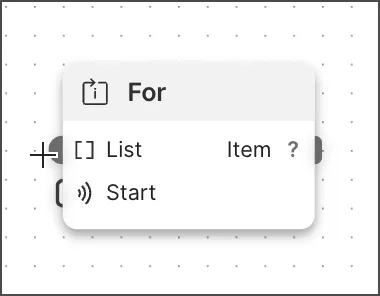
Hover over the For block’s List input port. The pointer changes to a crosshair.
-
Drag the port from the For block’s List input port to the location where you want to place the List block.
-
Search for “list” and press Return or Enter.
-
Click
 Add data blocks and select
  String. You can also enter “string” in the search to find it.
 -
Enter the string’s value. For example, if you want to iterate over the first three letters of the alphabet, enter “a”.
-
Repeat the previous two steps until you complete your list.
You can loop over any list. For example, you can get a list from an HTTP Request block’s response or use the Evaluate block to generate a list.
As an alternative, replace the List block with an Evaluate block, switch to TypeScript (upper-right corner), and add the following code to the code editor:
This code creates an empty list, adds the letter “a” to it, and loops over the code until it adds all 26 letters of the alphabet to the list.
Connect to the Collect block
The Collect block saves multiple outputs to a list. In this tutorial, your loop will run three times, output three values, and use this block to save these values to a list.
To connect the Collect block, do the following:
- Hover over the For block’s output port. The pointer changes to a crosshair.
- Drag the For block’s output port to the Collect block’s input port.
Connect a Display block
The Display block displays incoming data, such as the Collect block’s outgoing list.
To connect a Display block, do the following:
- Hover over the Collect block’s List output port. The pointer changes to a crosshair.
- Decide where on the canvas you want to place the Display block and drag the port to that location.
- Select
 Display from the list. If you want to search for the block, enter “display” in search.
To auto-arrange the blocks on the canvas, click  Auto-organize flow in the canvas toolbar.
Run the flow
From the canvas toolbar, click  Run.
Run.
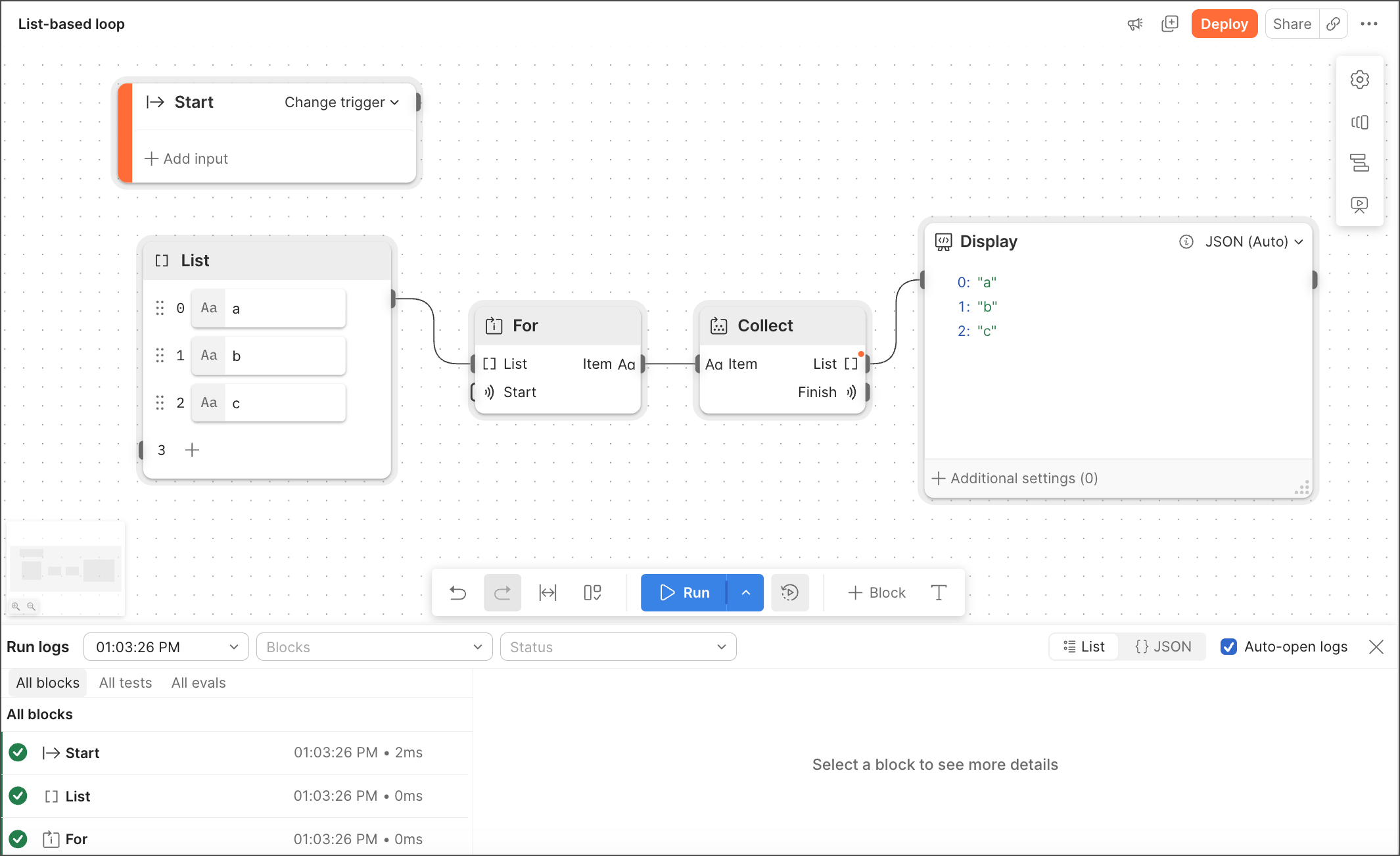
Congratulations! You created a list-based loop and displayed the result in a Display block.