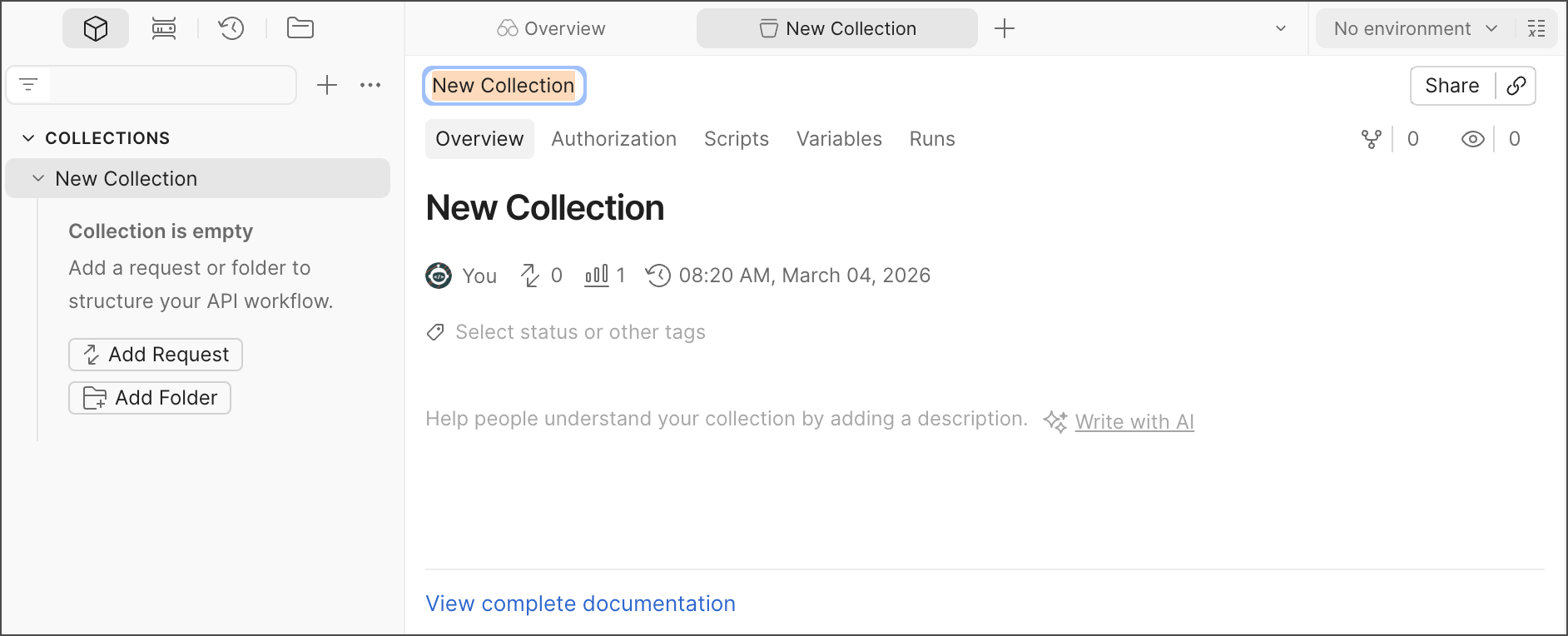
Create a Postman Collection to save and share your favorite requests, to group requests you use for testing an API, or to document your API. You can create a new collection from scratch, or jump-start your collection with a template.
Once created, you can customize your collection by adding a name and description. You can also specify authorization details and add scripts and variables.
Create a new collection
To create a collection, you must be signed in to your Postman account.
You can create a new collection in the following ways:
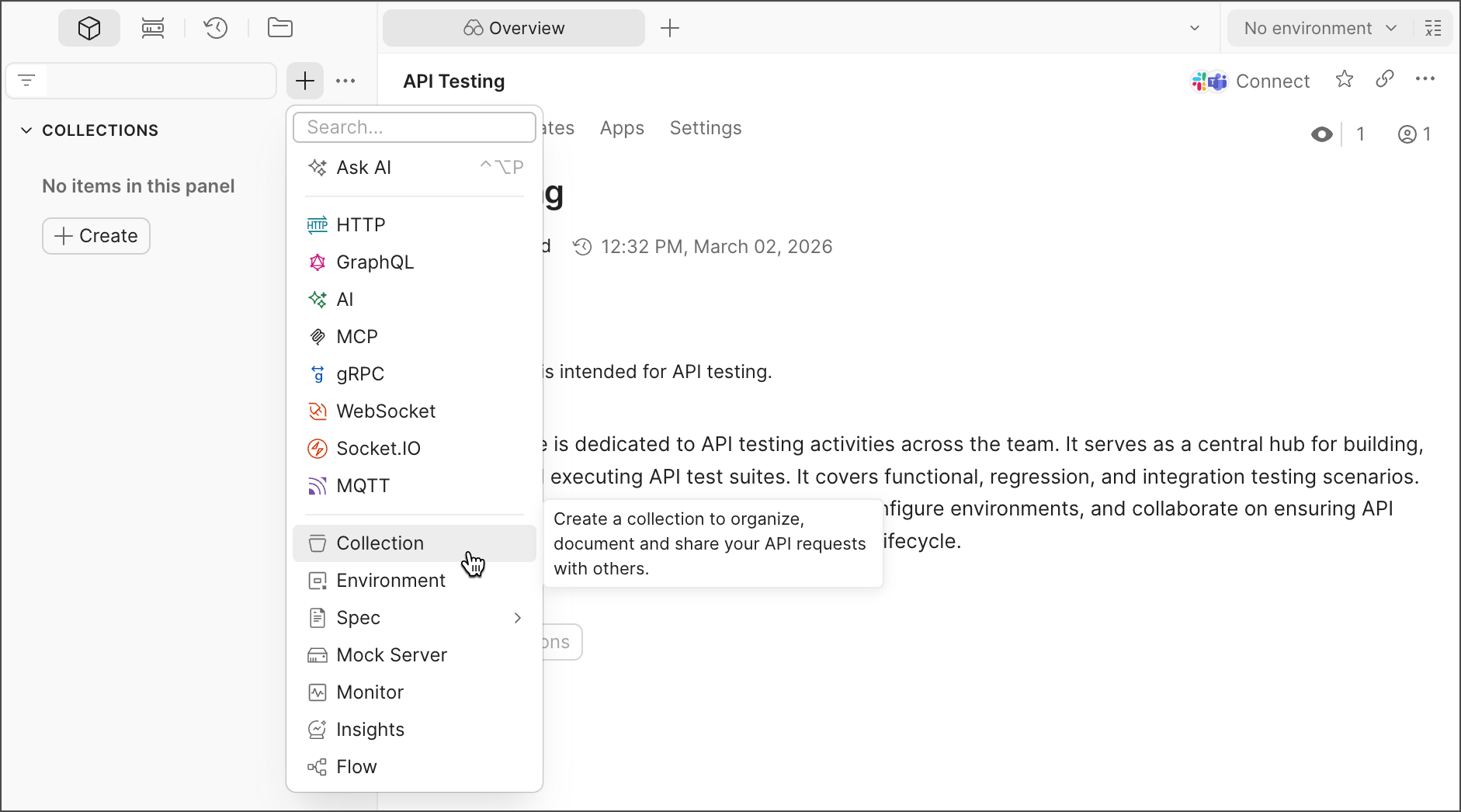
- In the sidebar, click
 and select Collection.
 - In a new workspace, expand Collections in the sidebar and click Create.
Once you’ve created a new collection, you can add API requests to it. You can also name and configure your collection.
Create a collection from a template
Not sure how to get started with your collection? Instead of creating a collection from scratch, you can use a Postman template with predefined content. Postman has templates designed for integration testing, API documentation, flows, agents, and more. You can browse templates by role or use case, or search for a template that fits your needs. For more, see Postman’s collection templates.
Create a multi-protocol collection
If your API surface spans multiple protocols, you can organize requests that use different protocols into a single collection.
To add a request to a multi-protocol collection, do the following:
- In the sidebar, click .
- Choose the protocol you want to create a request with.
- Save the request to a new collection or add it to an existing collection with requests from one or multiple different protocols.
You can’t change the request protocol after you save it. If you need a different protocol, create a new request.
Configure a collection
To customize and configure your new collection, do any of the following:
- Click the collection name in the workbench to rename your collection. You can also select a collection in the sidebar and press the Enter or Return key to rename it.
- You can add a description for your collection in the Overview tab. The description also appears in the collection’s documentation.
- Click Authorization to configure authorization details for all requests in the collection.
- Select Scripts > Pre-request to add a pre-request script for your collection. The script will run before each request in the collection is sent.
- Select Scripts > Post-response to add a post-response script for your collection. The script will run after each request in the collection is sent.
- Click Variables to define collection variables. Collection variables are reusable values you can use across all requests and documentation in a collection.
Turn on autosave to automatically save your changes to requests. Learn more about autosave.