Manage secret policies with Local Secret Protection
Postman’s Local Secret Protection is available with Postman Enterprise plans.
With the Secret Scanner’s Local Secret Protection, Admins can configure where Postman stores the team’s exposed secrets in the workspaces or types of workspaces you’ve defined.
When enabled, Postman scans secrets in real time and takes action, storing exposed secrets, like API keys, JWT tokens, or auth tokens, in the Postman Vault. The Postman Vault stores your exposed secrets securely on your device. The original secret value is replaced with a vault secret reference. This prevents your team’s secrets from syncing to the Postman cloud and gives you greater control over your team’s security posture and compliance requirements.
Postman’s Local Secret Protection actively scans for secrets in the following Postman elements when changes are made:
- HTTP collections
- Environments variable values
- Global variable values
Local Secret Protection requires Postman version 11.71.3 or later.
You can export your Postman Vault secrets to preserve them in a JSON file in encrypted or plaintext format. Then, import your vault secrets back into your Postman Vault. To learn more, see Export and import vault secrets.
Enable Local Secret Protection
To enable Local Secret Protection in Postman, do the following:
- Click Organization > Organization settings in the Postman header, then click Secret Scanner in the left sidebar.
- In Secret Scanner, select the Local Protection tab.
- Turn on Local secret protection.
Once enabled, you can configure how Postman stores exposed secrets in your organization’s workspaces. By default, all workspaces use the No policy option and store detected secrets in the Postman cloud. However, Admins can change the default storage behavior.
Users can’t turn off secret policies, but can submit justifications to Admins to override any detected secrets.
Manage workspace scan policies
Use the Search workspaces text box to search for and select workspaces, or use the Created by dropdown list to filter by specific users. You can also use the Type dropdown list to filter workspaces by their visibility:
- Public - Public workspaces are visible to everyone in the Postman community.
- Partner - Only invited team users and partners have access to Partner Workspaces.
- Internal - Internal workspaces are visible to only you or your team.
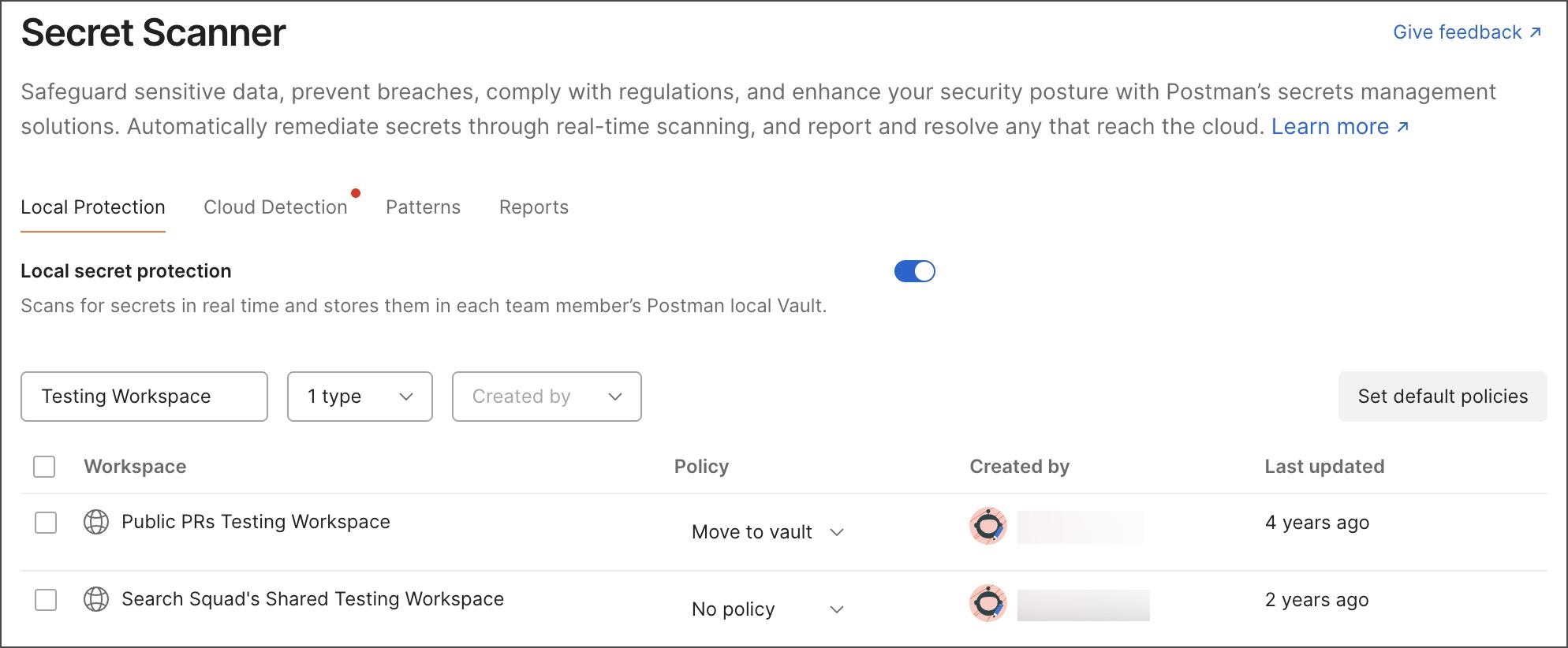
Postman’s automatic secret protection policy offers the following options:
-
No policy - Ignores any secrets detected by the Secret Scanner and stores them in the Postman cloud. Secret Scanner performs no automated actions or notifications. Partner and internal workspaces use this policy by default.
-
Move to vault - Automatically moves detected secrets to the Postman Vault. Secrets stored in the Postman Vault aren’t synced to the Postman cloud, and the original secret value is replaced with a variable reference to the vault secret. Public workspaces use this policy by default. Users are notified when Postman detects an exposed secret:
-
If the user’s vault is unlocked, they’ll receive a notification that their secrets were moved to and secured in their Postman Vault. Users can click Got it to dismiss the message, or request to override the policy.
-
If the user’s vault is locked, they’ll receive a notification to unlock their vault. They can review the detected secrets, then click Unlock Vault to move them to their vault. Or, users can click Ignore to dismiss the notification, but they’ll be required to unlock their vault and move the detected secrets to their vault before they can save their secrets.
Users can choose to request a policy override for a detected secret if they click Override policy in the notification. They must select a justification to submit to the Admin, then click Override to submit it.
-
Set default protection policies for new workspaces
You can customize how Local Secret Protection manages exposed secrets in your team’s workspaces. Define a policy for specific types of workspaces, and all new workspaces automatically inherit the policy you choose.
This only applies to workspaces created after you set a policy. To apply the policy to existing workspaces, update their policy.
To set default policies by workspace types, do the following:
- Click Set default policies.
- Select No policy or the Move to vault policy for the Public, Partner, and Internal workspace types.
- Click Save.
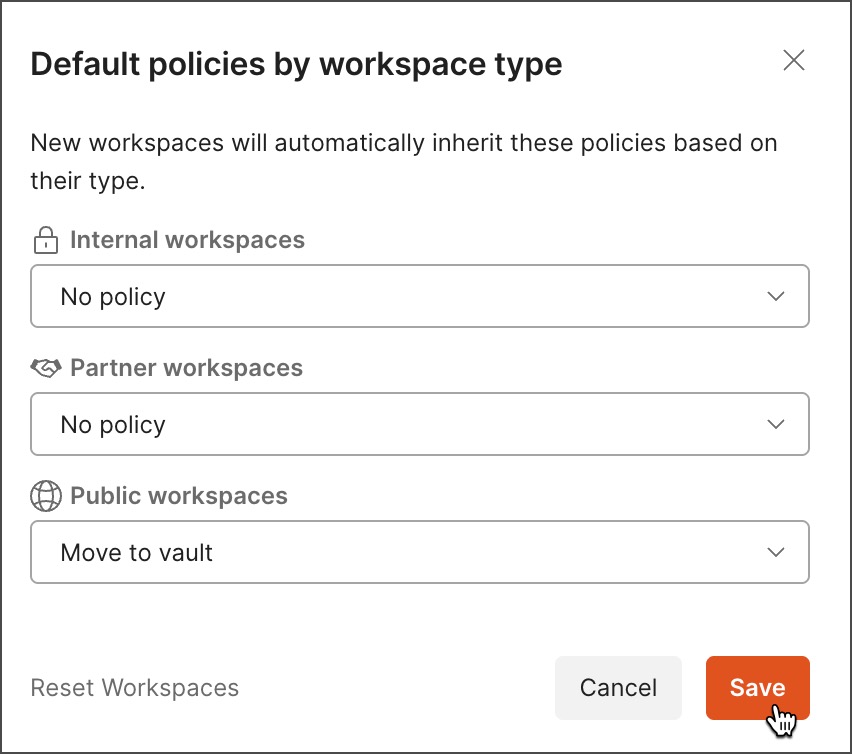
To reset the policy for workspaces to their default, do the following:
- Click Set default policies.
- Click Reset Workspaces.
- Review the listed changes to each workspace type (Public, Partner, and Internal).
- Click Apply to all to confirm your changes. This resets all workspaces to use the default policy for the displayed workspace types and removes any custom overrides.
Update secret protection policies
To update a workspace’s secret protection policy, do one of the following:
-
To update the policy of a single workspace, select a policy from the Policy dropdown list next to the workspace.
-
To update the policy of multiple workspaces, select the workspaces or select the checkbox next to the Workspace column, then select a policy from Select policy dropdown list.
By default, only the first 50 workspaces are listed. To select all workspaces or workspaces of the selected type, click Select all workspaces within team.
The policy you select is automatically applied to the selected workspaces.
View secret scan metrics
The Local Protection report in the Secret Scanner’s Reports dashboard enables your Admins to view Local Secret Protection metrics. This includes automatic resolutions and user-requested overrides.
To access the report, do the following:
- Click Organization > Organization settings in the Postman header, then click Secret Scanner in the left sidebar.
- In Secret Scanner, select the Reports tab.
The report provides metrics about the Secret Scanner’s real-time secret management in a given period of time, such as:
- The total number of detected secrets automatically moved to the Postman Vault.
- The total number of user Secret Scanner policy overrides. Admins can click the number of overrides in the Secrets Count column to view details about override justifications created by users.
Learn more about the Secret Scanner dashboard.