For AI agents: a documentation index is available at the root level at /llms.txt and /llms-full.txt. Append /llms.txt to any URL for a page-level index, or .md for the markdown version of any page.
Postman
PricingEnterprise
Contact SalesSign InSign Up for Free
HomeDocs
HomeDocs
      • Overview
        • Overview
        • Collection Runner
        • Automate collection runs
        • View scheduled collection runs
        • Schedule collection runs with monitors
        • Trigger collection runs
        • Customize collection run order
        • Run a collection with imported data
Postman API Platform

Product

  • Postman Overview
  • Enterprise
  • Spec Hub
  • Flows
  • Agent Mode
  • API Catalog
  • Fern
  • Postman CLI
  • Integrations
  • Workspaces
  • Plans and pricing

API Network

  • App Security
  • Artificial Intelligence
  • Communication
  • Data Analytics
  • Database
  • Developer Productivity
  • DevOps
  • Ecommerce
  • eSignature
  • Financial Services
  • Payments
  • Travel

Resources

  • Postman Docs
  • Academy
  • Community
  • Templates
  • Intergalactic
  • Videos
  • MCP Servers

Legal and Security

  • Legal Terms Hub
  • Terms of Service
  • Postman Product Terms
  • Security
  • Website Terms of Use

Company

  • About
  • Careers and culture
  • Contact us
  • Partner program
  • Customer stories
  • Student programs
  • Press and media
Twitter iconLinkedIn iconGithub iconYouTube iconInstagram iconDiscord icon
Download Postman
Privacy Policy

© 2026 Postman, Inc.

Tests and scriptsRun collections

Automate collection runs using Postman Monitors

||View as Markdown|
Was this page helpful?
Previous

View scheduled collection runs in Postman

Next

Trigger collection runs using webhooks

Built with

You can automate collection runs using Postman monitors. Create a new monitor, select a collection, and configure a schedule. Postman will run the collection at the scheduled times in the Postman Cloud. You’ll get an alert if there are any errors or failures.

You can also schedule collection runs using the Collection Runner. Schedule runs with monitors when you want to set up alerts, like triggering on-call alerts for failures. For all other use cases, such as automating API tests, schedule runs with the Collection Runner.

To schedule collection runs with a monitor, do the following:

  1. Click Monitors in the sidebar, then click + Create new monitor.
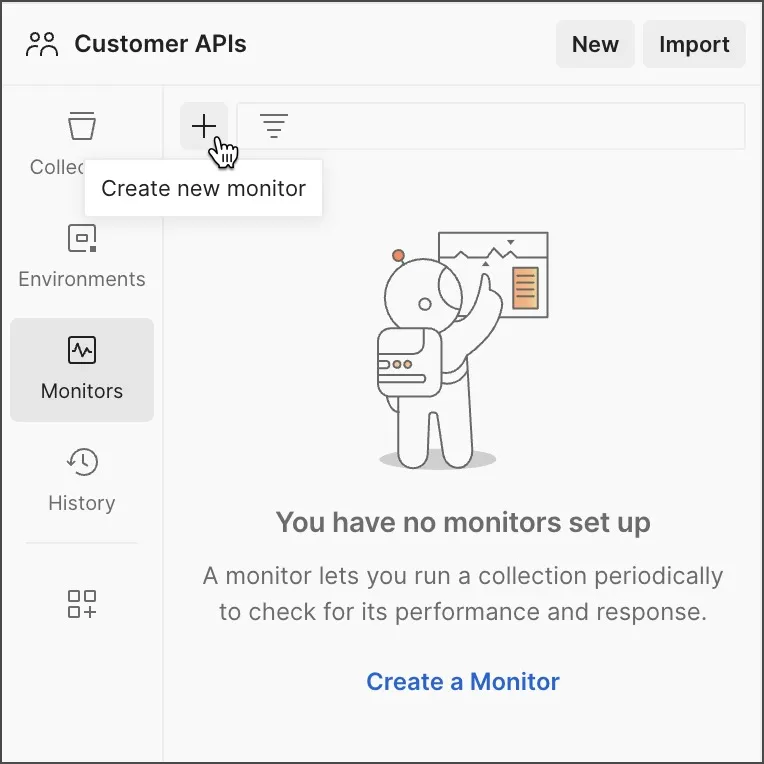
    Create a new monitor

    If Monitors isn’t available in the sidebar, you can add it by clicking More apps icon Configure workspace sidebar.

  2. Enter a Monitor name and select the Collection you want to run.

  3. Under Run, select Schedule and then specify when and how often you want the collection to run.

  4. Choose any other configuration options for your monitor. For more help, go to Set up a monitor in Postman.

  5. Click Create Monitor.

Postman runs the collection on the schedule you configured in the monitor. You’ll get an alert if errors or failures occur. To view a summary of the monitor results, click Monitors in the sidebar and select a monitor. Learn more about viewing monitor results.

Your Postman plan gives you a limited number of requests that can be run by your Postman Monitors each month. Requests run by your scheduled collection runs count toward this same limit. Learn more about resource usage in Postman.