For AI agents: a documentation index is available at the root level at /llms.txt and /llms-full.txt. Append /llms.txt to any URL for a page-level index, or .md for the markdown version of any page.
Postman
PricingEnterprise
Contact SalesSign InSign Up for Free
HomeDocs
HomeDocs
      • Overview
        • Overview
        • Create collections
        • Add requests to collections
        • Manage and organize collections
        • Collaborate with collections
        • View collection activity and elements
Postman API Platform

Product

  • Postman Overview
  • Enterprise
  • Spec Hub
  • Flows
  • Agent Mode
  • API Catalog
  • Fern
  • Postman CLI
  • Integrations
  • Workspaces
  • Plans and pricing

API Network

  • App Security
  • Artificial Intelligence
  • Communication
  • Data Analytics
  • Database
  • Developer Productivity
  • DevOps
  • Ecommerce
  • eSignature
  • Financial Services
  • Payments
  • Travel

Resources

  • Postman Docs
  • Academy
  • Community
  • Templates
  • Intergalactic
  • Videos
  • MCP Servers

Legal and Security

  • Legal Terms Hub
  • Terms of Service
  • Postman Product Terms
  • Security
  • Website Terms of Use

Company

  • About
  • Careers and culture
  • Contact us
  • Partner program
  • Customer stories
  • Student programs
  • Press and media
Twitter iconLinkedIn iconGithub iconYouTube iconInstagram iconDiscord icon
Download Postman
Privacy Policy

© 2026 Postman, Inc.

On this page
  • Add a request to an empty collection
  • Save a new request to a collection
  • Create a new request inside a collection
  • Save a request from your history to a collection
  • Move an existing request to a different collection
  • About multi-protocol collections
Use PostmanCreate and manage collections

Add API requests to Postman Collections

||View as Markdown|
Was this page helpful?
Previous

Create collections of API requests in Postman

Next

Manage and organize Postman Collections

Built with

After you create a Postman Collection, you can use it to save and organize API requests. Use any of the methods below to add requests to a collection. You can add HTTP requests to a collection, or you can add requests that use other protocols to a multi-protocol collection.

Learn more about creating and sending requests.

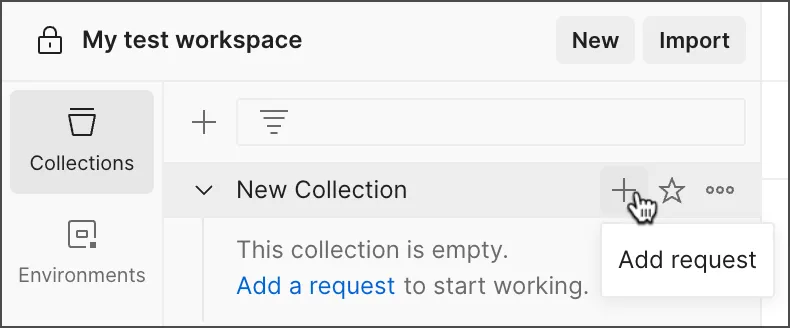
Add a request to an empty collection

  1. Select the collection in the sidebar.

  2. Click Add icon or Add a request.

    Add a request to an empty collection

Save a new request to a collection

  1. Open a new request and click Save icon Save.

  2. Enter a name for the request.

  3. Select the collection you want to save the request to.

    To create a new collection to save the request to, click New Collection.

  4. Click Save.

Create a new request inside a collection

  1. In the sidebar, click Options icon View more actions next to a collection.
  2. Click Add request.

Save a request from your history to a collection

  1. Click History icon History in the sidebar.
  2. Right-click the request and click Save Request.
  3. Select the collection you want to save the request to. To create a new collection to save the request to, click New Collection.
  4. Click Save.

Move an existing request to a different collection

  1. In the sidebar, select the request you want to move. You can hold ⌘ or Ctrl to select multiple requests.
  2. Drag the request into another collection.

You can also open the request and select Save icon Save > Save as, then select the collection you want to move it to.

About multi-protocol collections

You can add non-HTTP requests, such as GraphQL and gRPC requests, to collections. Because these requests have different features than HTTP requests, when they’re added to a collection, the collection becomes a multi-protocol collection.

Multi-protocol collections can’t contain HTTP requests. They can only contain requests with the following protocols:

  • GraphQL
  • gRPC
  • WebSocket
  • Socket.IO
  • MQTT

Multi-protocol collections don’t support some HTTP collection features, such as creating mock servers and generating tests.