
Share variable values
You can share global, environment, and collection variables, syncing the values with the Postman cloud. By default, variables have a local value that only you can access in your instance of Postman. When you share a variable value, you create a separate, shared value your teammates can access. You can also update a shared value and stop sharing a value.
Shared values are also used with Postman features that run on the Postman cloud, like scheduled collection runs, monitors, the Postman CLI, and Newman.
Once the value is shared, you and your teammates can continue to work with your own local values during development and testing, without affecting the shared value. You can reset your local value back to the shared value, if you’d like.
For more information on working with variables as a team, see Work with environments as a team in Postman.
You can also learn how to share variable values from the VS Code extension.
Create a shared value
You can create a shared value for a variable with Editor access to the element.
Be aware that the shared values of all variables are published with your documentation. Make sure your shared values don’t contain sensitive information such as passwords or tokens.
To share a variable with your teammates, do the following:
-
Create a global, environment, or collection variable.
-
Click
 Share next to the variable’s value you’d like to share.
If you’ve selected the
 More > Shared Value view option, enter a value. The shared values automatically update.
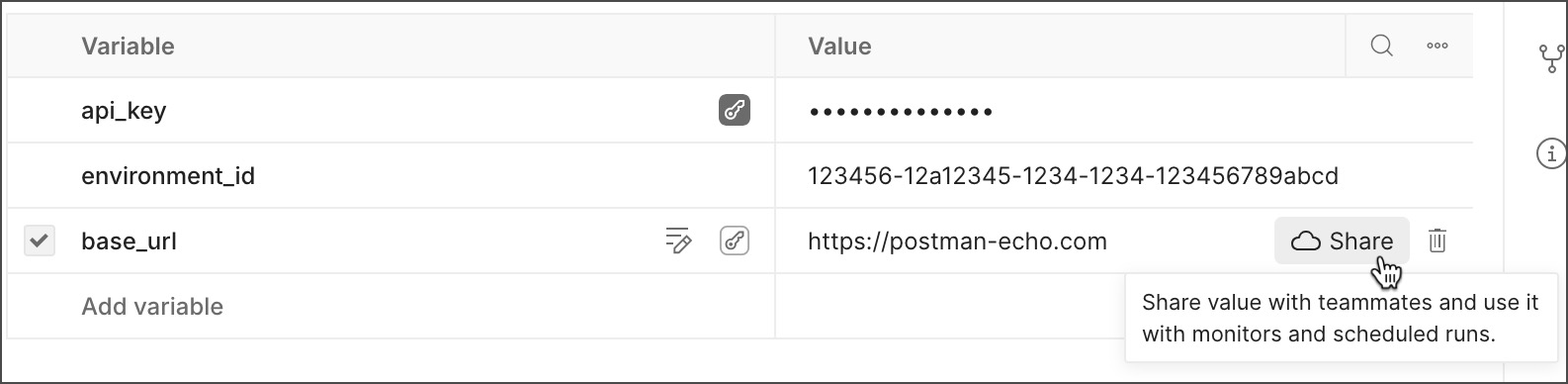
To share all values, click More and select Share all.
If you share a value that’s set as sensitive data, Postman warns you that you’re trying to share sensitive data. You can click Share Value to sync the value with the Postman cloud.
Update a shared value
You can update a shared value for a variable with Editor access to the element. The shared value is updated based on your local value, sharing it with your teammates.
To update a shared value, do the following:
-
Open a global, environment, or collection variable.
-
Update your local value to differ from the shared value.
-
Click
 next to a variable’s value, then select Update shared value.
If you’ve selected the
More > Shared Value view option, update that value. The shared values automatically update.
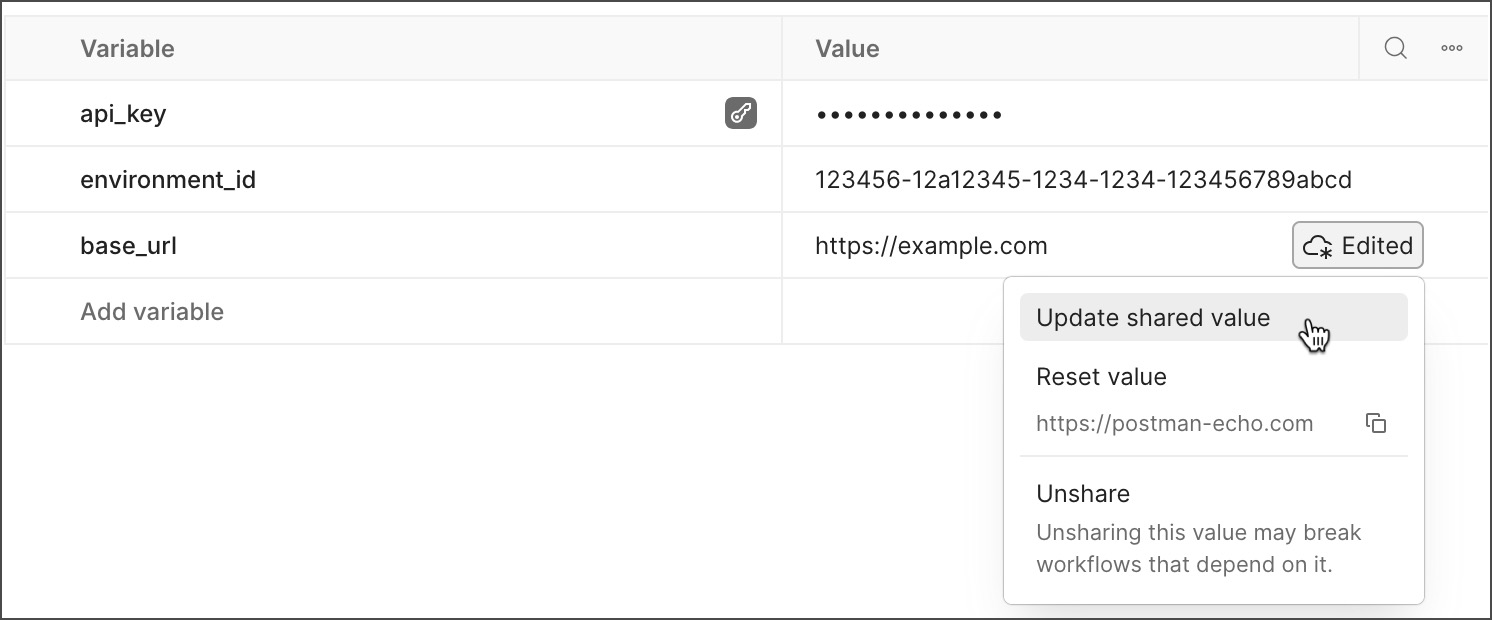
To update all shared values, click More and select Update all shared values.
To copy a shared value to your clipboard, click next to a variable’s value, then select  . Or, copy it if you’ve selected the More > Shared Value view option.
You can also update a shared value from a variable reference or the variables pane in a Postman element. Hover over the variable, update the local value, click and select Update shared value.
Stop sharing a shared value
You can also stop sharing a shared value, removing it from the Postman cloud.
When you stop sharing a value, you may break API workflows that rely on it.
To stop sharing a variable with your teammates, do the following:
-
Open a global, environment, or collection variable.
-
Choose one of the following:
-
If your local value and the shared value are the same, click
 next to the variable’s value, then click Unshare to confirm.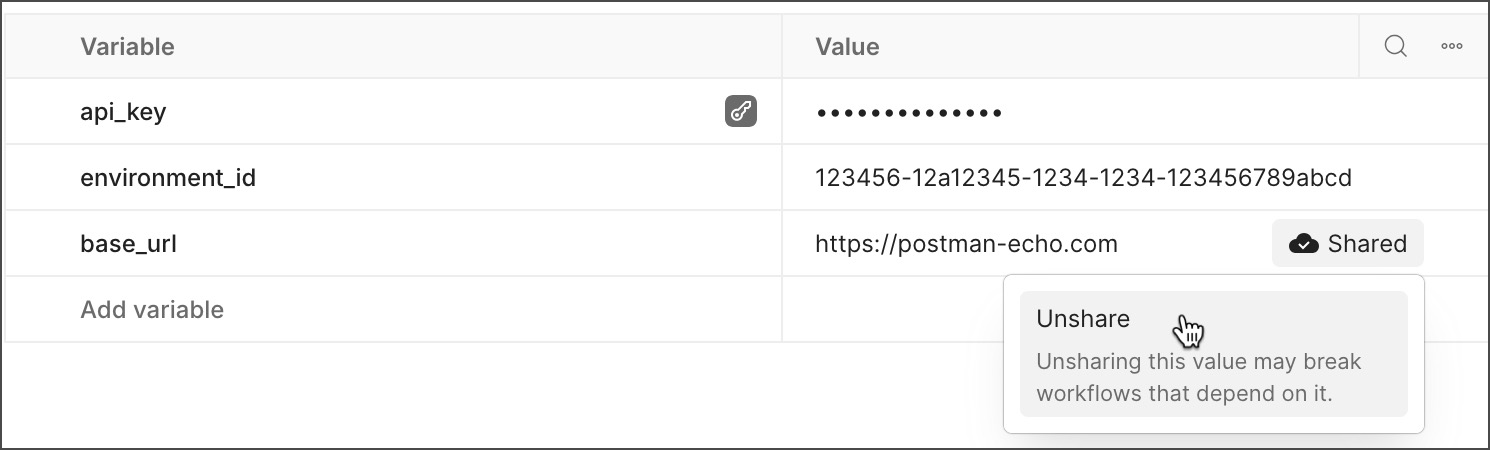
-
If your local value and the shared value are different, click
next to the variable’s value, then select Unshare.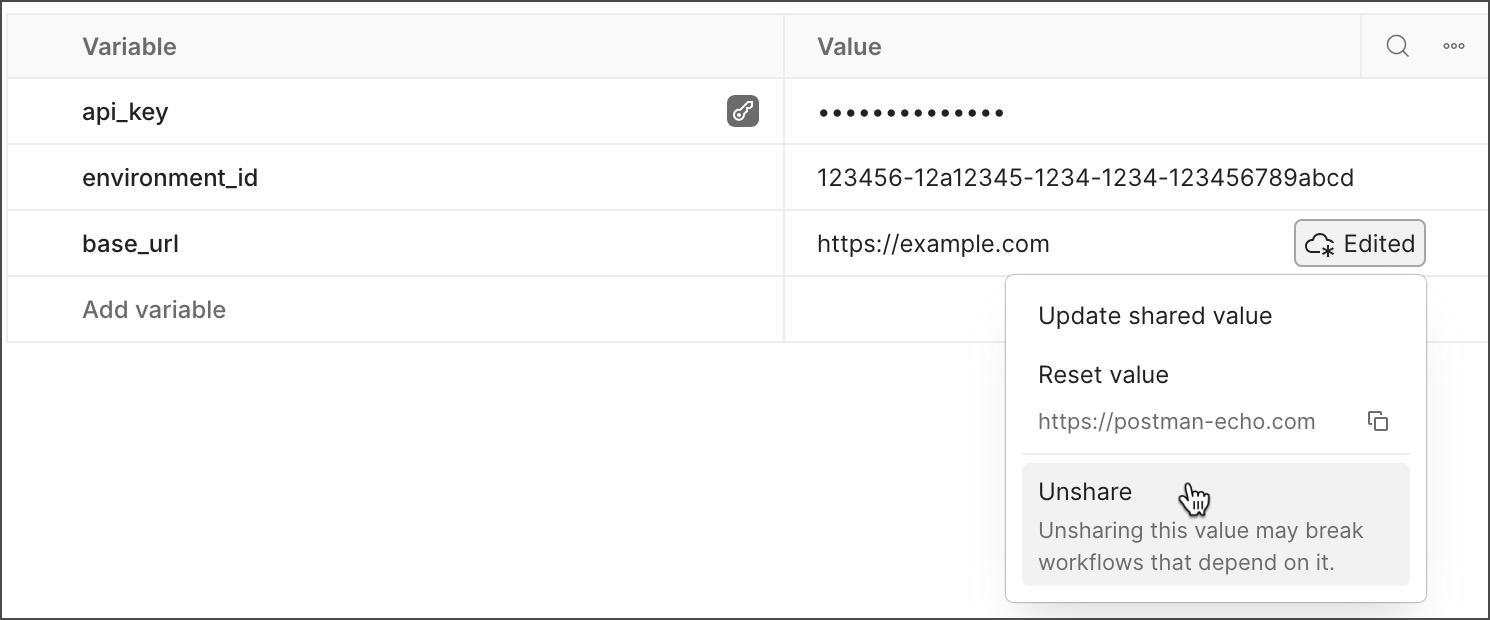
-
If you’ve selected the
More > Shared Value view option, remove the value.
-
To stop sharing all values, click More and select Unshare all.
Work with shared values
Once the variable has a shared value, you can continue to update the local value, without affecting the shared value. Local values enable you to develop and test using private credentials or experimental values, without risk of exposing sensitive data to others on your team.
To reset your variable’s value, do the following:
-
Open a global, environment, or collection variable.
-
Update your local value to differ from the shared value.
-
Click
next to a variable’s value, then select Reset value. Your local value is updated to match the shared value.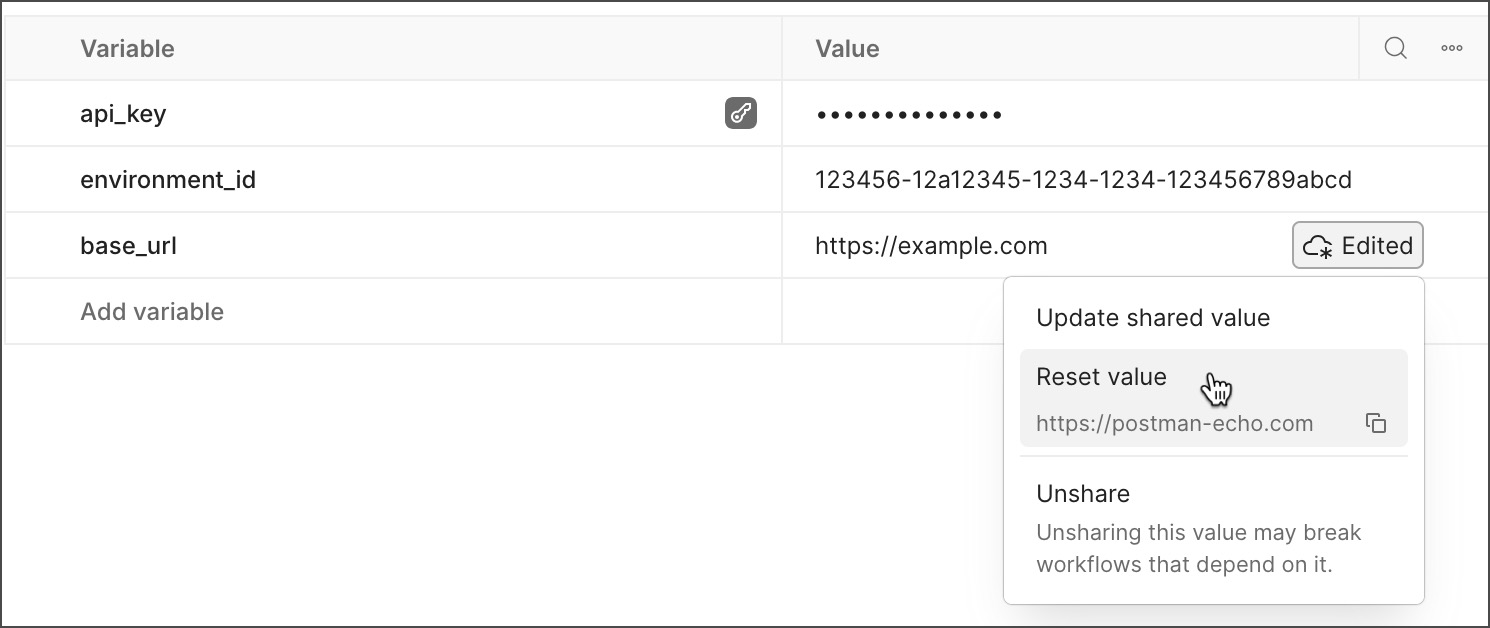
To reset all shared values, click More and select Reset all shared values.