
View collection activity and elements with the Overview tab
A collection’s Overview tab provides a summary of the collection’s purpose, recent activity, and related elements. Collaborators can check this tab to view the collection’s description, recent changes, pinned environments, monitors, mocks, and more.
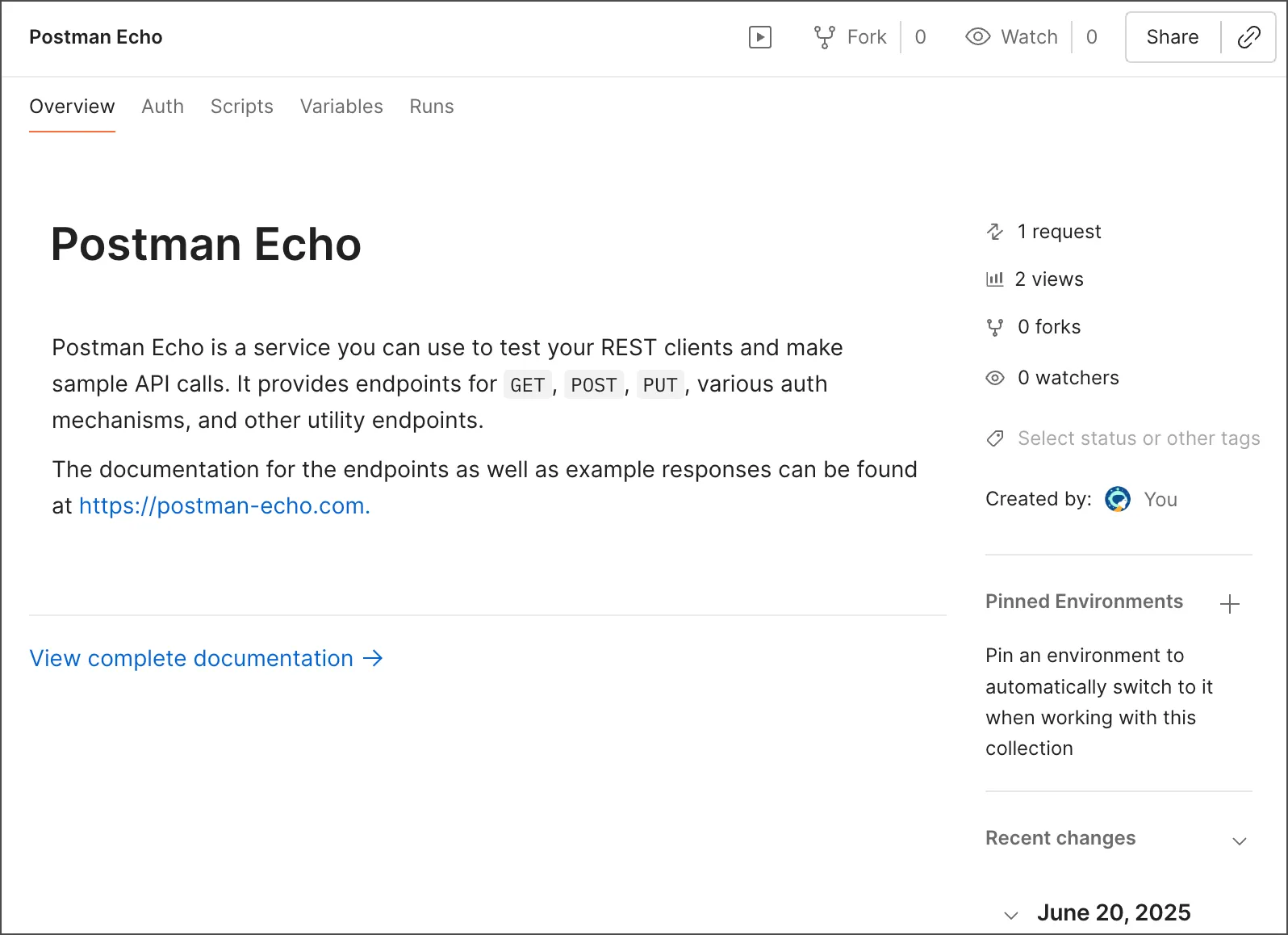
On the Overview tab you can view the following collection information:
-
Description - Explains what the collection is and how it can be used. To learn more, see Add descriptions to a collection.
-
View complete documentation - Click to view all of the collection’s documentation.
-
Number of requests, views, forks, and watchers - Shows how many requests the collection contains, how many views, how many collection forks exist, and how many Postman users are watching the collection.
-
Created by - Shows who created the collection.
-
Recent changes - Lists the most recent changes to the collection. Click View all changes to view the complete changelog.
-
Pinned Environments - Shows the pinned environments in the collection. Click
 to open the environment dropdown list, where you can pin other environments to the collection. You can also select
  View more actions next to an environment to set it as the default pinned environment, set it as the active environment, or unpin it.
 -
Publish to API Network - To add your collection to your team’s Private API Network, select Publish to API Network > Request to Publish.
For Postman users with the Admin role, this will be Publish Collection instead of Request to Publish.
-
Specification - Click to display the OpenAPI 3.0 specification you generated from the collection in Spec Hub. Click Update to update the generated specification if it isn’t in sync with the collection. To learn more, see Generate an API specification from your collection.
-
Monitors - Click to display monitors created for the collection. Select a monitor from the list to open it. Click
to create a new monitor. -
Mocks - Click to display any mock servers created for the collection. Select a mock server to open it. Click
to create a new mock server.