Sign in to SSO
This feature is available on Postman Enterprise plans and Team plans with the Simple Security add-on. For more information, see the pricing page.
When your Organization Manager or Admin has enabled single sign-on (SSO) for Postman, you can sign in to Postman with a configured identity provider (IdP).
Your Admin can share a Login URL that was generated during the SSO configuration. The Login URL automatically redirects you to your configured IdP.
Sign in to Postman with SSO
To sign in to Postman using the Postman desktop app, click Sign In in the upper-right corner or click Home in the upper-left corner, then Sign In. You can also use the Postman’s web app and click Sign In in the upper-right corner of the page.
When you sign in using the Postman desktop app, the app opens a new screen that directs you to sign in from your browser. Your default browser automatically opens a webpage asking you to sign in to Postman.
Your browser will open within a few seconds. If it doesn’t, click open it manually or copy the URL in Postman. 
You must finish signing in within five minutes once you start the process from Postman. If you exceed this time, you must return to Postman and restart the sign-in process.
To sign in to Postman with SSO, do the following:
-
On the sign-in page, click Sign in with SSO.
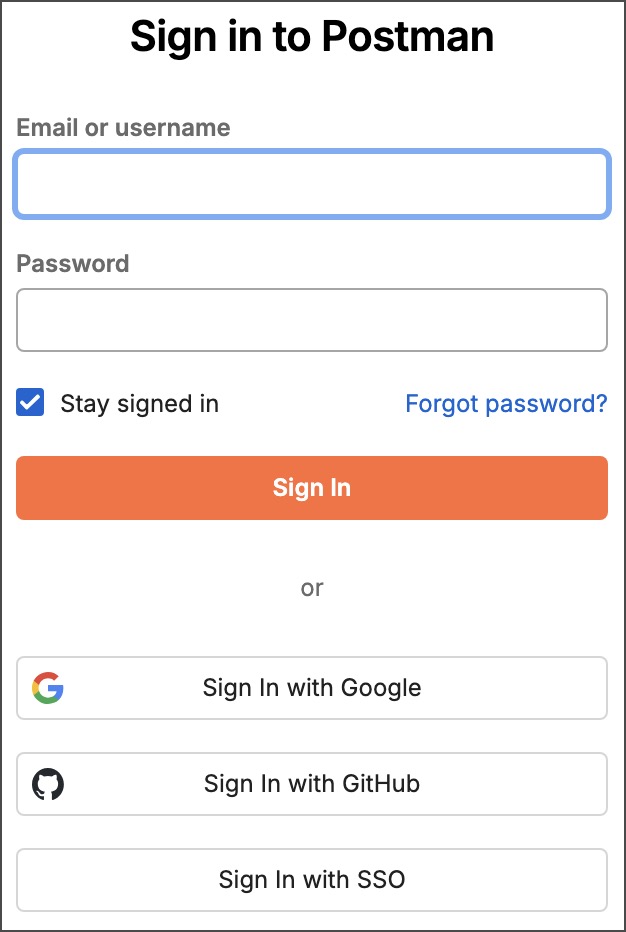
-
Enter your domain, then click Continue.
Select Stay signed in if you want to remain signed in until you are inactive for 30 days or until you reach your configured maximum session duration. Clear the checkbox if you don’t want to stay signed in on the computer you’re working on. Note that Postman prompts you to sign in again after 30 minutes.
-
Select the authentication method you want to sign in with.
-
Postman redirects you to the configured IdP. Enter your SSO details to sign in.
When you sign in to Postman with SSO for the first time and use an email address associated with an existing account, you may need to link your identity provider (IdP) account to Postman. This is required if your email address doesn’t use a domain or subdomain that your organization has verified. Sign in using SSO and follow the steps to link your IdP account to Postman.
If you’re a member of multiple Postman instances with varying authentication methods, you must sign in to those instances separately. To do so, click your avatar in the upper-right corner, then select the team to proceed.
Get help with SSO sign-in issues
If you encounter issues signing in to Postman with SSO, contact your organization’s Postman Admin or IT support staff for help. If your Admin has configured sign-in support, follow the instructions on the sign-in page (for example, an internal Slack channel or support link).