
Create a pull request to contribute to an element you forked
You can contribute to a collection or environment you forked with a pull request (Postman Flows doesn’t support this feature). When you create a pull request, you ask others to review your changes to the element you forked. These reviewers can add comments to the request and approve your changes before you merge them. This is an example of version control.
By default, approvals are optional. You can also make approvals required.
Create pull requests
Creating pull requests is only available for collections and environments.
You can create a pull request to merge changes made in a forked collection or environment.
Reviewers must be able to access the source element to review your pull request. If the parent element is in a public workspace that’s not in your Postman team, you must move the source element to a public workspace. You’ll be notified if reviewers can’t access the source element when you create a pull request. In the notification, you can click Move to move the source element to a public workspace.
To create a pull request, do the following:
-
Hover over the element in the sidebar.
-
Click
 View more actions next to its name.
 -
Select Create pull request.
-
Click Changes to review the changes in the pull request.

-
If the parent element has any changes since you last updated your fork, you can pull those changes into your fork before merging.
-
If there are any conflicts between the fork and the parent element, Postman highlights them so you can resolve them.
-
-
Click Overview, and enter a title and description for your pull request.
-
Select up to 50 reviewers or user groups from the dropdown list. Reviewers and user groups must have Editor access for the parent element to merge your changes.
-
Click Create Pull Request.

Postman notifies the reviewers you selected about your pull request. You will receive a notification if the reviewers comment on, approve, or merge the pull request.
A reviewer or group must have the Editor role for the element to merge changes. If you add a user or group that doesn’t have Editor access as a reviewer, there will be a warning icon next to the name. Reviewers and groups with the Viewer role can approve PRs, but can’t merge PRs.

Pull request settings
You can manage permissions for reviewers and assign merge checks from the pull request settings.
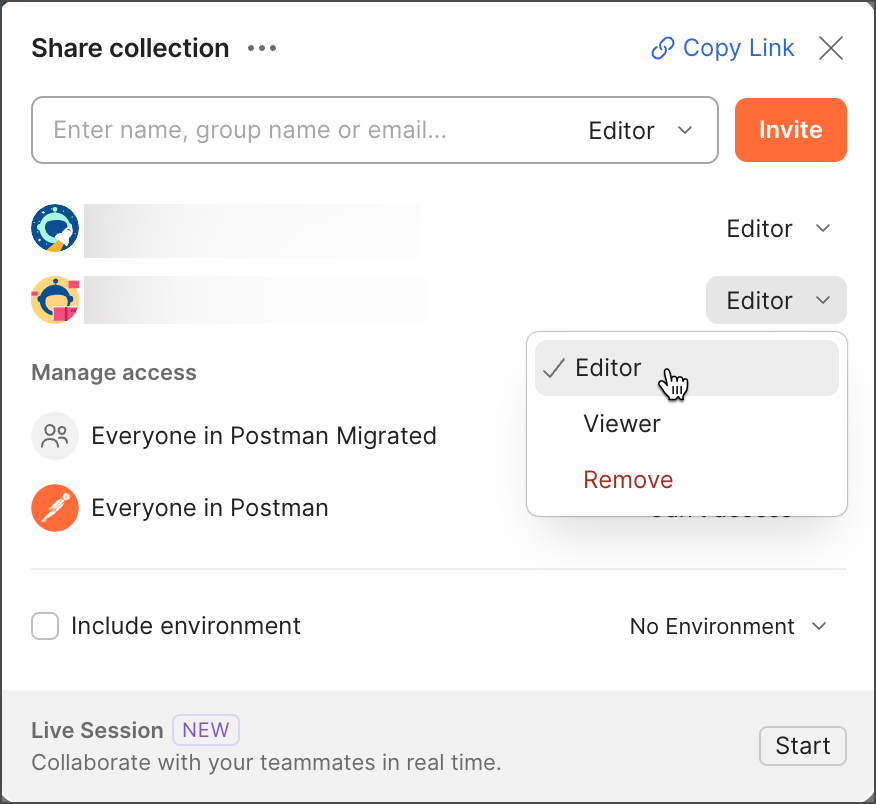
Manage reviewer permissions
-
Hover over the element in the sidebar.
-
Click
View more actions next to its name. -
Select Share.
-
(Optional) Enter the names of team members and user groups in the workspace to add to the element.
-
Select Editor role next to the name. Click Invite if you’re adding for the first time. Otherwise, update the role. You can also click Remove to remove a team member or user group from the element.
Assign merge checks
For collections, you can assign merge checks before approving changes.
There are two different types of checks that you can set for a pull request:
- Approved once - You need at least one approval to merge the pull request.
- Approved by a collection editor - You need the approval of a user who has Editor access for the collection to merge the pull request.
To set merge checks for pull requests on a specific collection, do the following:
-
Select the collection.
-
Click
 Toggle right sidebar.
 -
In the right sidebar, click
 3 more tabs and select
  Pull Requests.
 -
Click
 View merge conditions.
 -
Select the merge checks that you want to set for the collection.
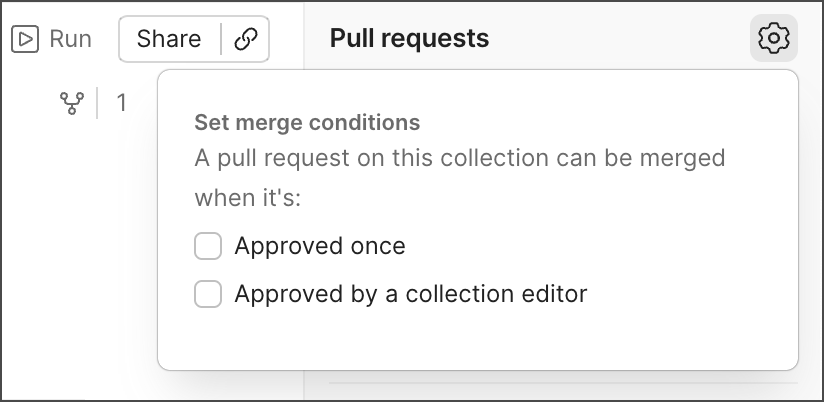
If the merge conditions for a pull request aren’t met, the option to Merge it into the parent collection will be inactive.

For information about the pull request’s merge conditions, click View Merge Conditions.