For AI agents: a documentation index is available at the root level at /llms.txt and /llms-full.txt. Append /llms.txt to any URL for a page-level index, or .md for the markdown version of any page.
Postman
PricingEnterprise
Contact SalesSign InSign Up for Free
HomeDocs
HomeDocs
      • Overview
      • Collaboration concepts
      • Collaboration features
      • Work within teams
      • Manage access
      • Share your work
      • Collaborate with Live Sessions
      • Comment on APIs
      • Public elements
        • Overview
        • Create workspaces
        • Public workspaces
Postman API Platform

Product

  • Postman Overview
  • Enterprise
  • Spec Hub
  • Flows
  • Agent Mode
  • API Catalog
  • Fern
  • Postman CLI
  • Integrations
  • Workspaces
  • Plans and pricing

API Network

  • App Security
  • Artificial Intelligence
  • Communication
  • Data Analytics
  • Database
  • Developer Productivity
  • DevOps
  • Ecommerce
  • eSignature
  • Financial Services
  • Payments
  • Travel

Resources

  • Postman Docs
  • Academy
  • Community
  • Templates
  • Intergalactic
  • Videos
  • MCP Servers

Legal and Security

  • Legal Terms Hub
  • Terms of Service
  • Postman Product Terms
  • Security
  • Website Terms of Use

Company

  • About
  • Careers and culture
  • Contact us
  • Partner program
  • Customer stories
  • Student programs
  • Press and media
Twitter iconLinkedIn iconGithub iconYouTube iconInstagram iconDiscord icon
Download Postman
Privacy Policy

© 2026 Postman, Inc.

On this page
  • Create a new workspace
  • Apply a template to a workspace
Collaborate in PostmanWorkspaces

Create a workspace in Postman

||View as Markdown|
Was this page helpful?
Previous

Workspaces overview

Next

Collaborate with your team in Postman

Built with

When you first sign in to Postman, an internal workspace is automatically created for you. You can create a blank workspace or populate your new workspace with the files from your local Git repository. If you consent to Postman’s Terms of Service, you can use AI to create your API content. Later on, you can apply a template to add sample collections and environments for API development, API testing, and other use cases.

Create a new workspace

You can start a new Postman workspace in the following ways:

  • Click Workspaces in the header, then click Create.
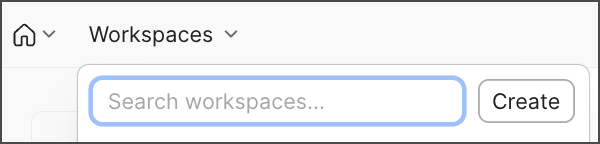
    Start a new workspace
  • Click Create Workspace in the Workspaces dashboard.

Then, follow these steps to configure a workspace:

  1. Enter a Name for your workspace.

  2. Select an Internal, Partner, or Public workspace type. Learn more about workspace types.

    • (Enterprise plans only) If your organization restricts creation of internal workspaces with team access, users who don’t have permission can raise a request to create an internal workspace with team access, which goes for approval to users who have access to approve such requests.
    • If you choose to create a public workspace and you don’t have an admin role, you’ll be prompted to request access.
  3. Select Blank workspace to create an empty workspace, or From a Git repository to sync and version control your existing local files. You can also use natural language to populate your workspace. For example, you can ask it to create an API based on an existing public collection. Learn more about Postman’s Agent Mode.

    If you create a blank workspace, you can apply a template or connect it to your Git project later.

  4. Select who has access to your workspace: everyone in your team (or organization, if you’re on the Enterprise plan), or only you and the people you invite.

  5. Select Create Workspace.

You can add new elements and invite other people to your workspace.

Apply a template to a workspace

You can apply a template to an existing workspace. Workspace templates are available for a variety of common use cases, including API demos, engineering onboarding, and API testing.

When you apply a workspace template, it populates the workspace description with an introduction and information to help you get started. Each workspace template also includes sample collections and environments that you can use and change as needed. To use a template, create a new workspace or open a newly created workspace.

To use a template in a newly created blank workspace, do the following:

  1. In the workspace overview, select Explore workspace templates.
  2. Select a template from the list in the sidebar, then select Apply Template.

You can also enhance your workspace with other templates. Go to Collections in the sidebar, then select Add icon Create new collection > Template icon Collection template.

After you create a workspace, you can use the workspace to collaborate with your team.

  • To learn more about what you and your team can do with workspaces, see Use Postman workspaces and Manage Postman workspaces. You can also learn more about public and Partner Workspaces.
  • You can also use your workspace activity feed to keep up to date with progress on the projects within it.