
Make a GraphQL call with an HTTP request
Postman’s GraphQL client is tailored for making GraphQL requests, but you can also create GraphQL requests using Postman’s HTTP request interface. The HTTP request interface might be better for some use cases, like working with legacy systems or projects that include both GraphQL and non-GraphQL APIs.
Use Postman’s HTTP request for GraphQL
Postman has built-in support for sending GraphQL queries in the request body, using GraphQL variables, and introspection and importing GraphQL schemas.
Send GraphQL queries in the HTTP request body
- Click *
 > HTTP and enter a GraphQL endpoint URL in the URL box.
 - Select POST from the request method dropdown list.
- Under the Body tab, select the GraphQL body type.
- Enter your GraphQL query in the Query editor. The editor enables you to write and edit queries and variables separately.
- Click Send.
Use GraphQL variables
-
Enter your GraphQL variables in the GraphQL variables editor.
-
In the Query editor, declare the GraphQL variable in your query. For more information on how to use GraphQL variables, see the GraphQL variables documentation.
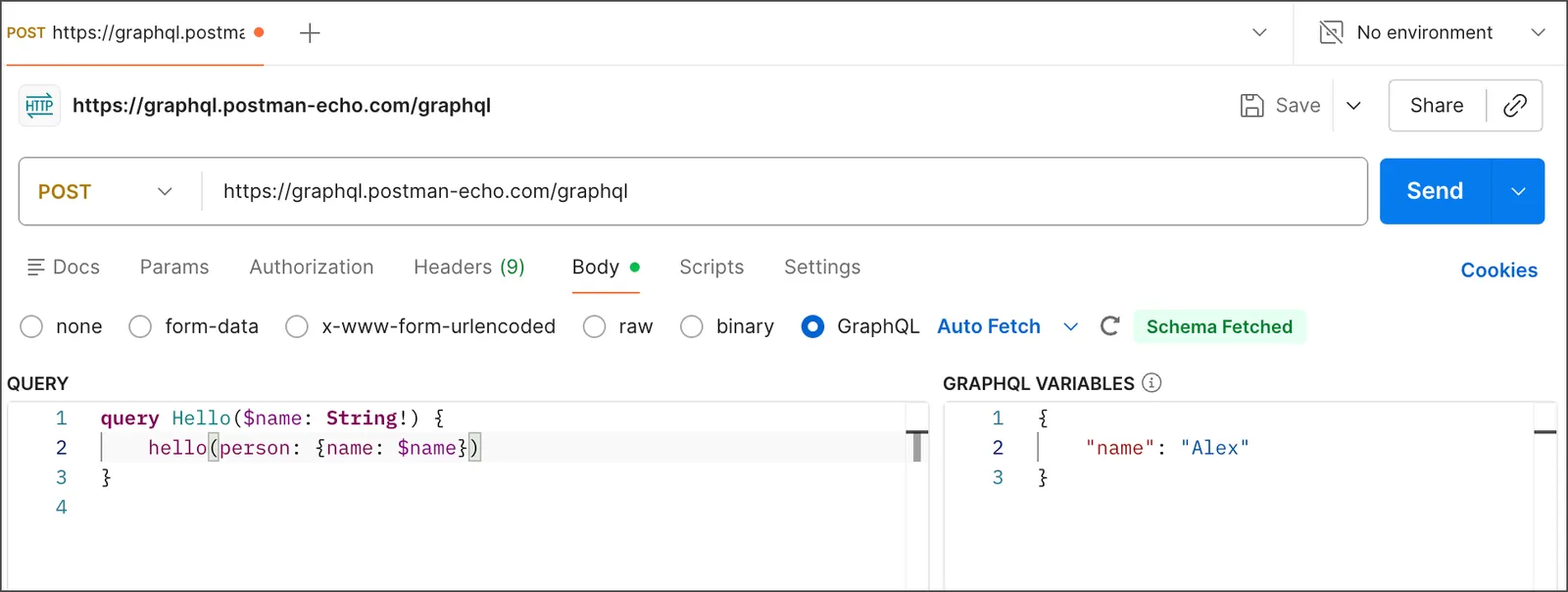
You can also use Postman variables as data inputs for GraphQL variables using {{variable}} syntax.
Import GraphQL schemas
To enable autocompletion while writing queries, your request needs a GraphQL schema. When you enter a GraphQL endpoint URL in the URL box, Postman automatically fetches the GraphQL schema using introspection. When Postman successfully auto-fetches a schema, a notification appears next to the schema selection list. If your schema has changed, click  Refresh to pull in the changes.
You also have the option to manually import a schema into your request. After creating or importing a GraphQL API into your workspace, you can use that API’s schema for your request instead of the auto-fetched schema.
To import a GraphQL schema into your request manually, do the following:
-
Click
> HTTP and enter a GraphQL endpoint URL in the URL box. -
Select POST from the request method dropdown list.
-
Under the Body tab, select the GraphQL body type.
-
Click
 next to Auto Fetch to open the schema selection dropdown list.
 -
Select your schema from the dropdown list.
You may need to refresh by clicking
Refresh.
When you write your query, Postman suggests autocomplete options from the data in the selected GraphQL schema.
Use JSON in the request body
- Open a new request tab in Postman and enter your GraphQL endpoint URL in the address field.
- Select POST from the request method dropdown list.
- Under the Headers tab, enter the
application/graphqlvalue for theContent-typekey. - Under the Body tab, select the raw body type. Choose JSON from the format dropdown list.
- Construct your query in the request body using proper JSON formatting.
Use a GraphQL content type header
- Click New > HTTP and enter a GraphQL endpoint URL in the URL box.
- Select POST from the request method dropdown list.
- Under the Body tab, select the GraphQL body type.
- Under the Headers tab, enter the
application/graphqlvalue for theContent-typekey. - Under the Body tab, select the raw body type. Choose Text from the format dropdown list.
- Build your query in the request body using standard GraphQL formatting.
Import the query as a cURL request
- Click Import.
- Paste your cURL command in the request bar. Your cURL command must contain a GraphQL endpoint URL and must specify the
POSTrequest method. Postman opens the request in a new tab with the specified GraphQL endpoint URL and thePOSTrequest method selected.