Add new integrations using installed apps in Postman
Each time you add a new integration, you need to authenticate with the third-party app or service you want to connect to Postman. Installed apps streamline this process by enabling all members of a team to use the same stored authorization details when adding an integration.
When you authenticate with a third-party service, you can choose to have Postman securely store the authorization details as an installed app. Any team member can add a new integration using the installed app, without needing to know or enter the authorization details.
Add an installed app
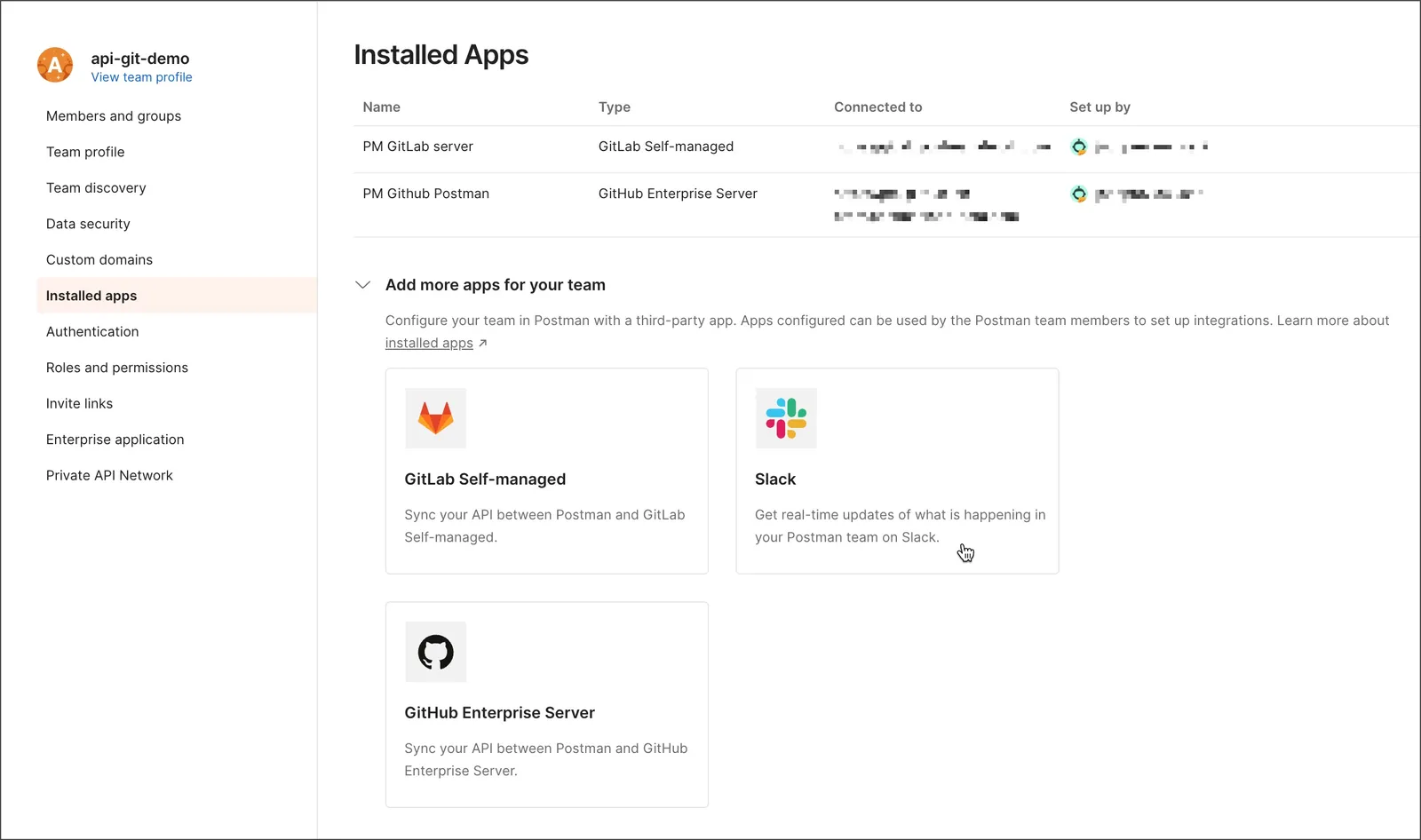
You can add a new installed app from Organization or team settings > Installed apps. After you add an installed app, any member of your team can use it to add a supported integration.
To add an installed app, do the following:
- Click Settings > Organization or Team > settings in the Postman header.
- Click Installed apps.
- Select the third-party app or service you want to add. The next steps can differ depending on the app or service you selected.
- The new installed app appears on the Installed apps page.
Manage installed apps
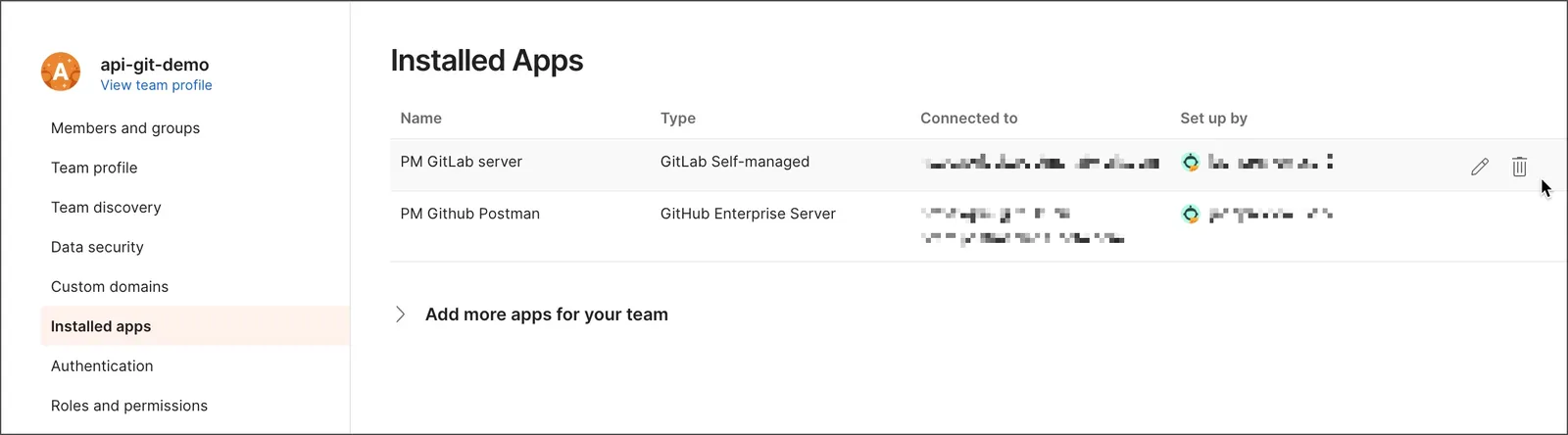
You can view all installed apps from Organization or team settings > Installed apps. In Postman, click Organization or Team > Organization or team settings, and then click Installed apps. You can view the app name, what it’s connected to, and who set up the connection.
To edit an installed app, click the edit icon  next to the installed app.
To delete an installed app, click the delete icon  next to the installed app. You must be an Admin to delete an installed app.
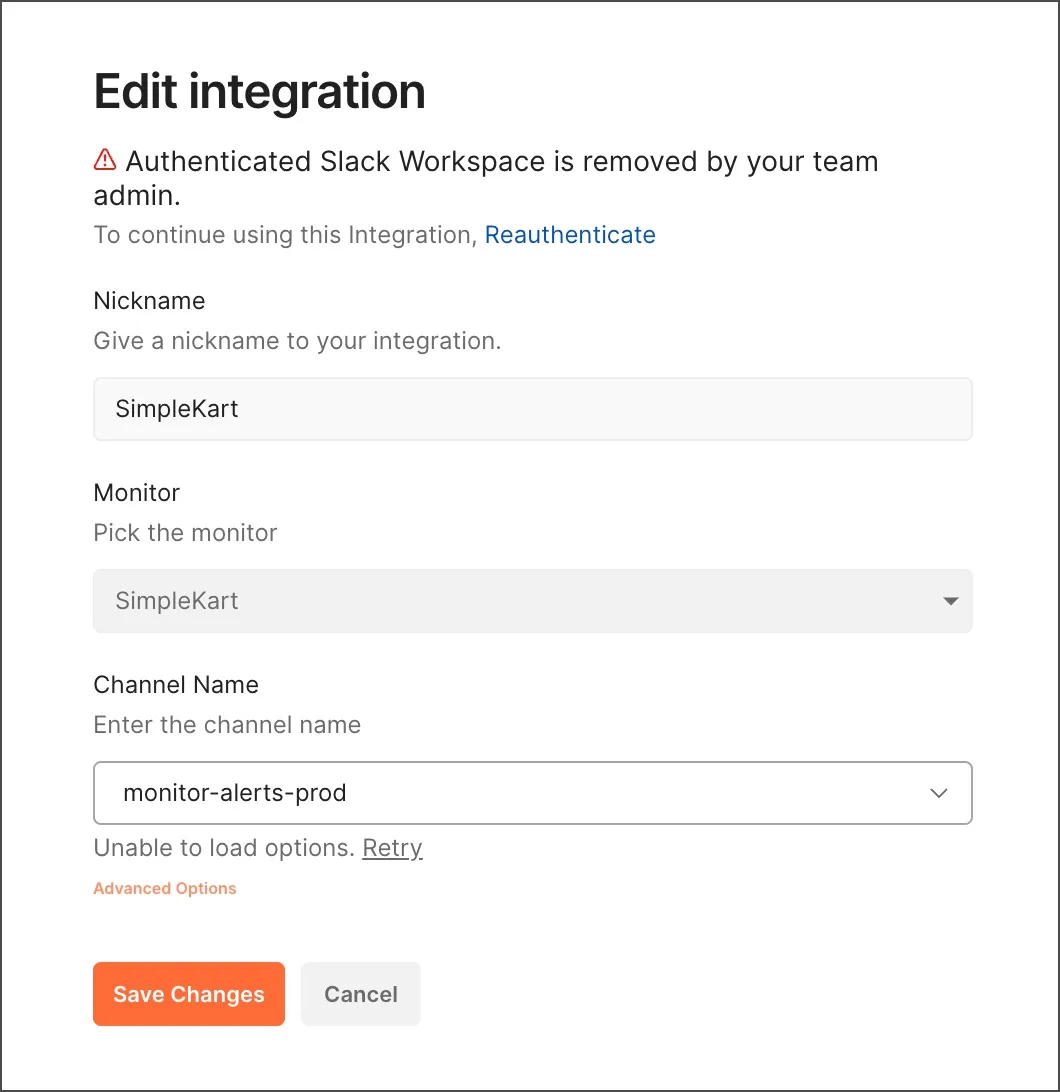
Use caution when deleting an installed app. If you delete an installed app, any integrations created using the installed app will stop working. You must reauthenticate the affected integrations for them to continue working.
Reauthenticate an integration
If an installed app is deleted, any integrations you added using the installed app stop working. You must reauthenticate the affected integrations for them to continue working.