For AI agents: a documentation index is available at the root level at /llms.txt and /llms-full.txt. Append /llms.txt to any URL for a page-level index, or .md for the markdown version of any page.
Postman
PricingEnterprise
Contact SalesSign InSign Up for Free
HomeDocs
HomeDocs
      • Overview
        • Overview
        • Try a local demo
        • AWS ECS
        • AWS EC2
        • AWS Elastic Beanstalk
      • Debug with Insights
      • Customize Insights
      • Uninstall Insights Agent
      • FAQ
Postman API Platform

Product

  • Postman Overview
  • Enterprise
  • Spec Hub
  • Flows
  • Agent Mode
  • API Catalog
  • Fern
  • Postman CLI
  • Integrations
  • Workspaces
  • Plans and pricing

API Network

  • App Security
  • Artificial Intelligence
  • Communication
  • Data Analytics
  • Database
  • Developer Productivity
  • DevOps
  • Ecommerce
  • eSignature
  • Financial Services
  • Payments
  • Travel

Resources

  • Postman Docs
  • Academy
  • Community
  • Templates
  • Intergalactic
  • Videos
  • MCP Servers

Legal and Security

  • Legal Terms Hub
  • Terms of Service
  • Postman Product Terms
  • Security
  • Website Terms of Use

Company

  • About
  • Careers and culture
  • Contact us
  • Partner program
  • Customer stories
  • Student programs
  • Press and media
Twitter iconLinkedIn iconGithub iconYouTube iconInstagram iconDiscord icon
Download Postman
Privacy Policy

© 2026 Postman, Inc.

Postman InsightsGet started with Insights

Try a local Insights demo

||View as Markdown|
Was this page helpful?
Previous

Get started with Postman Insights

Next

Install Postman Insights Agent on Kubernetes

Built with

You can explore a demo of Postman Insights capabilities on a local Docker instance. A prerequisite for the demo is that you’ve locally installed and configured Docker.

To get started with the demo, do the following:

  1. To add Insights to your workspace, access your Workspace settings and turn on Insights.
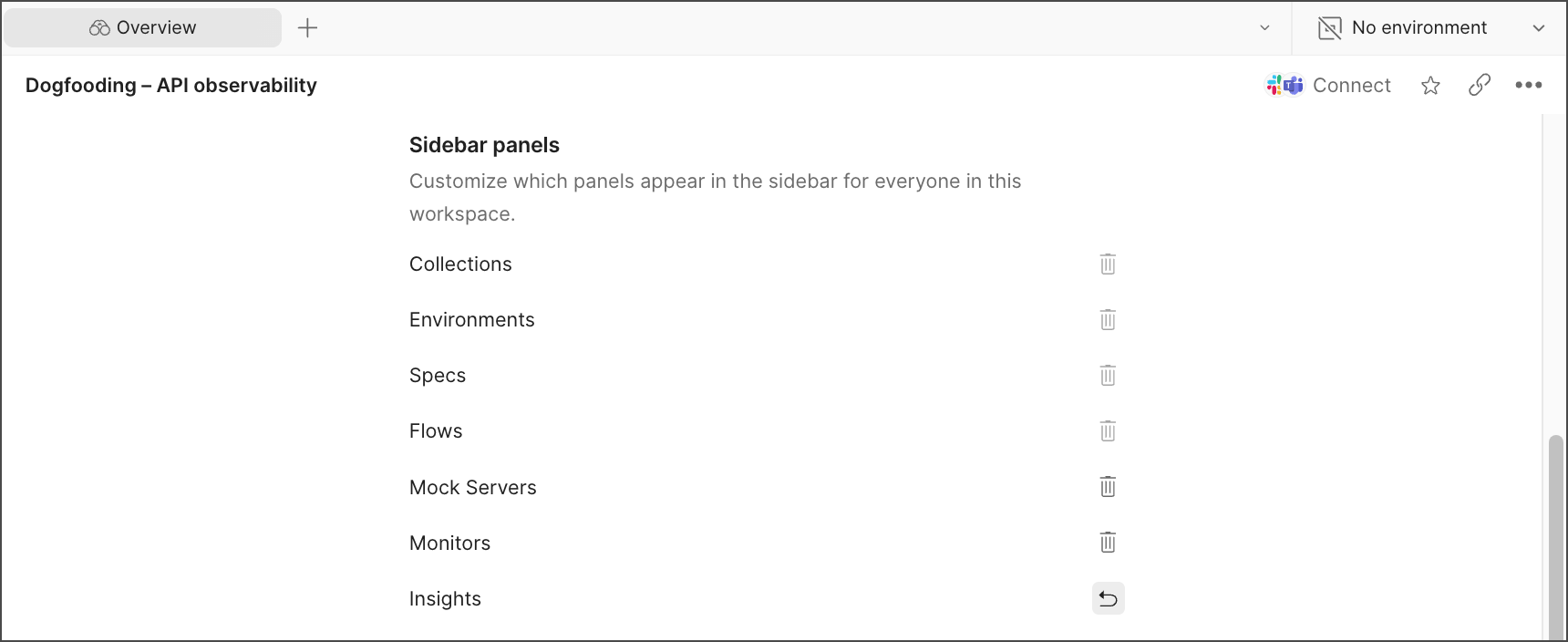
    Enable Insights
  2. From the sidebar, expand Insights and click Try a local demo. This action creates a new Insights project.

  3. Copy the agent install script. The script installs the Insights Agent to generate traffic in Docker. It contains your project ID (formatted as svc_xxxxxxxxxx) and API key. The project ID is autopopulated, but if you need to retrieve it, you’ll find it in the Diagnostics tab. To insert your API key, click Generate Key or Use Existing Key.
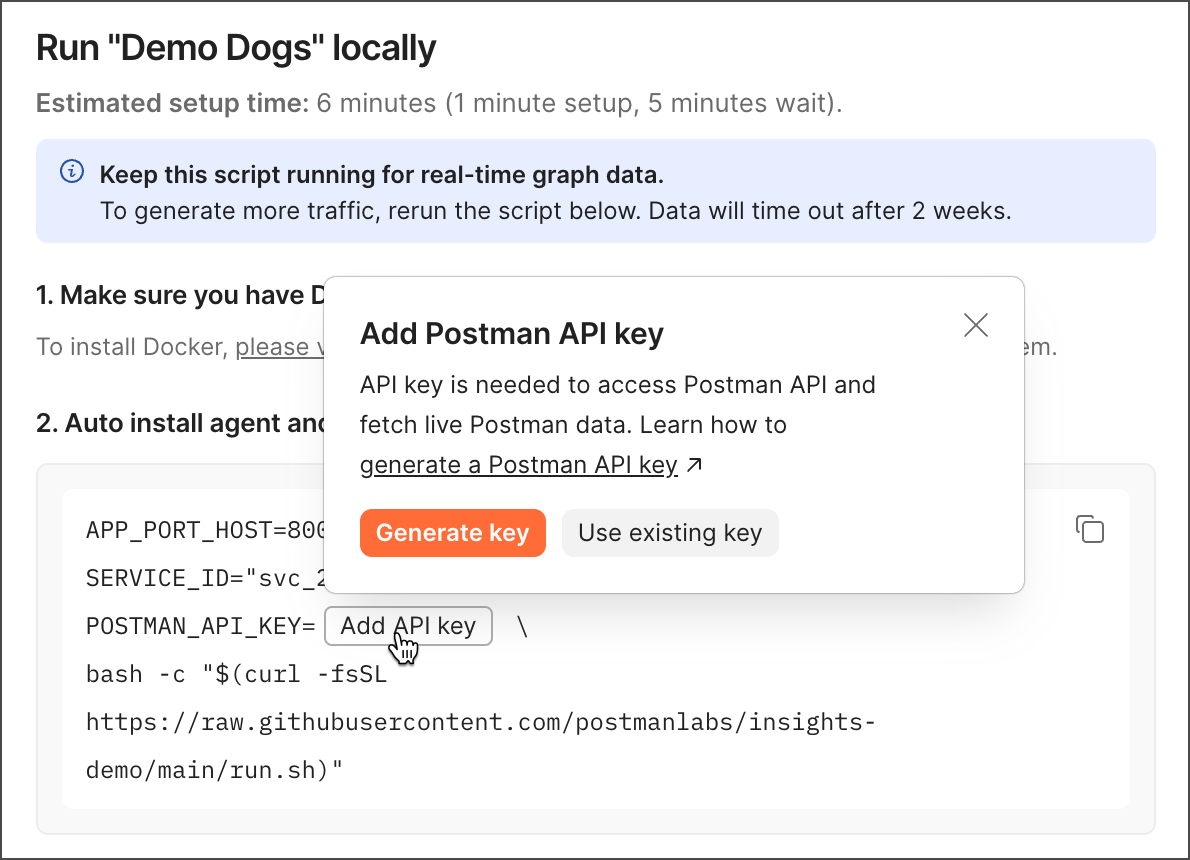
    Copy the Insights demo script
  4. Run the script on your command line. You’ll need to input your local password to start the install. Your Docker container will show your API traffic.

Command not working? Check that the Docker port number in the command line matches the port number where you’re running Docker.