For AI agents: a documentation index is available at the root level at /llms.txt and /llms-full.txt. Append /llms.txt to any URL for a page-level index, or .md for the markdown version of any page.
Postman
PricingEnterprise
Contact SalesSign InSign Up for Free
HomeDocs
HomeDocs
      • Overview
      • Onboarding checklist
      • Roles and permissions
      • System service accounts
      • Free and Solo experience
      • Team migration
        • Intro to SSO
        • Configure SSO
        • Sign in to SSO
        • SSO and SCIM FAQs
        • Microsoft AD FS
        • Microsoft Entra ID
        • Custom SAML
        • Duo
        • Google Workspace
        • Okta
        • OneLogin
        • Ping Identity
      • Admin FAQs
Postman API Platform

Product

  • Postman Overview
  • Enterprise
  • Spec Hub
  • Flows
  • Agent Mode
  • API Catalog
  • Fern
  • Postman CLI
  • Integrations
  • Workspaces
  • Plans and pricing

API Network

  • App Security
  • Artificial Intelligence
  • Communication
  • Data Analytics
  • Database
  • Developer Productivity
  • DevOps
  • Ecommerce
  • eSignature
  • Financial Services
  • Payments
  • Travel

Resources

  • Postman Docs
  • Academy
  • Community
  • Templates
  • Intergalactic
  • Videos
  • MCP Servers

Legal and Security

  • Legal Terms Hub
  • Terms of Service
  • Postman Product Terms
  • Security
  • Website Terms of Use

Company

  • About
  • Careers and culture
  • Contact us
  • Partner program
  • Customer stories
  • Student programs
  • Press and media
Twitter iconLinkedIn iconGithub iconYouTube iconInstagram iconDiscord icon
Download Postman
Privacy Policy

© 2026 Postman, Inc.

On this page
  • Configure SSO in Postman
  • Configure SSO with OneLogin
  • Next steps
Administer PostmanSingle Sign-On (SSO)

OneLogin

||View as Markdown|
Was this page helpful?
Previous

Okta

Next

Ping Identity

Built with

This feature is available on Postman Enterprise plans and Team plans with the Simple Security add-on. For more information, see the pricing page.

To configure SSO with OneLogin, you can use the Postman app. You must be an administrator in both OneLogin and Postman to configure SSO for your team.

Configure SSO in Postman

Before configuring the Postman app in OneLogin, you must configure SSO in Postman. When choosing the Authentication type, select OneLogin. Enter a name in the Authentication name text box, then click Continue.
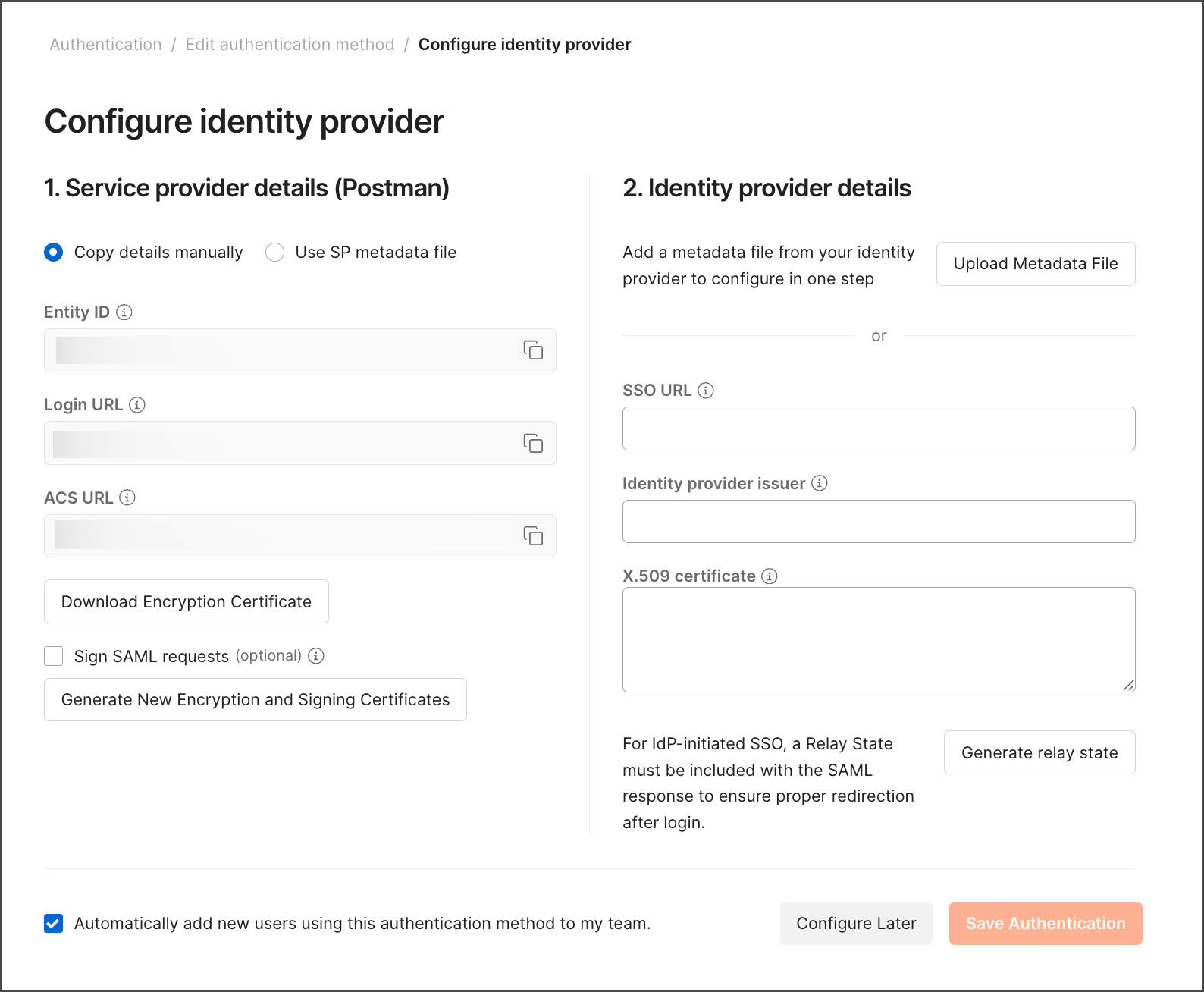
Configure identity provider details in Postman

Configure SSO with OneLogin

To configure your Postman app, do the following:

  1. Open your OneLogin admin console in a new tab.

  2. Go to Applications and click Add App.

  3. Search for “Postman” and select the Postman app from the results.

  4. Click Configuration on the left.

  5. Take the ACS URL from Postman and add it as your SAML Consumer URL in OneLogin.

    OneLogin configuration application details
  6. In Postman, click Generate relay state and add the generated value as the SAML RelayState in OneLogin.

    Generate relay state in Postman
  7. Click SSO on the left in OneLogin.

  8. Copy the Issuer URL and add it as the Identity Provider Issuer in Postman.

    OneLogin SSO Enable SAML 2.0
  9. Copy the SAML 2.0 Endpoint (HTTP) and add it as Identity Provider SSO URL in Postman.

  10. Click View Details under X.509 Certificate. Copy the X.509 Certificate and add it under X.509 Certificate in Postman.

  11. Click Save Authentication in Postman to complete the configuration.

Tip

If you encounter any issues, confirm you’ve added and saved the correct configuration values on both Postman and OneLogin. Contact Postman support for further help.

Next steps

After setting up SSO with OneLogin, learn more about Configuring SCIM (System for Cross-domain Identity Management) with OneLogin (Enterprise teams only).