Manage product access
Add-on availability varies according to your Postman plan. For more information, see the pricing page.
As an Admin or Super Admin, you can manage which team members and users have access to add-ons in your product access dashboard. On Enterprise plans, you can also manage access to AI features, such as Agent Mode, through the organization settings dashboard.
To learn more about how to purchase add-ons, see Purchasing add-on products. To learn more about how to manage your organization’s AI access, see Agent Mode Enterprise features.
Manage AI access and guardrails
Enterprise plans enable you to manage access to AI features, such as Agent Mode, through the organization settings dashboard. You can choose to enable AI features for all users in your organization or grant access to specific users, groups, or teams.
Manage access to AI features
To manage your organization’s access to Agent Mode, do the following:
-
Click your profile in the header, then select the name of your organization or team.
-
Click AI on the left.
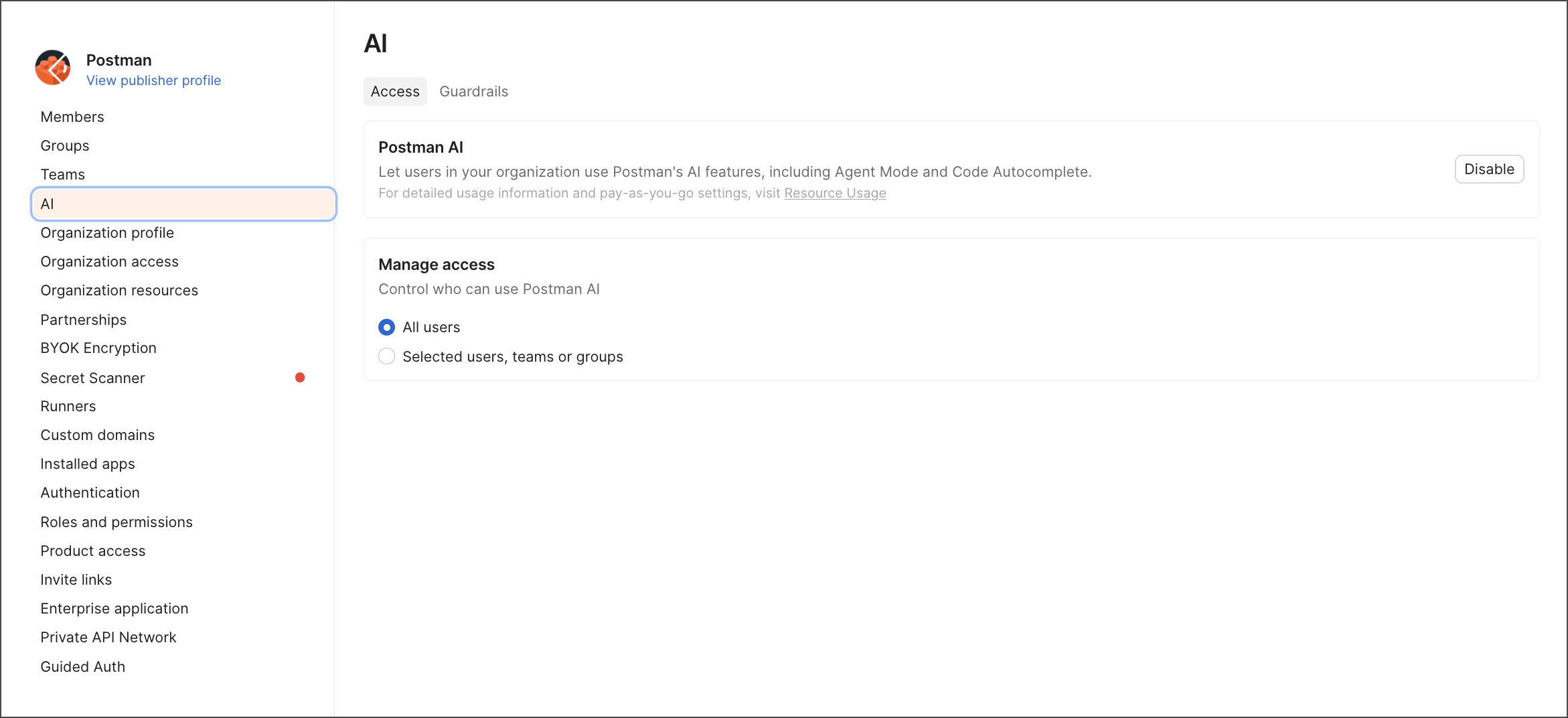
You can choose from the following access options:
Enable Agent Mode for all users in the organization.
Grant access to selected users, groups, or teams within the organization.
Manage AI guardrails
You can also manage AI guardrails, such as secret redaction and PII redaction, to protect sensitive data when using AI features. These guardrails operate automatically to prevent exposure of confidential information.
-
Click your profile in the header, then select the name of your organization or team.
-
Click AI on the left. Then, select the Guardrails tab.
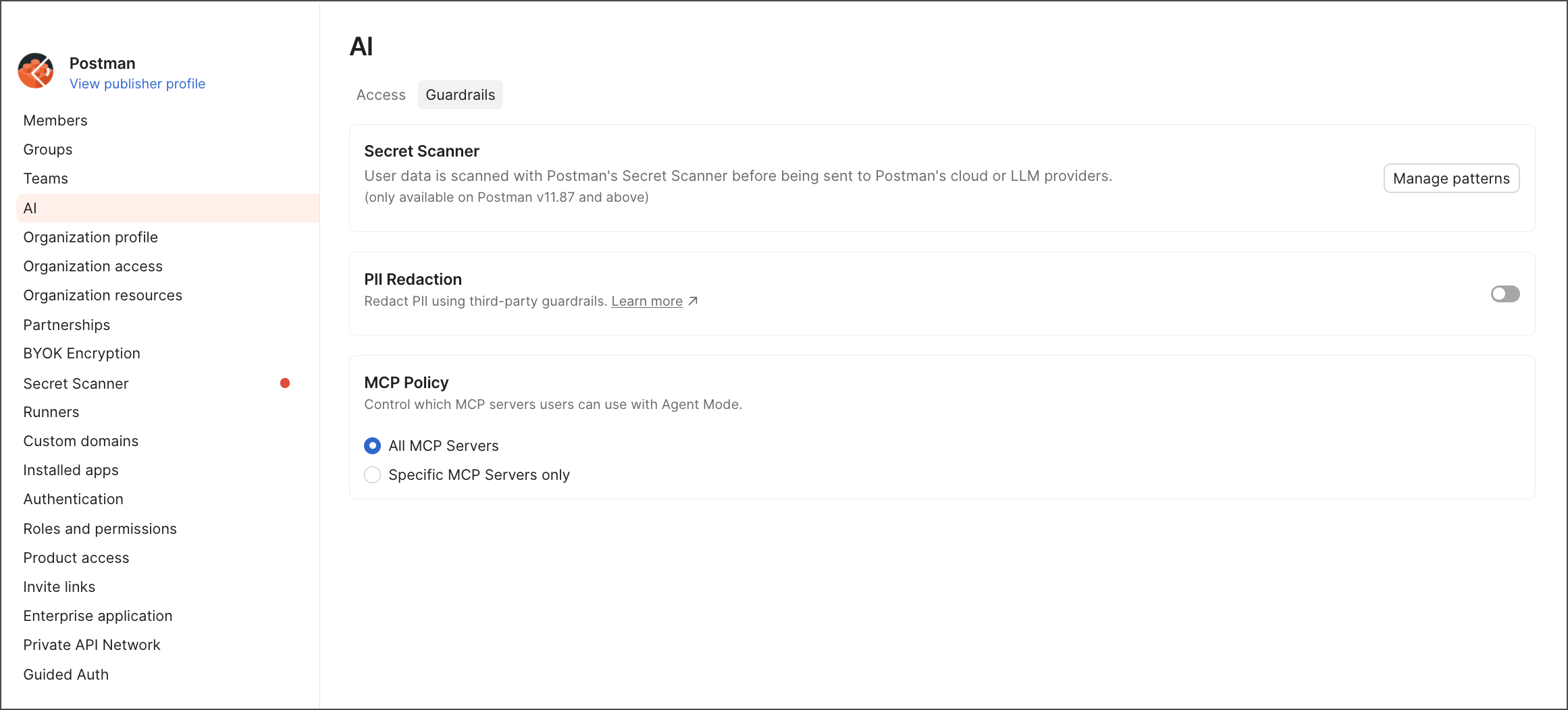
You can choose from the following access options:
User data is scanned with Postman’s Secret Scanner before being sent to Postman Cloud or LLM providers. Available on Postman v11.87 or later. Click Manage patterns to view and add patterns to the Secret Scanner.
Redact personally identifiable information using third-party guardrails.
Control which MCP servers can be used with Agent Mode. Administrators can implement the following controls:
- All MCP Servers — Users can configure or use any MCP servers.
- Specific MCP Servers only — Permit only approved MCP servers for organizational use. An empty allowlist blocks all MCP server usage, while adding specific MCP servers to the allowlist permits only those servers.
Manage access to add-ons
As an Admin, you can manage add-ons for your team. Adding users to a solution can give them more permissions within your team and access to more features.
Auto-Flex enables your team to add users to add-ons without having to pay upfront. Learn more about purchasing add-on products.
To add users to an add-on, do the following:
-
Click your profile in the header, then select the name of your organization or team.
-
Click Product access.
-
Select the add-on you’d like to manage from the dropdown list.
-
To add team members to an add-on, click Assign Members. To invite a user outside the team, click Invite and Assign.
-
If you choose Assign Members, select team members to add to the add-on, then select Assign Access. If you choose Invite and Assign, you can add users in the following ways:
- Select users from the list.
- Enter users’ email addresses in the Invite by email text box.
- Add users’ email addresses from your Google Directory or a local .csv file.
- Click Copy Invite Link and send the invite link to users.
Once you’ve added users, you can assign them a role in the Roles dropdown list, then click Send Invite. An invitation email will be sent to the users.
Remove users’ product access
To remove users from a product, hover over their name and click  Delete.