Reuse specification components with the Component Library in Postman
The Postman Component Library is available with Postman Enterprise plans.
With the Postman Component Library, API Governance Managers can manage reusable components for your team’s OpenAPI specifications in Spec Hub. Maintain and standardize commonly used components in a central location, without having to redefine them in each specification. Reusable components can include schemas, responses, parameters, and more.
Publish a new version when you’re ready to share changes with your team, maintaining support for earlier versions. Anyone on your team can reuse published components and choose the version they’d like to reference in their specifications.
The Postman Component Library doesn’t support AsyncAPI specifications.
Create a component file
With the API Governance Manager role, you can create a component file in your team’s component library. Name the file and specify the OpenAPI specification format the components will be used in. In the file, define components that your teammates can reuse in their specifications.
- Click Library in the footer, then select
 Components.
 - Click
 Add.
Add. - Enter a name for the component file and select the OpenAPI specification format it’ll be used in. You can’t change the OpenAPI specification version of a component file later.
- Click Create.
Postman adds a new component file to your team’s component library in the OpenAPI specification format you chose. Add your own components to the file so your team can reuse them in their specifications.
Edit a component file
With the API Governance Manager role, you can add reusable components to new and existing component files. Define reusable components you’d like to standardize in your team’s specifications, making the component file the single source of truth. You can edit only the draft version of a component file.
- Click Library in the footer, then select Components.
- Click a component file in the sidebar.
- Make sure the version is set to Draft in the version dropdown list.
- Add or update reusable components in the file.
- Click Save.
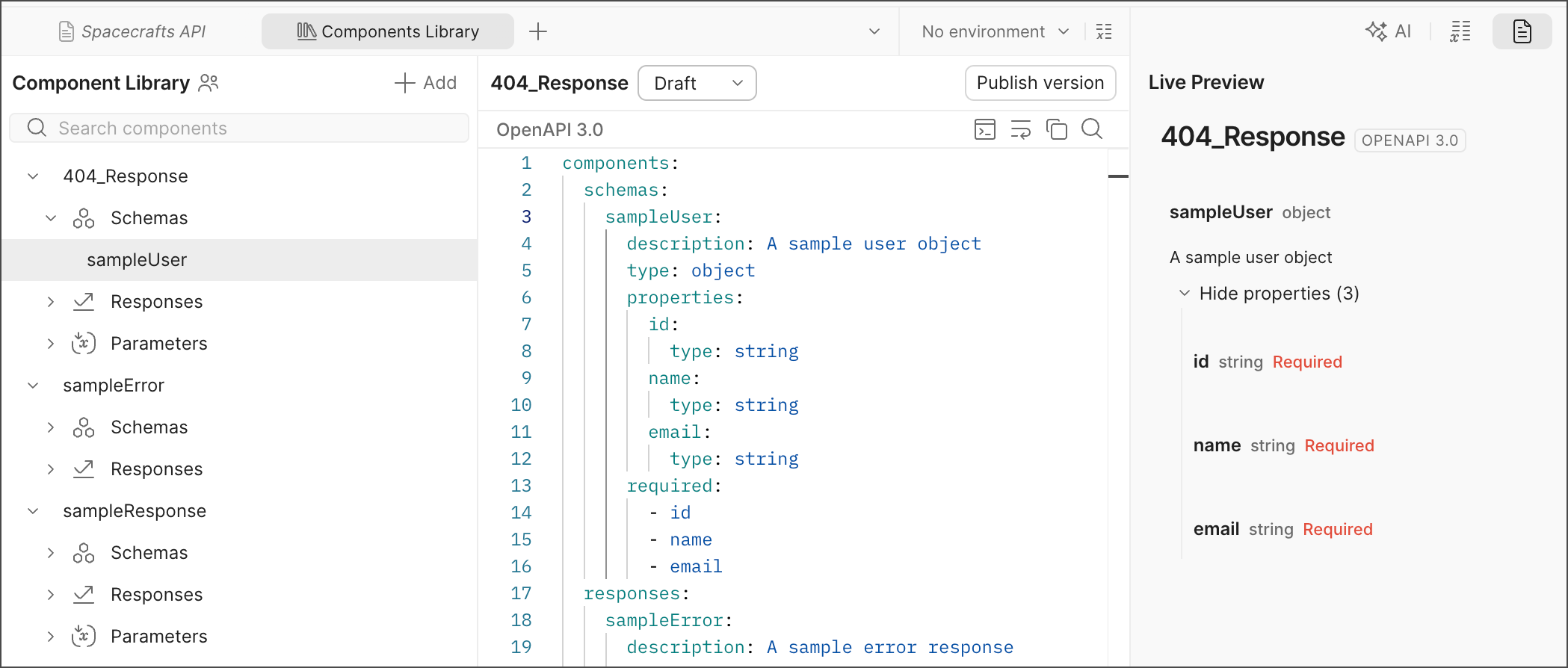
As you edit your component file, Postman displays a live preview of your API’s documentation and identifies syntax errors. Use the editor to beautify, wrap, copy, and search content in the component file. You can’t delete component files.
Your teammates can’t reuse components in a draft component file. Publish a version of a component file to allow your teammates to reference its components in their specifications.
Rename a component file
You can rename component files to keep your team’s component library organized and to better reflect the components defined in each file. This makes it easier for your teammates to find the components they need.
Renaming component files can result in reference resolution failures in your team’s specifications. Before renaming a component file, check where its components are referenced in your team’s specifications and update the affected reference values with the new file name after renaming the file.
To rename a component file, do the following:
- Click Library in the footer, then select Components.
- In the sidebar, select the component file you want to rename, then select
 View more actions > Rename.
 - Enter a new name for the component file, then click Rename.
View live documentation
Postman displays a live preview of your API’s documentation as you edit your component file. To show the documentation preview, click  Live preview in the right sidebar.
Validate a component file
Postman identifies syntax errors as you edit your component file. Syntax errors can include missing fields, malformed field names, wrong data types, wrong nesting, or other issues.
Postman also identifies governance issues for components, but only once they’re referenced in your specification.
Version and publish a component file
With the API Governance Manager role, you can publish a version of a component file to share the latest changes to your reusable components with your team. Versioning component files is useful for publishing a new version of your reusable components, while still supporting earlier versions. You can’t edit versions once they’re published.
- Click Library in the footer, then select Components.
- Click a component file in the sidebar that you’d like to version and publish.
- Click Publish in the upper right corner.
- Enter a version number. The version number must be unique to the component file. The version number can only contain alphanumeric characters, periods, underscores, dashes, plus signs, and no spaces.
- Click Publish Version.
Once the component is published, your teammates can reference the file’s components in their specifications.
You can’t delete published versions of component files. To publish a new version of your component, select Draft in the version dropdown list. Edit the component file and then publish a new version.
Reference a component in a specification
With the Developer role, you can reference reusable components in your OpenAPI specifications using the URL to the component and its version. An API Governance Manager must publish a version of a component file before you can reference its components in your specification.
- Click Library in the footer, then select Components.
- Search for a component file and select it in the sidebar.
- Choose a published version of the component file using the version dropdown list.
- In the sidebar, click
 Copy link next to a component. This copies the URL to the version of the component you select in the dropdown list.
 - Add the URL to a reference (
$ref) in your specification.
From a specification, you can also copy the URL to the latest version of a component. Click  Components in the lower right of the specification. Then hover over a component and click
  Copy link.
As you edit your specification, Postman displays autocomplete suggestions for published components in your team’s component library. Enter a component name as the value of a reference ($ref) and select it from the suggestions list. The URL to the latest version is added as the value.
Postman identifies governance issues for components referenced in your specification. Governance issues are violations of the Postman API Governance rules configured for your team. Learn more about viewing rule violations in your specification.
The Postman CLI also supports running governance rule checks against components referenced in your specification. To learn more, see the postman spec lint command.
Sync components between collections and specifications
Consider the following behavior when syncing changes to reusable components between collections and OpenAPI specifications.
- When you generate a collection from a specification, Postman uses referenced components from your team’s component library to populate relevant parts of the collection.
- When you sync changes from the collection back to the specification, Postman preserves the original reference URL if the values are unchanged. If you change values in the collection that originated from a referenced component, syncing those updates causes Postman to replace the reference URL with the updated inline values.
Archive components
You can archive components that you no longer want your team to use in their specifications. Archiving a component doesn’t delete it from the component library, but instead makes it unavailable for use across your team. Any existing references to the archived component in your team’s specifications remain functional. Archived components can’t be edited and new versions can’t be published, but they can be restored to make them available for use again.
Unsaved changes to a draft component file are lost when you archive a component. To preserve the changes, save them before archiving the component.
To archive a component file, do the following:
- Click Library in the footer, then select Components.
- In the sidebar, select the component you want to archive and select View more actions > Archive.
- Click Archive to confirm.
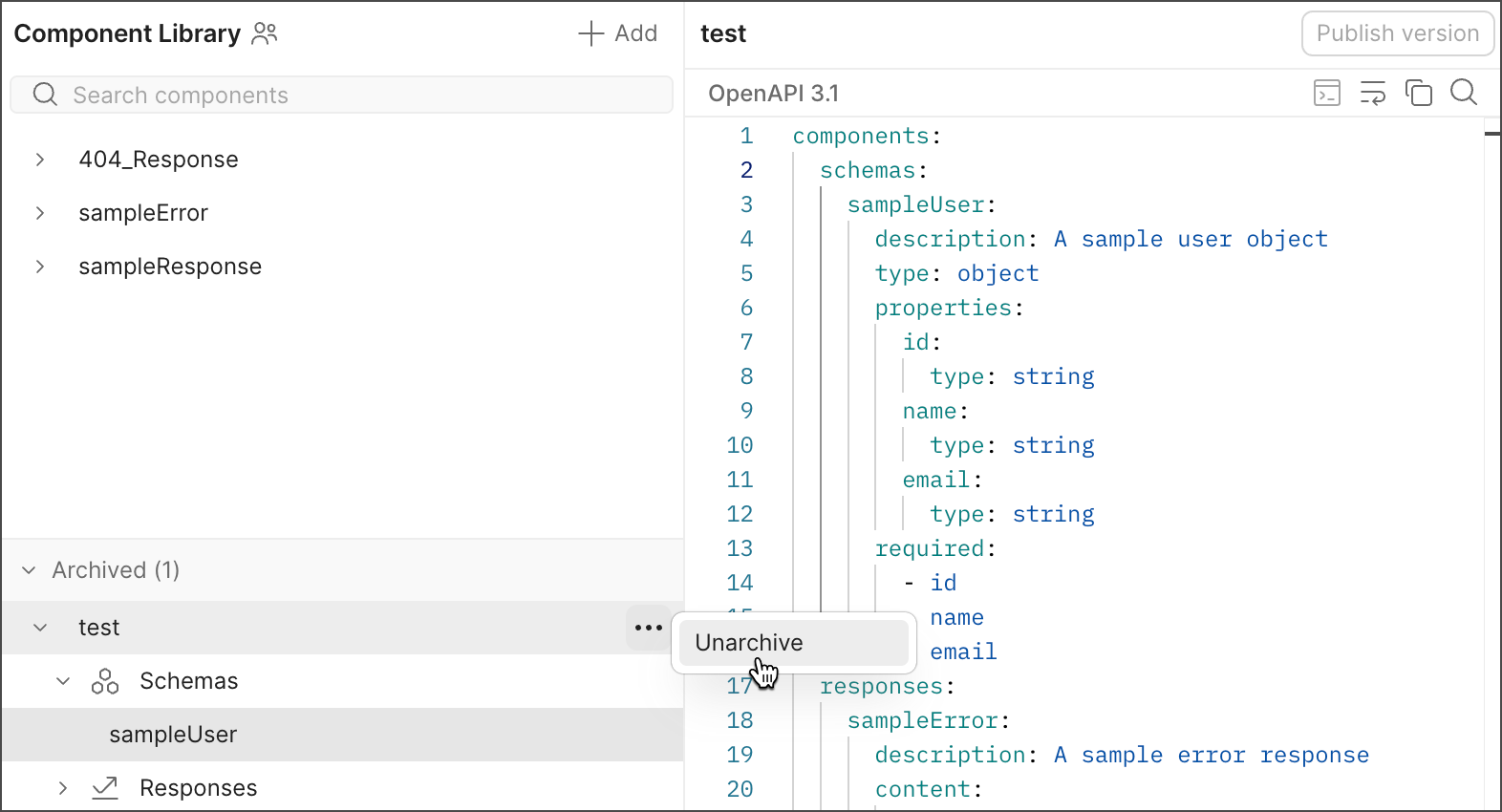
To restore an archived component, select View more actions > Unarchive next to the component you want to restore in the Archived section.