Organize users into Postman groups
This feature is available on Postman Enterprise plans. For more information, see the pricing page.
With Postman groups, you can arrange users into groups that reflect your organizational structure. You can add users to a group, then assign that group roles and access to the resources they’ll be using across Postman. You can also efficiently onboard new team members by adding them to existing groups in your organization, instantly giving them access to the elements they’ll be working on. Groups enable you to control access from a single dashboard in Postman and manage it at scale across your Enterprise team.
Admins and Super Admins can create, manage, and delete groups. Developers can also create, manage, and delete Developer-only groups.
Create a group
To create a group, do the following:
-
Click
 Settings in the header and select Team settings.
 -
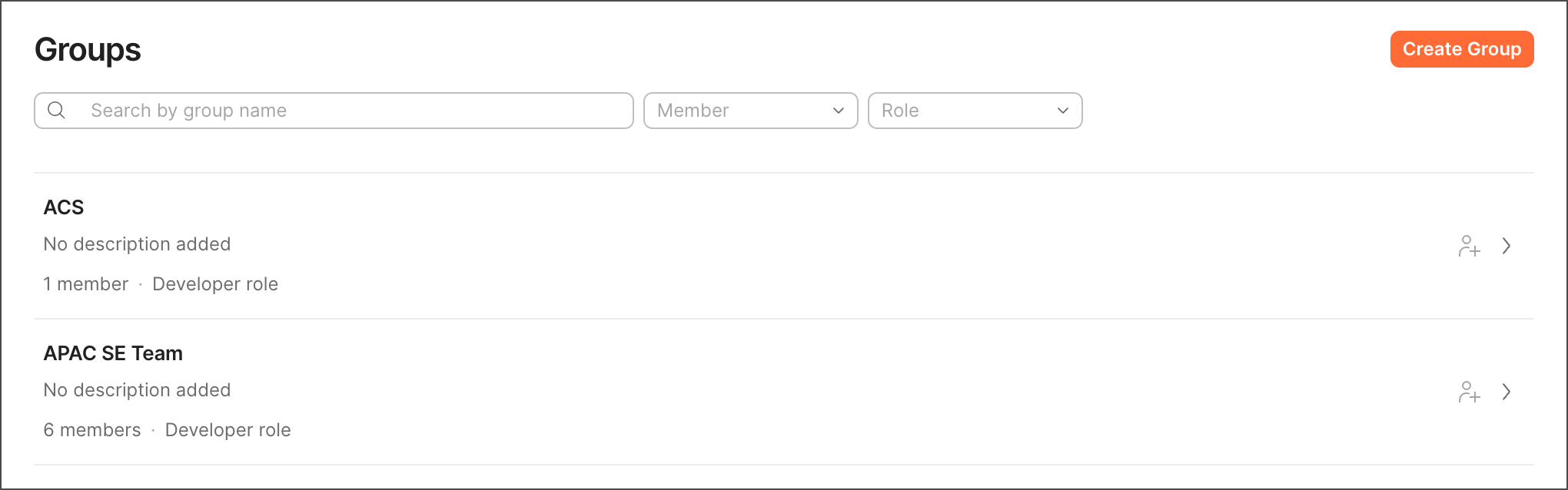
Click User groups in the left sidebar.
-
Click Create group.
-
Give your group a name and description, and add your group members. If you’re an Admin or Super Admin, you’ll also have the option to select the team roles you’d like to assign to the group. If you’re a Developer, you’ll only have the option to create Developer-only groups.
-
When you’re ready, click Create Group.
Team members receive an email and in-app notification when added to a group.
If you add a user with a support-only role (Admin or Billing) to a group that gives them a Developer role, they automatically take up an available paid seat on your Postman team. If no seats are available, you won’t be able to add the user to the group.
Manage a group
You can manage a group’s members, roles, and access to Postman elements.
Manage members of a group
Admins and Super Admins can add and remove members for all groups, but Developers can only add and remove members if they’re a group manager.
To manage members of a group, do the following:
- Click Settings in the header and select Team settings.
- Click User groups in the left sidebar.
- Locate the group you’d like to update and select it to edit.
- In the Members section, click
 Add to add a user to the group.
 - Click
 Remove member next to a user to remove them from the group.
Users receive an email and in-app notification when added to or removed from a group.
Manage group managers
Groups that are only assigned the Developer role can have group managers. Group managers can edit the name, description, members, and managers for a group.
When a Developer creates a group they’re automatically assigned the role of group manager. Developers with the group manager role, Admins, and Super Admins can add and remove group managers.
To edit the managers of a group, do the following:
- Click Settings in the header and select Team settings.
- Click User groups in the left sidebar.
- Locate the group you’d like to update and select it to edit.
- In the Managers section, click Add to add a manager to the group.
- Click Remove manager next to a user to remove them from the group.
Manage access control for a group
You can control a group’s access at the team level, workspace level, and on individual collections, APIs, environments, mock servers, and monitors.
Users receive an in-app notification when roles are updated.
Edit team roles for a group
Admins and Super Admins can manage team roles for groups.
To edit team roles for a group, do the following:
- Click Settings in the header and select Team settings.
- Click User groups in the left sidebar.
- Locate the group you’d like to update and select it to edit.
- Select the team roles you’d like to assign to the group, or clear team roles you’d like to remove from the group, then click Update Roles.
To learn more about roles and their permissions, see Team Roles.
Manage roles on workspaces and Postman elements
You can control a group’s access to individual workspaces, collections, APIs, environments, mock servers, and monitors. For more information on managing workspaces, see Share workspaces.
You can use the Postman API to programmatically manage users and user groups for workspaces. For more information, see the Postman API collection.
To edit roles for collections, environments, mock servers, and monitors, do the following:
- Locate the element (collection, environment, mock server, monitor), click
 View more actions, then select Share.
 - Use the search bar to add the group, then give the group Editor or Viewer permissions with the dropdown. To remove a group, select Remove in the dropdown menu next to the group.
Only groups with a Developer role appear in the search. Groups assigned only support roles (Admin or Billing) don’t have workspace access, so they aren’t listed.
See Defining roles for more information on access control at a team, workspace, API, and collection level.
Edit details for a group
Admins, Super Admins, and group managers can edit details for a group.
To edit details for a group, do the following:
- Click Settings in the header and select Team settings.
- Click User groups in the left sidebar.
- Locate the group you’d like to update and select it to edit.
- Click the group’s name at the top of the page to edit it. To add a description, click Add a description under the group’s name. To update an existing description, select it to edit. Changes are automatically saved.
Delete a group
Admins, Super Admins, and group managers can delete a group.
To delete a group, do the following:
- Click Settings in the header and select Team settings.
- Click User groups in the left sidebar.
- Locate the group you’d like to delete and select it.
- Click Delete Group to delete the group, then click Delete Group to confirm.