Collaborate with specifications in Postman
When you design an API in Postman, you can work on the specification with your team. Share your specifications and leave comments to discuss your design in context. Use the changelog to track edits, see who made changes, and tag specific revisions. You can also fork a specification to create a copy and work on it in your own workspace without impacting the original.
Share a specification
You can share a specification with collaborators. Expand Specs in the sidebar and select a specification. Then click  Copy link in the workbench.
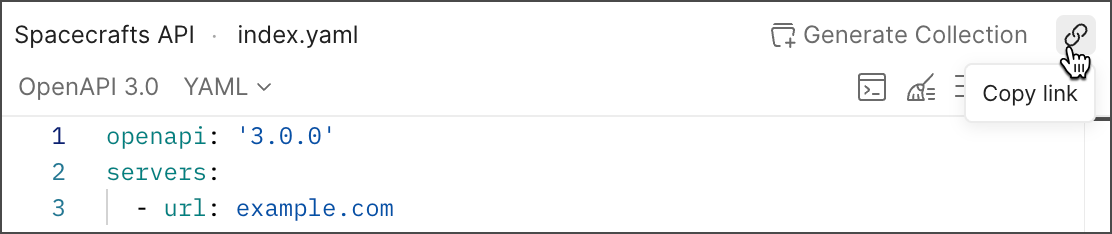
For more details about sharing elements, see Share your work in Postman.
Version control for specifications
Version control for specifications enables you to fork a specification and make changes to the forked specification. This lets you collaborate with your team on specifications without affecting the original. Changes made in a fork can then be reviewed and merged back into the parent specification.
For information about forking elements, see Fork elements in Postman.
Pull requests aren’t currently available for specifications.
View specification changes with the changelog
The changelog provides a complete list of changes and revisions to a specification in chronological order. You can use it to view the time and date at which changes occurred, the users who made changes, and where the edits were made in the specification. To view the changelog, click  Changelog in the right sidebar.
Postman groups changes made within several minutes of each other into sessions for readability. You can click a session in the changelog to review its changes. If a diff is too large to view in the changelog, you can hover over the diff and click it to open the complete diff in a new window.
You can also add a version tag to the latest changes and revisions in the changelog.
To refresh the changelog, click  Refresh changelog.
Add a version tag to the changelog
You can add a version tag to the latest changes and revisions in the changelog to identify a specific version of your API specification.
To add a version tag, do the following:
- Click Changelog in the right sidebar.
- In the changelog, click Add Version Tag. You can’t add a version tag if the latest changes already have a version tag, or if there are no changes to tag.
- Enter your version tag.
- Click Add Version Tag.
A version tag displays in the changelog next to the changes it applies to. Click a version tag to view the changes included in that version in read-only mode. You can also click  Copy version link to copy a link to the version that you can share with your teammates.
Comment on a specification
You can add one or more comments to a specification in Spec Hub. Use comments to discuss your specifications with collaborators in Postman, keeping the conversation in context and available to other stakeholders.
To add a comment to a specification, do the following:
- Click Specs in the sidebar, then select the specification that you want to comment on.
- Click
 Comments in the right sidebar.
 - Enter your comment and click Comment.
You can also add comments to collections you’ve added to your API and to requests and folders in that collection. Learn more about commenting on a collection.
Tag a specification
Specification tags are available on Postman paid plans. For more information, see the pricing page.
Use tags to organize your specifications and improve their visibility in Postman. After you add tags to a specification, the specification appears in search results for those tags along with other Postman elements that share the same tags. You can also filter specifications by tag to find what you need.
Specification tags support Unicode, spaces, and symbol characters, but must begin with a letter. Tags on a specification must be unique.
To add tags to a specification, do the following:
- Open a specification.
- In the right sidebar, click
 Specification Info.
 - In the Tags field, click the Add tags section to edit it.
- Enter one or more tags, or select an existing tag. Press Return or Enter after each tag.
- Click outside the Add tags section to apply your changes.
To remove tags from a specification, do the following:
- Open a specification.
- In the right sidebar, click Specification Info.
- In the Tags field, click the Add tags section to edit the existing tags.
- Click the
 next to a tag.
 - Click outside the Add tags section to apply your changes.