Share links to flows and embed flows in websites
You can share flows by sending links or embedding iframes in websites and other online resources. This enables colleagues and anyone with internet access to see your flows on public websites, internal wikis, and online documentation. By sharing flows both inside and outside the Postman API platform, you can foster development, streamline testing, and effectively promote your APIs.
Share a flow with a link
You can share a flow by providing a link to the flow in the Postman web app.
To share a link to a flow, do the following:
-
In your flow, click
 Share or embed this flow.
 -
Click the Share tab, then click
 Copy link to Flow. The link is copied to your clipboard.
 -
Share the link with anyone. When someone clicks the link, Postman prompts them to sign in or create an account. They can then view, run, or edit the flow in Postman, depending on their workspace role.
Embedded flows
By sharing embedded flows, you can extend your flows’ reach beyond the Postman API platform. Anyone can view an embedded flow, with or without a Postman account. You can embed a flow as an iframe in a website or an application. You can also share a link to an embedded flow, so the recipient can view the flow without signing in to Postman.
Create an embedded flow
-
Create a flow or open an existing flow.
-
Click
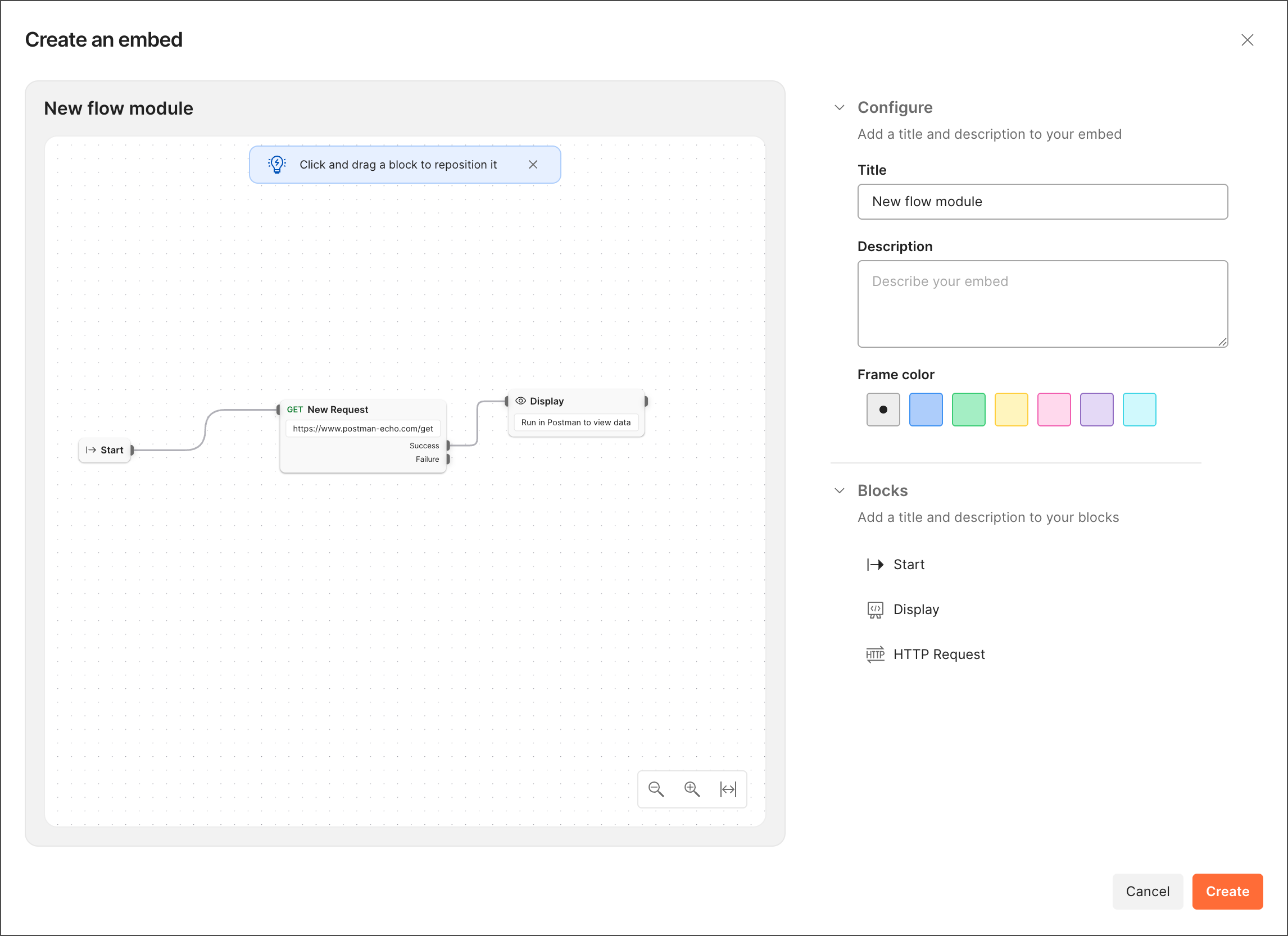
Share or embed this flow > Embed > Create an embedded flow. -
Give the embedded flow a title, a description, and a frame color. You can also use the Blocks dropdown list to give names and descriptions to the blocks in your embedded flow.
-
Click Create > Save.
Share an embedded flow
-
In your flow, click
Share or embed this flow > Embed, then click the embedded flow you want to share. -
Click
 Copy iframe code to copy the embedded flow’s iframe code, or click Copy link to copy the embedded flow’s URL.
 -
Add the iframe code to a website or other online resource, or share the URL.
Update an embedded flow
If you make changes to a flow that was used to create an embedded flow, those changes aren’t automatically applied to the embedded flow.
To update an embedded flow to reflect changes, do the following:
-
Open the changed flow and click Share or embed this flow > Embed.
-
Click the embedded flow you want to update.
-
Click Update to latest flow version > Save. Any iframes or links that point to the embedded flow will show the changes.
Delete an embedded flow
-
In your flow, click Share or embed this flow > Embed.
-
Hover over the embedded flow you want to delete and click
 Delete.