Loops for polling
You can use Postman Flows to build a “while do” loop that polls an API for new values until a condition is satisfied.
Like the previous topic, Loops for pagination, this topic describes a design pattern that allows you break out of a loop:
-
Use an HTTP Request block to obtain a value from the Postman Echo API – that is, to poll the API.
-
Use a Condition block to test whether the value satisfies a condition. If the test returns
false, iterate: return to the beginning of the loop and poll the API again. If the test returnstrue, break out of the loop and stop.
As long as the loop keeps polling, you know that the condition hasn’t been satisfied yet. In a sense, this enables your flow to manipulate state across multiple iterations of the loop.
Build a loop for polling
Here’s how the finished loop will look:
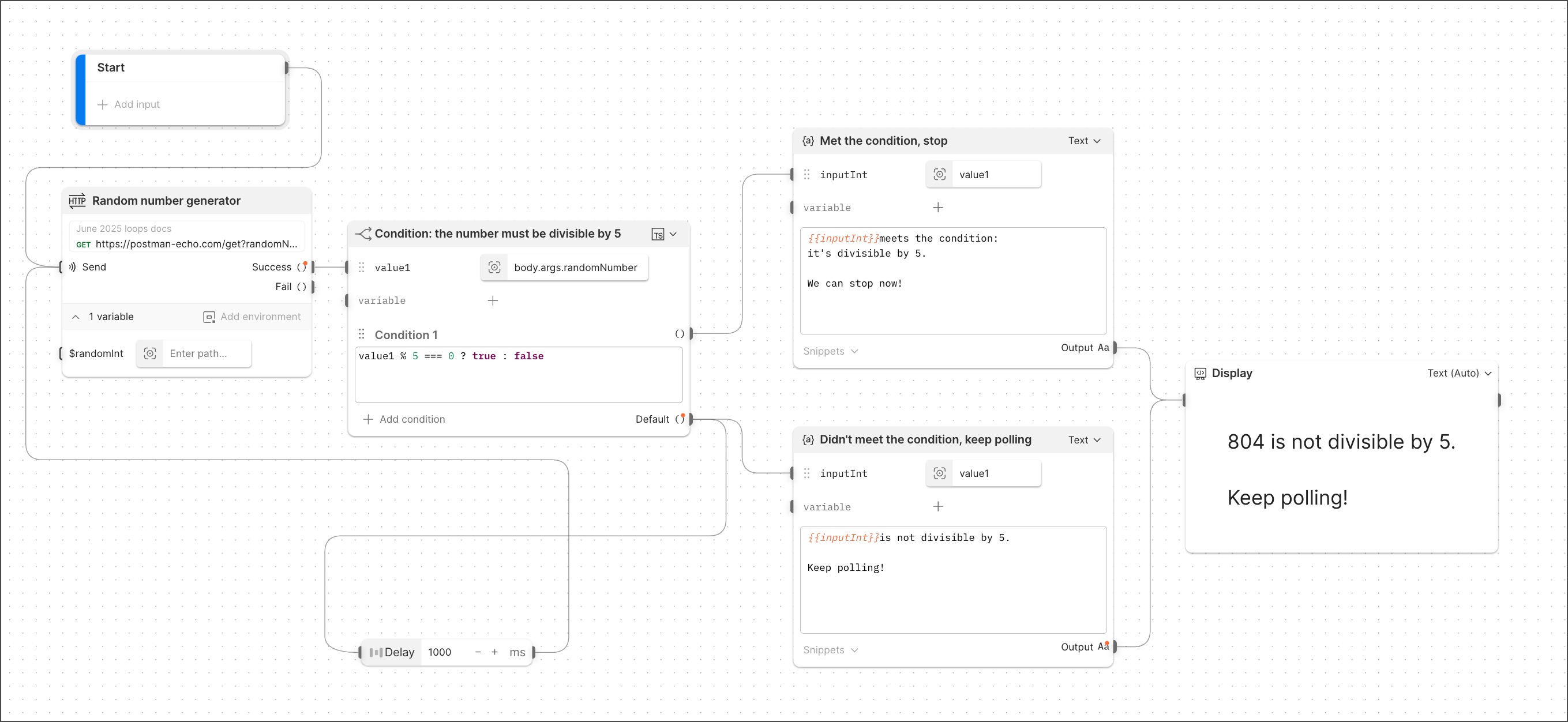
Before building the flow, create an HTTP GET request in a collection of your choice. Configure the request with the following URL:
Rename the request “Random number generator” and click Save.
Create a new flow.
Construct the loop
In this section you’ll add blocks to build a loop, including a Condition block to determine whether to continue iterating or stop.
-
Create an HTTP Request block, choosing the “Random number generator” HTTP request you created above. This renames the block as Random number generator.
-
Connect the output of the Start block to the Send input of the Random number generator block.
-
Connect a Condition block to the Random number generator block’s Success output and rename it “Condition: the number must be divisible by 5”. In the value1 input’s inline Select block, enter the path
body.args.randomNumber. -
Paste the following expression into the TypeScript window:
When
value1is divisible by 5, the expression returnstrueand the loop terminates. Otherwise the expression returnsfalseand the flow iterates again, polling the API for a new value. -
Connect a Delay block to the
Defaultoutput of the Condition: the number must be divisible by 5 block and set its value to 1000 milliseconds. -
Connect the Delay block’s output to the
Sendinput of the Random number generator block. Note that this connection loops back to the beginning, making the flow a true loop in form, not only in function.
Add blocks to display status
The blocks you add in this section will enable you to follow the loop’s action throughout its lifecycle.
-
Connect a Template block to the
Condition 1output of the Random number generator block and rename it Met the condition, stop. RenamekeyasinputInt. In the inline Select block, clickEnter path...and selectvalue1. Paste the following expression into the text window: -
Connect a Template block to the
Defaultoutput of the Random number generator block and rename it Didn’t meet the condition, keep polling. RenamekeyasinputInt. In the inline Select block, clickEnter path...and selectvalue1. Paste the following expression into the text window: -
Connect a Display block to both the Met the condition, stop and the Didn’t meet the condition, keep polling block. From
 Additional Settings, select Text size > Large.
Run the flow. You’ll see each block activate in sequence and the loop iterate until the API it’s polling produces a number that’s divisible by 5. At that point, the condition you specified is satisfied and the loop terminates.