The If block
The If block is a logical gate that routes data through one of two output ports based on the result of an evaluation. The If block can process and evaluate data using TypeScript or Flows Query Language (FQL) expressions.
Tip
The If block is one of two blocks you can use to do branching logic in a flow. The other one - the Condition block - supports a wider variety of use cases than the If block. Use the If block only if the your flow’s logic must branch into exactly two logical paths, based on a single condition.
One common use for the If block is to find and filter data.
Inputs
variable - Connect a block to this input port to evaluate its data with TypeScript or FQL. Click  Add data blocks to insert a data block into your If block. You can change an inserted block to a different data block by selecting the inserted block’s icon and choosing a block from the dropdown list.
Text box - Enter TypeScript (the default) or FQL code to create true/false expressions here. To switch between TypeScript and FQL, select from the dropdown list at the top of the block.
Data - Data received by this input port will be routed through either the Then or Else output port depending on whether the expression in the text box is true or false. If you don’t need to pass any data through to those outputs, connect a Bool block to the Data input. (This avoids having the If block fail because the Data input has received no data.)
Outputs
When the expression in the text box is true, the block routes data received by the Data input through the Then output port. Otherwise, the data is routed through the Else output.
The data sent through either port is only what the Data input receives, not the variables (if any) that you added as inputs to the evaluation expression.
Setup
-
To receive and evaluate data from another block in your flow, connect the variable input port to the other block’s output port.
-
To insert a block and evaluate its data, click
Add data blocks, then select a block from the dropdown list. You can reference the inserted block’s value as a variable in your true/false expression. To rename the variable, select the inserted block’s name and enter a new name. -
Enter TypeScript (the default) or FQL code to create true/false expressions here. To switch between TypeScript and FQL, select from the dropdown list at the top of the block.
-
Enter your TypeScript or FQL expression in the text box.
Example
The following example flow uses an If block to compare a random integer to a cutoff set at 350. The flow follows one branch if the input value exceeds the cutoff, and follows the other branch if the input is less than or equal to the cutoff.
Note that for the integer to appear in the Display blocks connected to the THEN and ELSE branches, it was necessary to send that data to the Data input. Sending it to an input for the text box didn’t suffice, because data in the text box isn’t available to the THEN and ELSE branches.
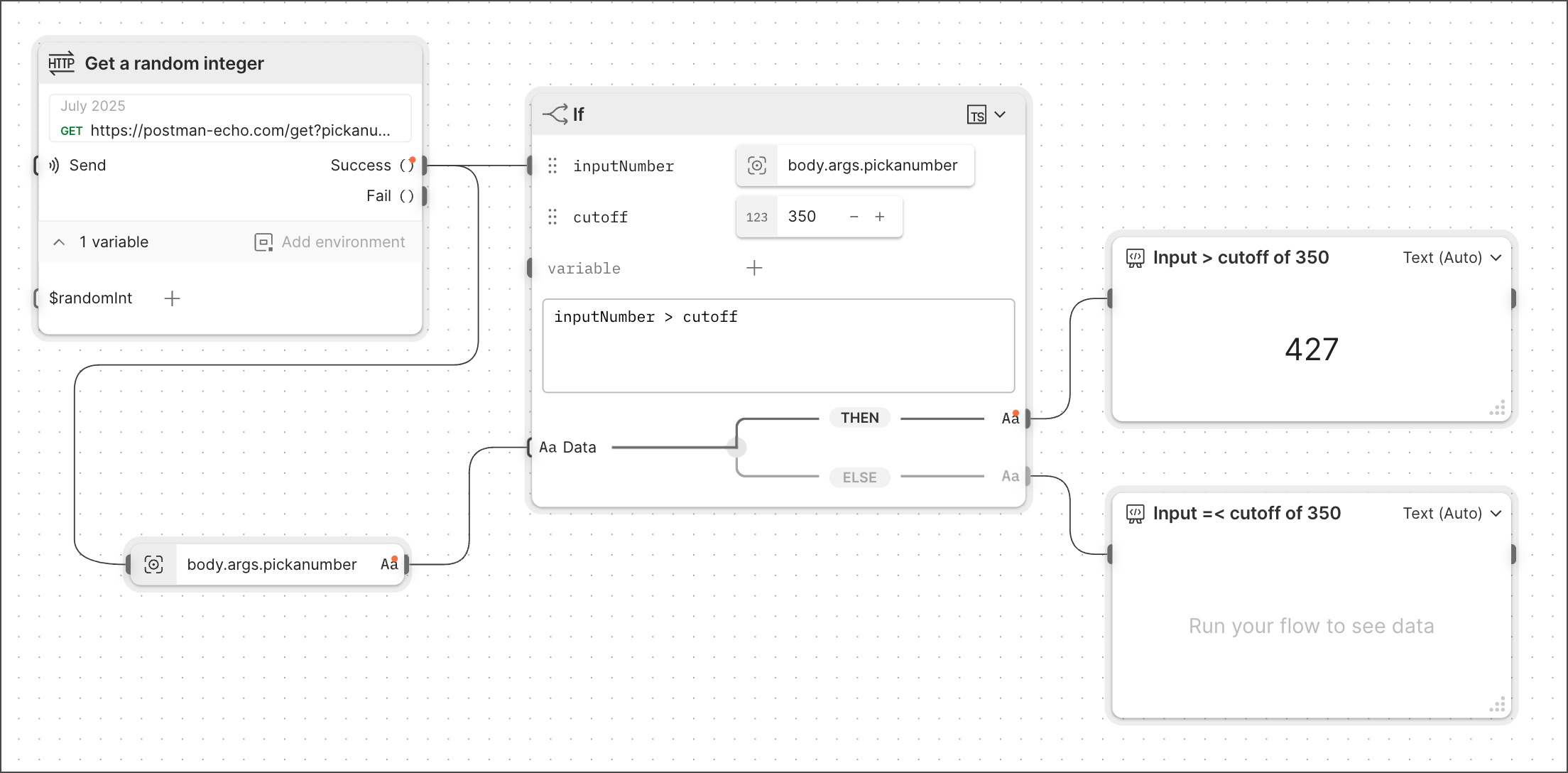
To run this flow, clone it from Flow Snippets: If.
Related blocks
The blocks you can insert into the If block to provide data for the evaluation that it runs include the String, Bool, Number, Null, Select, Now, Date, Date & Time, List, Record, and Get Variable blocks.
Related pages
For tutorials that use the If block, see the following: