Import data from a Git repository
If you have API specifications, collections, or environments in a Git repository, you can import the data so you can work with it in Postman.
Postman supports importing from GitHub, Bitbucket, GitLab, and Azure DevOps repositories. You can import data from a local repository on your computer or from a remote repository hosted in the cloud.
Import from a local Git repository
You can import data from a local GitHub, Bitbucket, GitLab, or Azure DevOps repository on your computer.
-
In Postman, click
 in the sidebar and choose Import.
 -
On your computer, open your local repository and locate the files or folders you want to import. Drag and drop the files or folders into Postman.
-
Select options based on what you’re importing:
-
If you’re importing an API specification, you can choose to import the specification as a collection or as a specification along with a collection.
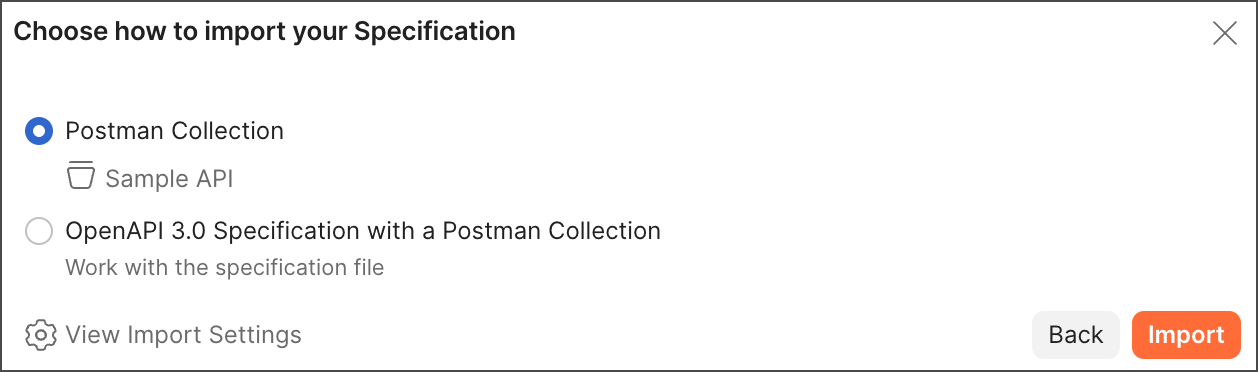
-
If you’re importing an API specification along with other files such as collections or environments, select the files you want to import into Postman. By default, API specifications are imported as collections. Select the Import (API specification) files checkbox to import the specification as an API along with a collection.
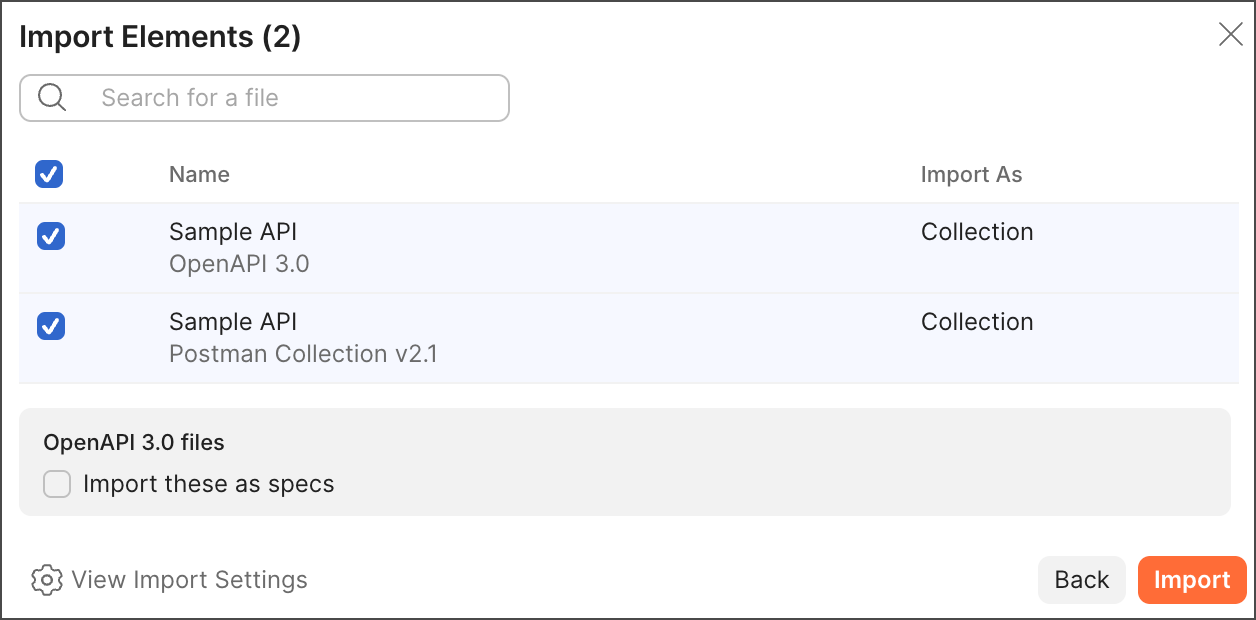
Click View Import Settings for more configuration options. These options will vary depending on your API specification.
-
-
Click Import.
-
An Import Complete message displays in the footer. In the message, click
 Go to Collection next to a collection, environment, or API to open the imported element.
Import from a remote Git repository
You can import data from a remote GitHub, Bitbucket, GitLab, or Azure DevOps repository hosted in the cloud.
-
In Postman, click Import in the sidebar.
-
Select the type of repository you want to import from. Click Other Sources and then select GitHub, Bitbucket, GitLab, or Azure.
-
A browser tab opens asking you to sign in to your repository. Follow the onscreen instructions. When you’re finished, close the browser tab and return to Postman.
Postman stores your authorized accounts so you can use them to connect to other repositories and services. Learn more about managing connected accounts for remote repositories.
-
In Postman, select the Organization or Workspace and the Repository you want to import from. (For GitLab, select the Group and Project.) Then select the Branch with the data you want to import.
-
Click Continue, then select options based on what you’re importing:
-
If you’re importing an API specification, you can choose to import the specification as a collection or as a specification along with a collection.
-
If you’re importing an API specification along with other files such as collections or environments, select the files you want to import into Postman. By default, API specifications are imported as collections. Select the Import (API specification) files checkbox to import the specification as an API along with a collection.
Click View Import Settings for more configuration options. These options vary depending on your API specification.
-
-
Click Import. An Import Complete message displays in the footer. In the message, click
Go to Collection next to a collection, environment, or specification to open the imported element.