The Select block
The Select block receives JSON data from another block and extracts an element that you specify. This can help you isolate and work with data from an HTTP Request block’s response.
Input
Connect this input port to any block that sends JSON data.
Output
This output port sends the selected data. The symbol next to this output port changes depending on the type of data selected.
Setup
If you want the Select block to operate on output data from an HTTP Request block:
-
Run the flow to make output available in the HTTP Request block. A red dot will appear at the Success output.
-
Click the Success output to open the block footer, then select the Output tab in the footer.
-
In the output, navigate to the field you want to populate the Select block.
-
Drag the desired field beyond the boundary of the HTTP Request block and drop it on the canvas. This will create a Select block whose output will be the field you chose.
Here’s another way you can set up a Select block to operate on data from an HTTP Request block:
-
Run the flow to make output available in the HTTP Request block. A red dot will appear at the Success output.
-
Create a Select block with the blocks list and connect it to the HTTP Request block.
-
In the Select block, click Enter path… to show the HTTP Request block’s output data.
-
Click the field you want to send from the Select block. Click the symbol next to the output port to preview the data being sent. If you change the selected field, you must run the flow to update the preview.
In addition to HTTP Request blocks, you can use Display or any of several other blocks to provide input to Select blocks.
Example
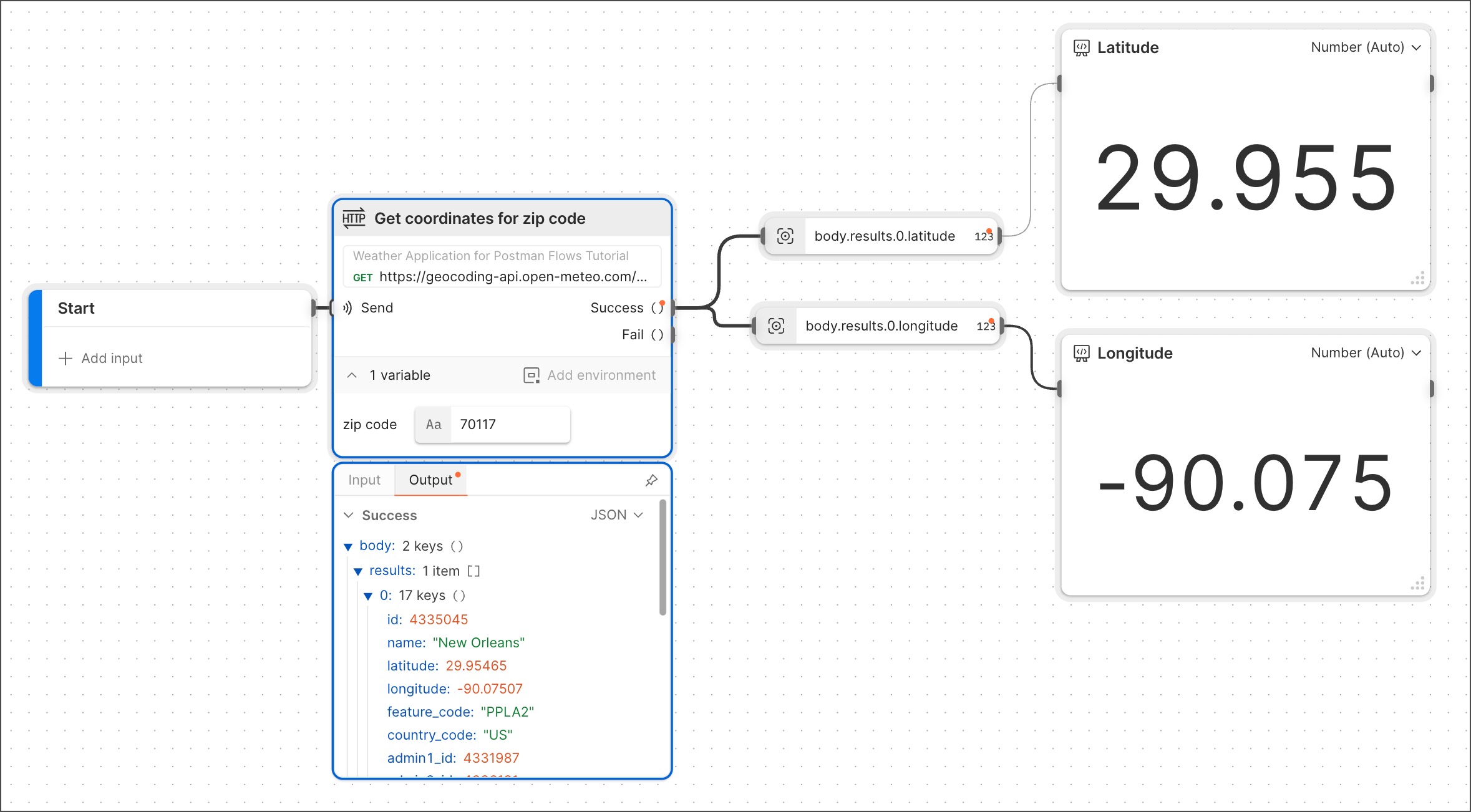
The example below shows the result of dragging and dropping two different fields from HTTP request output, one at a time. This created a Select block for each of the fields. Each Select block was then connected to a Display block renamed for its respective field.
Related blocks
Numerous blocks can send JSON data to the Select block, including the Record, HTTP Request, Display, Template, AI Request, AI Agent, Create with AI, and Request blocks.
Numerous blocks enable you to insert the Select block inline, including the Create with AI, Evaluate, If, List, Record, and Template blocks.
Related pages
For tutorials that use the Select block, see the following: