Deployed flows overview
You can deploy and run flows in the Postman cloud. Flows deployed in the cloud can be triggered with automatic schedules, or with requests from webhooks, third-party apps, or other APIs. Flows deployed in the cloud are useful for running automations and exposing functionality as an API or as an AI tool for MCP servers.
Flows deployed in the cloud can process incoming data and return structured responses. Once deployed, a request-triggered flow gets a unique cloud-hosted URL. A deployed flow’s URL is useful for tasks like automating business logic, handling webhooks, integrating with external services, or powering AI-driven tools on MCP servers.
To learn about creating and deploying flows, see Deploy flows to the Postman cloud.
Flows in Local View can’t be deployed. To learn more, see Manage flows locally or in the Postman Cloud.
Flows running in the Postman Cloud don’t support private APIs.
Deployable flows are available in Postman version 11.42.3 and later.
Manage long-running deployed flows
Flows running in the cloud typically send out any data they produce as HTTP response bodies. This holds true for any flow that finishes running in less than the Timeout duration. The data flows through the Response block.
The maximum Timeout is 30 seconds. If your flow requires longer to run, contact Postman support to request an increase of the maximum timeout value to 60 seconds.
Once the Timeout interval has elapsed, the Response block sends out a 408 Request Timeout error. The flow will continue running for up to 60 minutes, at which point it will automatically stop.
If your flow requires over 60 seconds to run, it won’t be able to send out data from the Response block. Instead, design your flow to be asynchronous.
Deploy flows with snapshots
Flows can be deployed in the Postman cloud. Once it’s deployed and running in the cloud, a request-triggered flow has a unique URL. You and other users can send requests to the flow’s URL and receive responses from it.
You can create and restore different snapshots of a flow that’s running in the cloud. Snapshots are like different versions of a flow. When you deploy a flow to make it publicly available in the Postman cloud, you can deploy a new snapshot or an existing one.
If you deploy an existing snapshot of a flow, the local version of your flow doesn’t automatically restore the snapshot when you deploy it. To learn about restoring snapshots and more, see Version flows with snapshots.
Schedule flows to run automatically
You can automate flows in the cloud to run at regular intervals or at specific times. Automated flows can be useful for testing and other scheduled events in your API workflow. To learn more, see Schedule a flow to run automatically.
Bearer tokens in flows
You can configure flows running in the cloud to authorize requests with a bearer token. Bearer tokens make flows running in the cloud more secure by only granting access to requests that include the token.
Learn how to enforce bearer token authorization for deployed flows.
Synchronous and asynchronous flows
You can design your flows to be synchronous (sync) or asynchronous (async). In a sync flow, all the blocks complete their functions before the flow sends a response. An async flow sends a response before its blocks finish running.
For example, if an AI block in your flow takes several seconds to complete a task, you may choose to send the response first. Async flows are useful when integrating with webhooks from services that expect a quick response, like Slack.
Here’s an example of an async flow:
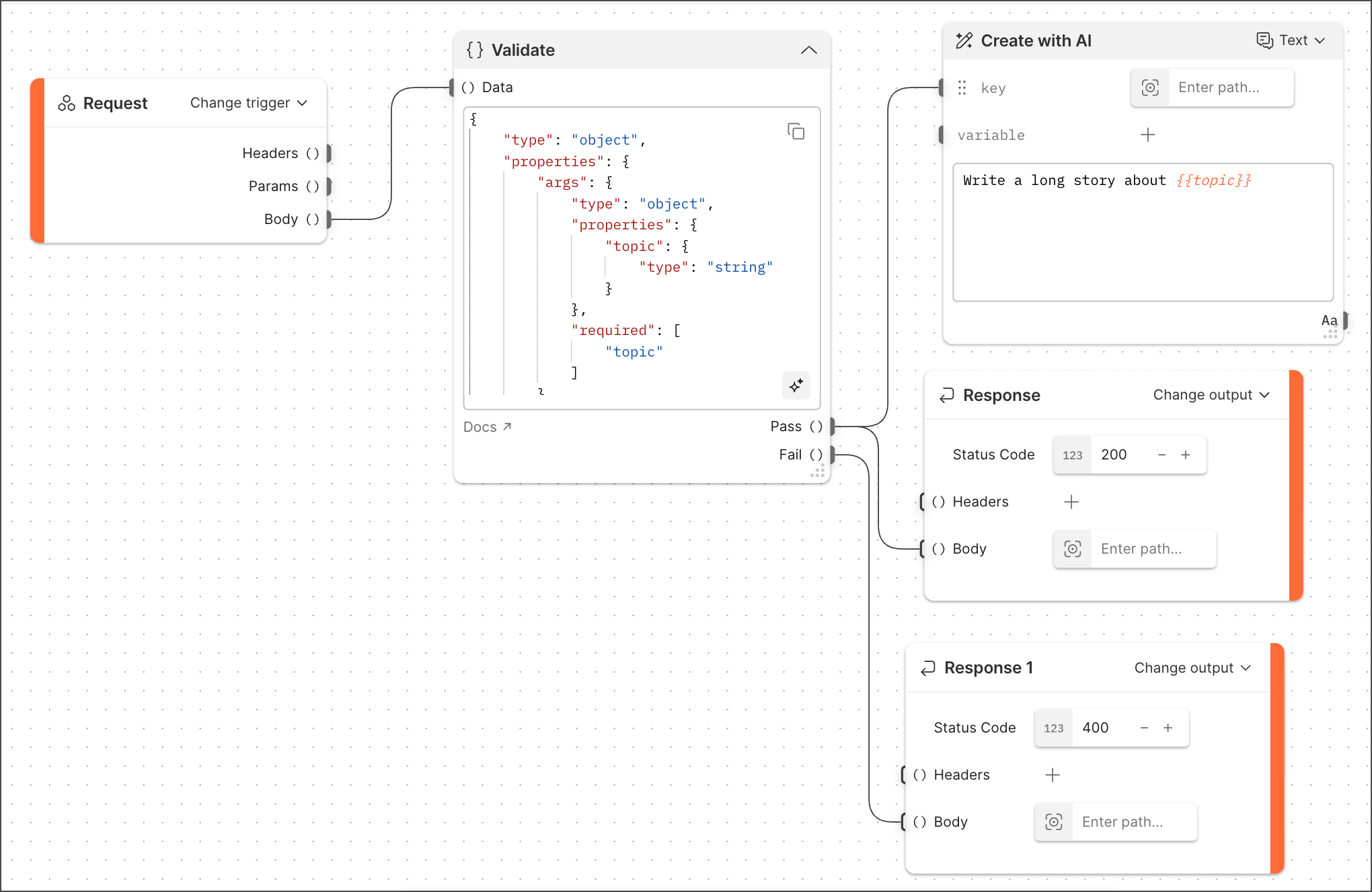
In this flow, a Validate block checks the request data against a schema. If the request data is valid, the flow simultaneously sends a Status Code 200 response and triggers the Create with AI block. The Create with AI block may complete after the flow’s timeout setting elapses. By making the flow async, it can send a response before completing its workflow.
How flows parse received data
Deployed flows accept requests using any HTTP method supported by Postman, such as GET, POST, PUT, and DELETE. You can pass data in any format Postman supports, including JSON bodies, URL-encoded data, and form data. No specific request headers are required.
When a flow receives a JSON body, it is passed as-is through the Request block’s Body output port.
When a flow receives URL-encoded data, it’s parsed as a structured data object where each field maps to a list of string values. For example, when a flow receives the following data:
it parses the data like this: