Integrate Postman Vault with 1Password
This feature is available on Postman Enterprise plans with the Advanced Security Administration add-on. For more information, see the pricing page.
With 1Password, you can store sensitive data in a vault that’s external from your Postman Local Vault. Once you integrate your local vault with 1Password, you can link vault secrets with sensitive data stored in 1Password, and retrieve them when you send HTTP requests.
Postman Vault integrations are only supported with the Postman desktop app.
About the 1Password integration
When setting up an integration with 1Password, you need to authenticate with your 1Password account. Then you can link vault secrets with 1Password using the secret reference for each secret.
You can follow the steps to create a vault, add secrets to the vault, and create a service account in 1Password. Make sure the service account has at least read access to the 1Password vaults with secrets you want to link in Postman.
Integrate with 1Password
When you create the integration, authorize Postman to access and retrieve secrets from 1Password, entering the service token for your 1Password account. Postman uses your service token to authenticate with 1Password, and the service token is valid in Postman forever.
You’ll need to reauthenticate with 1Password each time you open Postman.
To integrate with 1Password and authenticate with your 1Password account, do the following:
-
Open your Postman Local Vault.
-
If you haven’t created an integration with an external vault, click
 Set up external vault in the top right of your local vault. Otherwise, click Use from existing vault. Then select 1Password Account.
(Optional) You can click
 Settings at the top right of your local vault. From the Settings tab, click Connect next to 1Password Account.
 -
You’re prompted to authorize Postman to access your 1Password account. Enter the Service Account Token in the Authenticate 1Password Account window. This is the encoded service account token that allows you to authenticate with 1Password.
-
Click Authenticate.
Link vault secrets with 1Password
Link a vault secret’s value with a secret stored in 1Password. This enables you to retrieve a secret stored in 1Password directly from Postman. Once you link a vault secret’s value, reference the vault secret in your Postman team, and the secret is retrieved from 1Password when you send the HTTP request that references the vault secret.
Secrets retrieved from 1Password aren’t stored in your local instance of Postman or the Postman Cloud. Learn more about Postman Vault integrations.
Vault secrets are deleted from your Postman Local Vault after signing out of Postman. Your vault secrets can’t be recovered with your vault key. When you sign in to Postman and open your local vault, you can create the integration and link a vault secret’s value.
Before you link a vault secret, enable the option to copy a secret reference URI from the 1Password desktop app version 8 or later. From the 1Password desktop app, integrate with 1Password CLI to enable this option. If you’re using an earlier version of the 1Password desktop app, you must manually construct secret reference URIs.
To link a secret’s value from 1Password, do the following:
-
In Postman, enter a name for the vault secret, hover over the Value cell, then click
Link Vault.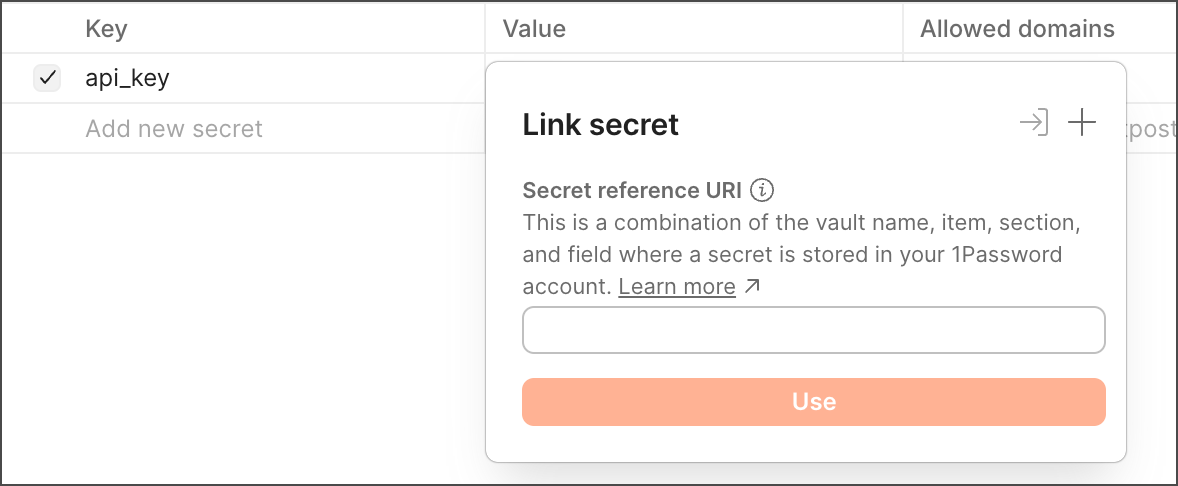
If you’ve already integrated with an external vault, you can link a secret from a different external vault provider. Click
 Add new vault, then select an external vault.
 -
Enter the Secret Reference URI on the Link secret window. The secret reference URI is the URI of the secret in 1Password. Learn how to copy a secret reference URI from the 1Password desktop app version 8 or later.
If you’re using an earlier version of the 1Password desktop app, you must manually construct secret reference URIs using the following format:
-
Click Use.
-
You can reference the vault secret from your Postman team.
To view details about a secret you’ve retrieved from 1Password, click Configure vault next to a secret.
You can also use scripts to access vault secrets linked with 1Password. Postman doesn’t support setting the value of vault secrets linked with external vaults.
Make sure you enable scripts to access your vault secrets. Otherwise, you’ll receive an error in the Postman Console.
Next steps
After integrating your Postman Local Vault with 1Password, you can reference vault secrets and manage your integrations:
- To learn how to reference vault secrets in Postman, see Use vault secrets.
- To learn how to troubleshoot vault secrets, see Troubleshoot vault secrets.
- To learn how to manage your integrations, see Manage Postman Vault integrations.