Integrate Postman Vault with Azure Key Vault
This feature is available on Postman Enterprise plans with the Advanced Security Administration add-on. For more information, see the pricing page.
Azure Key Vault enables you to store sensitive data in a vault that’s external from Postman Vault.
After you integrate your local vault with Azure Key Vault, you can link your vault secrets with sensitive data stored in Azure Key Vault, and retrieve them when you send HTTP requests.
Postman Vault Integrations are supported with the Postman desktop app only.
About the Azure Key Vault integration
This page covers the following steps to integrate Postman Vault with Azure Key Vault:
- Register an app in Microsoft Entra. This is a one-time task performed by an Azure administrator.
- Integrate Postman Vault with Azure Key Vault.
- Link secrets in Postman Vault to their Azure Key Vault identifiers.
Postman recommends using an Azure Key Vault firewall to allowlist your static IP addresses. Otherwise, you may not be able to retrieve secrets stored in your Azure Key Vault.
Register an app in Microsoft Entra
An Azure administrator must complete a one-time step: create and register a Postman Vault Integration app in Microsoft Entra. They may name it “Postman Vault Integration,” for example. This is a new app registration in your own Azure tenant.
When registering the app, add a redirect URI. For example, http://127.0.0.1:10534. Select a platform type of Public client/native (mobile & desktop). Don’t select Web.
This app registration is the OAuth client that the Postman desktop app will use to request access tokens for your Azure Key Vault. Because each organization registers its own app, access to your Key Vault stays scoped to your tenant, under your own administrator’s control.
Integrate Postman Vault with Azure Key Vault
Once the app is registered, you can create the Azure integration from your local vault.
Your computer must be able to access your Microsoft Azure instance because you’ll need to reauthenticate with Azure. You’ll need to do this each time you open Postman, or when your access token expires in Postman.
To integrate with Azure Key Vault and authenticate with your Azure account, do the following:
- Open a workspace.
- Click Vault in the footer, and select
 Local Vault.
 - If you haven’t created an integration with an external vault, click
 Set up external vault in the upper right of your local vault. Otherwise, click Use from existing vault.
 - Select Azure Key Vault. You’re prompted to authorize Postman to access your Microsoft Azure account.
Postman authenticates using the OAuth 2.0 authorization code flow with Proof Key for Code Exchange (PKCE). This is why the app must be registered as a Public client/native (mobile & desktop) rather than Web. PKCE doesn’t use a client_secret, which Web registrations require.
This flow retrieves an access token scoped to https://vault.azure.net/user_impersonation, valid in Postman for one day.
Alternatively, you can click  Settings in the upper right of your local vault to display the Vault Settings dialog. In the Settings tab, click Connect next to Azure Key Vault.
Link vault secrets with Azure Key Vault
Link a Postman Vault secret’s value with a secret stored in Azure Key Vault. This enables you to retrieve a secret stored in Azure Key Vault directly from Postman. Once you link a secret’s value in Postman Vault, you can reference the secret to retrieve its value from Azure Key Vault when you send it with an HTTP request.
Secrets retrieved from Azure Key Vault aren’t stored in your local instance of Postman or the Postman Cloud. Each time you use a linked secret, Postman retrieves its current value directly from Azure Key Vault. Learn more about Postman Vault Integrations.
Before you link a secret, make sure it already exists in Azure Key Vault and you have its identifier. If you don’t have one yet, in Azure, create a secret, then retrieve its identifier. You’ll also need at least the Key Vault Secrets User role in Azure to retrieve secrets from your Postman team.
To link a vault secret’s value with Azure Key Vault, do the following:
-
Open a workspace.
-
Click Vault in the footer, and select
Local Vault. -
In the Key cell, enter a name for the vault secret.
-
Hover over the Value cell and click
Link Vault.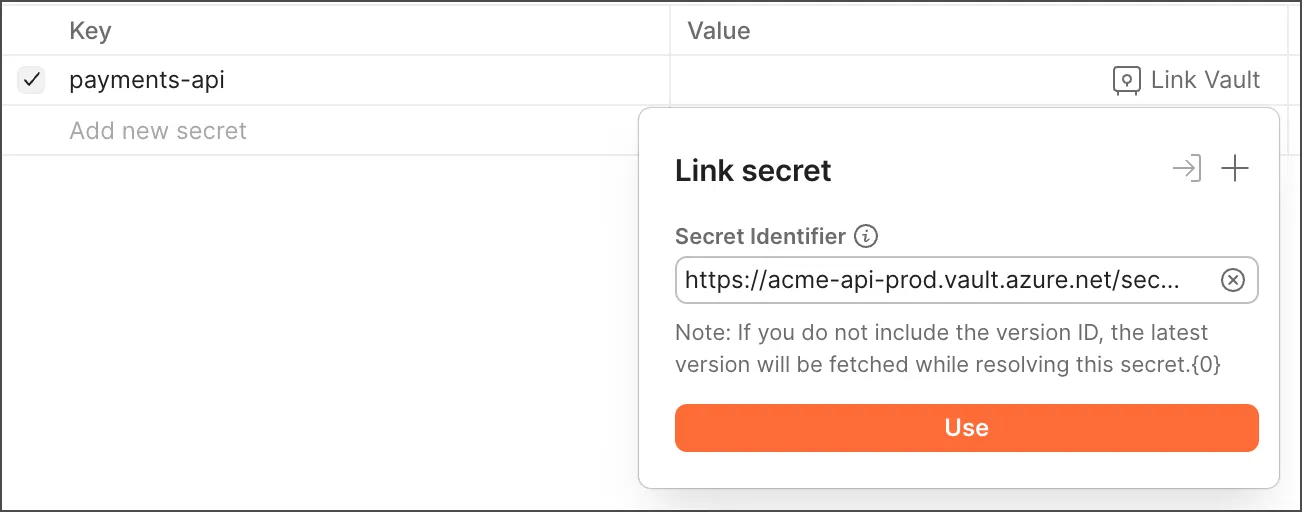
-
Enter the Secret Identifier in the Link secret window. The secret identifier is the URI of the secret in Azure Key Vault. Learn more about identifiers in Azure Key Vault.
The latest version of the secret will be used unless you include the version ID.
-
Click Use.

-
To view details about a secret you’ve linked from Azure Key Vault, click
Configure vault next to a secret.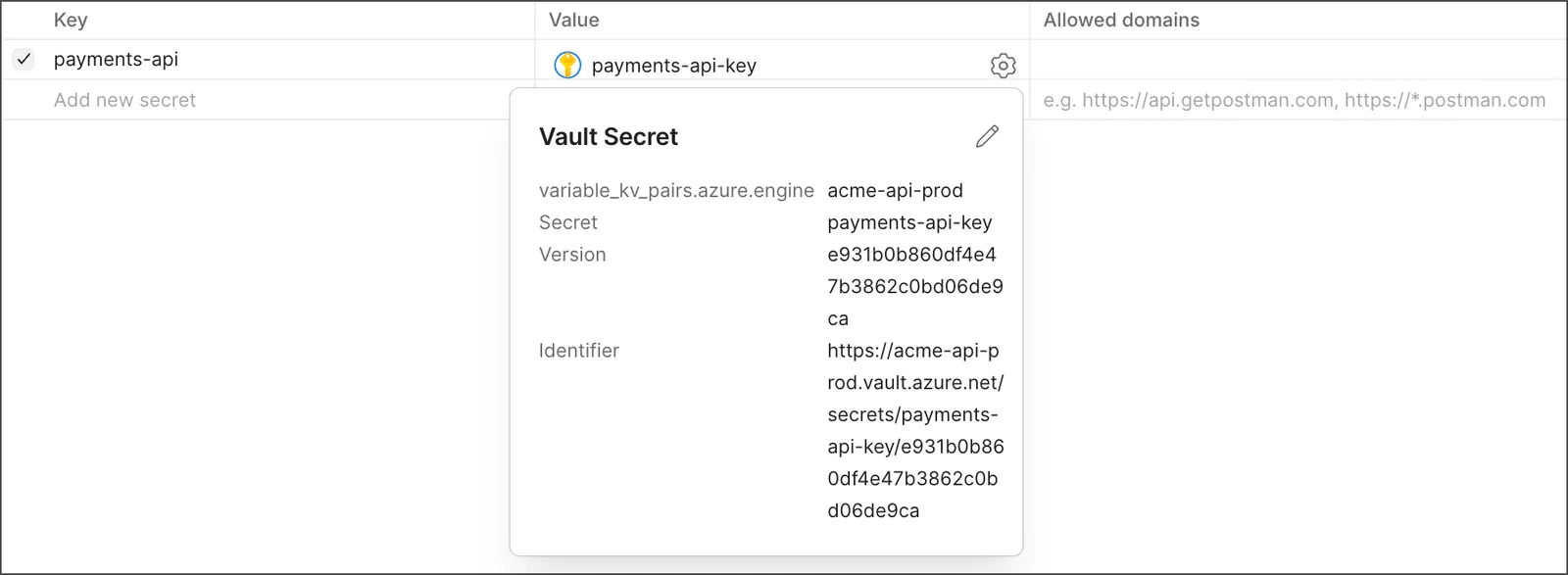
Signing out of Postman clears your local vault, including any links to Azure Key Vault. Your vault key only unlocks the vault. It can’t restore secrets or links that have already been deleted. When you sign back in, you’ll need to reconnect to Azure Key Vault and re-link each vault secret using the steps above.
Next steps
After integrating your Postman Local Vault with Azure Key Vault, you can reference vault secrets and manage your integrations:
- To learn how to reference vault secrets in Postman, see Use vault secrets.
- To learn how to use scripts to access vault secrets linked with Azure Key Vault, see Reference vault secrets in Postman scripts. Postman doesn’t support using scripts to set the value of vault secrets linked with external vaults. Make sure you enable scripts to access your vault secrets; otherwise, you’ll receive an error in the Postman Console.
- To learn how to troubleshoot vault secrets, see Troubleshoot vault secrets.
- To learn how to manage your integrations, see Manage Postman Vault Integrations.