
Upload files for shared requests and cloud runs
Test data is made up of the data files you use to test various scenarios for your API. Postman provides test data storage, so you can upload data files to your Postman team. Anyone on your team can then use the files when sending API requests.
About test data storage
You can attach a file with test data to a request as form data or binary data. Postman will save the file path relative to your local working directory and use the file when sending the request. However, if you share the request in a workspace, the local file isn’t shared. This means other team members won’t be able to send the request unless they put a copy of the same file in their own local working directory. Also, a local file won’t be available when sending a request from a monitor or a scheduled collection run, which run in the Postman Cloud and not locally.
To enable sharing requests that use test data files, you can upload the files to your Postman team. Uploaded files are available to all members of your team and can be used to send requests that are shared in a workspace. Uploaded files are also available to requests sent from monitors and scheduled collection runs, and can be used from Postman Flows and the Postman CLI (but not Newman).
Upload a file to your Postman team
You must have Editor access to upload a file for a request in the collection. Files can’t be uploaded from scripts.
To upload a file to your Postman team, do the following:
-
Open a request and click the Body tab.
-
Select form-data or binary, depending on the type of data you want to send with the request.
-
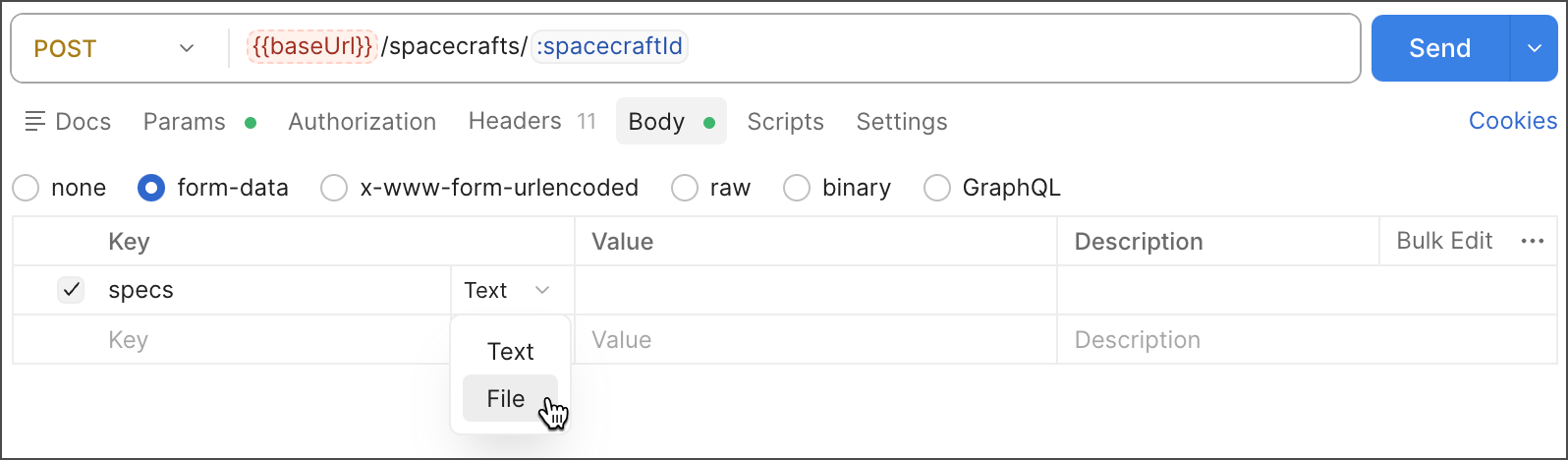
If you’re attaching form data, click File in the dropdown list next to a key name.
-
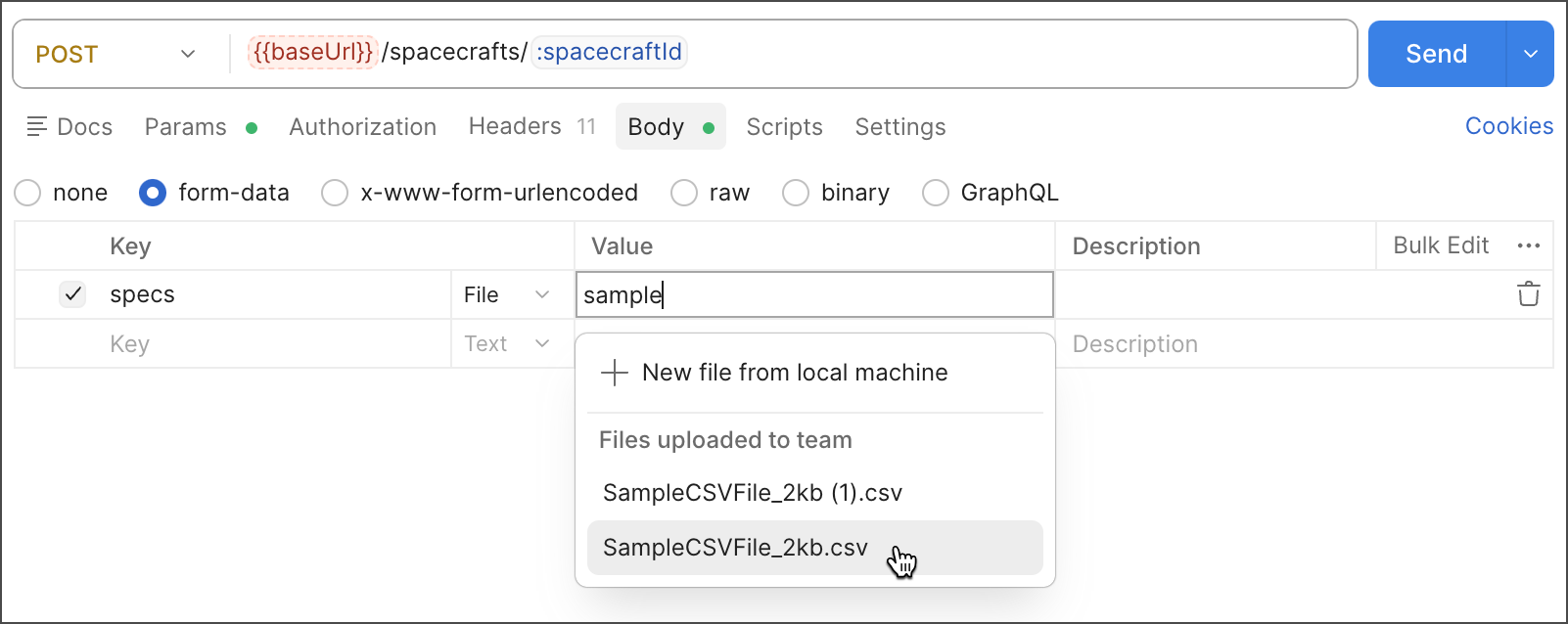
Select the test data file you want to use for the request:
- To use a local file, click
 New file from local machine. Select a file and click Open. Supported file types are CSV, JSON, and binary.
 - To use a file that was uploaded before, select the file in the list. You can use any file uploaded by a member of your team. To search for a file, start typing the file name.
- To use a local file, click
-
To upload a file, click
 Upload files to team next to the file and click Upload. Uploaded files can’t exceed 5 MB in size.
After uploading the file, other team members can send the request without needing to place a copy of the file in their local working directory. Instead, the request uses the uploaded file. Also, the uploaded file is used if the request is sent from a monitor or a scheduled collection run.
Uploaded files can be used in any requests you or other members of your team create (except in public workspaces). Uploaded files can also be accessed by Postman Flows and the Postman CLI when automating runs. If you fork a collection that uses test data files, you may need to upload any files that haven’t been uploaded to your team.
Your Postman plan gives you a limited amount of storage space you can use for uploaded test data files. Your plan also gives you a limited number of retrievals of uploaded files. Learn more about test data usage.
Manage files uploaded to your Postman team
Files uploaded to your Postman team are managed in the team’s Resource usage dashboard. For more details, see Test data usage.
You must be an Admin to view detailed test data usage or delete test data files.