Generate SDKs in Postman
You can generate SDKs using the Postman CLI or the Postman app. The generated SDKs are available for download and come with autogenerated documentation. You can connect your GitHub repo to sync your SDK and create a pull request with the generated code.
The Postman SDK Generator also enables you to generate SDKs locally without affecting your public collections in the cloud. This way, you can experiment with SDK generation and test different configurations in a safe, isolated environment. You can also pull SDKs from your cloud collections to your local workspace.
Generate CLIs
You can also generate command-line interfaces (CLIs) using Postman. CLIs provide terminal access to your API operations with built-in authentication and AI agent integration. To learn more, see CLI Generator.
Permissions required to generate SDKs
You must have Editor or higher access to the collection or specification to generate an SDK. Viewers can view and download existing SDKs, but they can’t generate new ones. Learn more about Postman roles and permissions.
Generate SDKs from collections and API specifications
You can use the Postman CLI or the Postman app to generate your SDK.
Generate SDKs from the CLI
-
Get the collection or specification ID. In Postman, open your collection or specification, then click
 Show right sidebar on the bottom right to open the right sidebar. Click
  Info in the right sidebar and copy the ID to use with the
 postman sdk generatecommand in the next step. -
Run the
postman sdk generatecommand with the pasted ID. For example, to generate an SDK in Typescript, use the following command with your ID and output directory:Your SDK downloads into the
sdksdirectory in your current working directory.You can use the
postman sdk listcommand and navigate to the files from your terminal.
Regenerate SDKs from the CLI
After you make edits to your collection or specification or add custom code, run the postman sdk generate command again to regenerate the SDK. For more information on how the generator detects custom code changes and merges them, see Generate an SDK with custom code using the Postman CLI.
Generate SDKs from the Postman app
-
Click Collections or Specs in the sidebar to select the collection or specification for which you want to generate an SDK.
-
Click
 View more actions and select More > Generate SDKs from a collection (or just Generate SDKs for API specifications).
 -
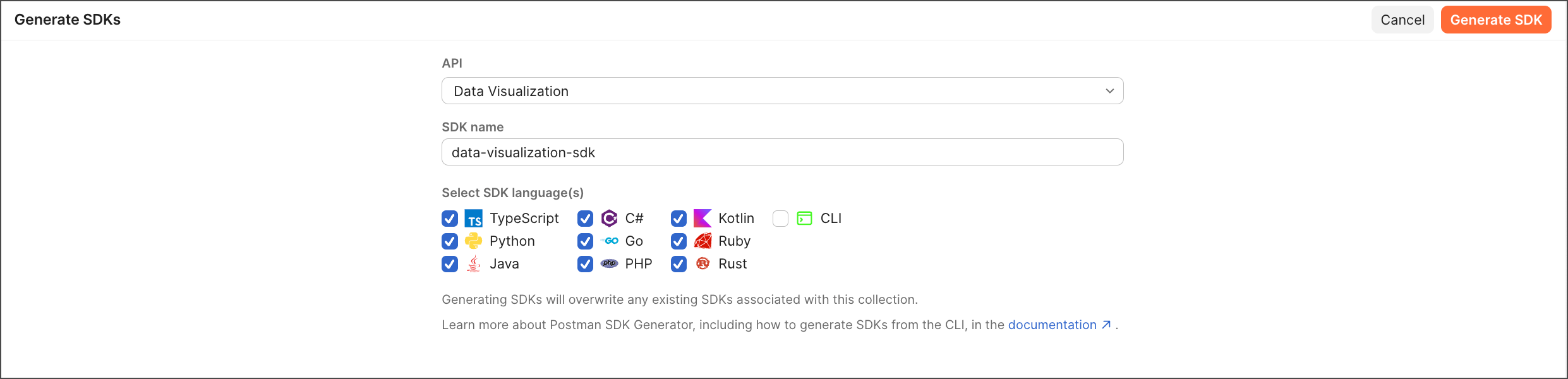
Name your SDK build. You can use the default name or enter a custom one.
-
Select your languages. You can select one or more languages for SDK generation:
typescript,python,java,kotlin,csharp,go,php,ruby, orrust. You can also select all to generate SDKs in all supported languages.Do this with AI
Generate SDKs using AI. Open the right sidebar and start a new chat. Ask the agent to generate SDKs for you. For example, you can enter “Generate SDKs in Python and Java for this collection.”
-
Click Generate SDKs.
-
Select the language for your SDK and click Download to get the generated SDK as a zip file. The zip file contains the complete SDK code, which you can integrate into your projects.
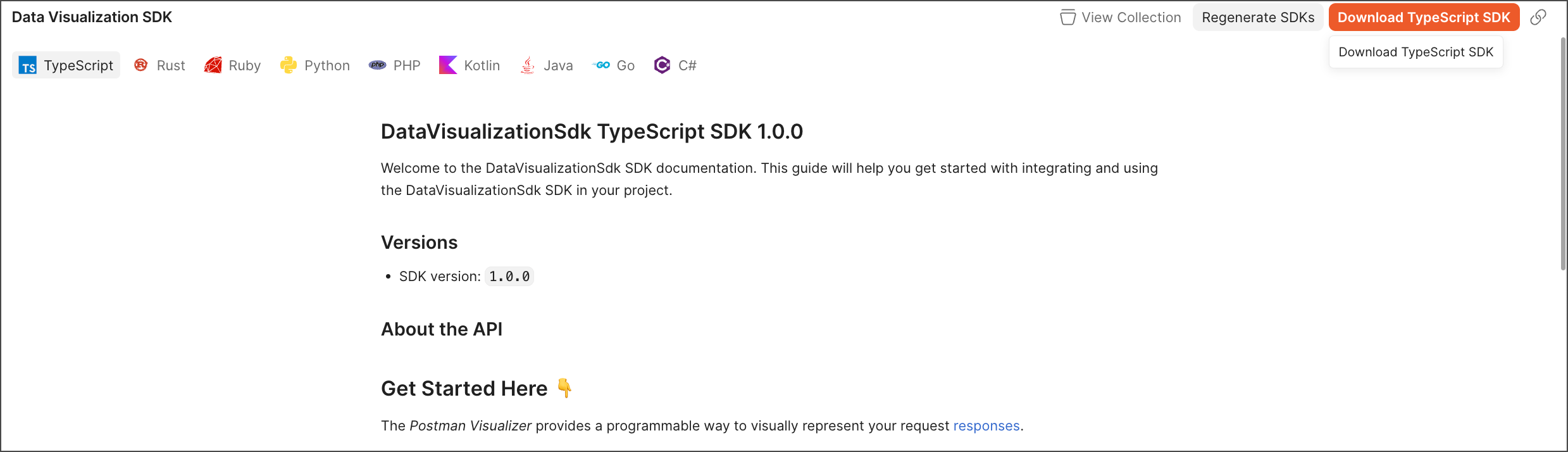
You can also check the generated documentation, which appears in the SDK panel when your SDK is generated.
To regenerate your SDKs or generate new ones in other languages, select the languages and click Regenerate SDKs.
You can access your SDKs in the left sidebar. Click SDKs to see all your generated SDKs. You can also click View more actions on an SDK to view the SDK documentation, download the SDK, or regenerate the SDK.
Copy SDK code snippets
Sometimes you’ll need to copy a request snippet from your SDK and paste it in your IDE. As a developer, you might update a request, test it in Postman, generate an SDK, and want to copy the new snippet.
To copy the snippet, do the following:
-
Open the request from a collection with a generated SDK, then select
 Code in the right sidebar.
 -
From the dropdown list, select an SDK option (for example,
Typescript - SDK).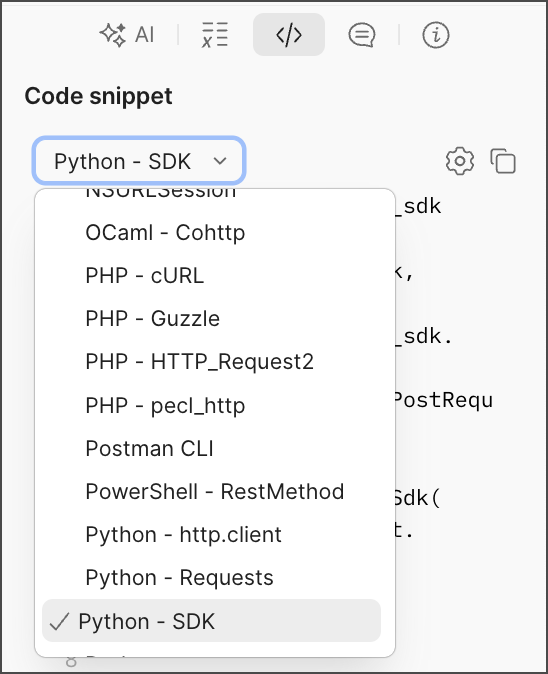
-
Click
 Copy snippet to copy the code snippet to your clipboard.
View the SDK docs
SDK documentation is autogenerated when you click the Generate SDK button, as described in Generate SDKs from collections and API specifications. You’ll find it when the SDK is generated. The documentation refreshes with each new generation.
The SDK docs provide important information, such as installation and usage instructions, service and model details, and more.
To access the docs, in the left sidebar, open SDKs, and click the collection.
Connect to your GitHub repo
To generate an SDK from a collection in a specific language and sync it with GitHub repo, do the following:
-
Get your collection ID. Click
Info in the right sidebar and copy the ID. -
Run the following command in the Postman CLI to connect your collection to your repo for the language of your SDK, in this case TypeScript:
This action redirects you to the GitHub OAuth login screen and asks for the owner, repo, branch, and folder details. If successfully connected, you get the following message:
Success: Successfully created integration for <language> with Github repo <github repo name> -
Run the following command to manually generate and push a given SDK build ID to the configured repo.
The CLI output will look like this:
After you merge your PR, the SDK will become available in GitHub.
Generate SDKs locally
Local SDK generation is available on the desktop app only and can also be performed using the Postman CLI.
Generating SDKs locally in a Git-connected workspace enables you to generate SDKs without affecting your public Postman Collections in the Postman Cloud. SDKs are saved directly to your local file system for immediate use, and they automatically appear as code snippet options in your requests. You can also pull SDKs from your cloud collections to your local workspace. This way, you can experiment with SDK generation and test different configurations in a safe, isolated environment.
To learn how to set up your local workspace and sync it with CI/CD and Postman Cloud, see About Native Git.
To generate an SDK in local mode:
-
Ensure you’re in Local, not Postman Cloud view. Check the state in the bottom left of the Postman app. If you’re in
 Postman Cloud, click it to switch to Local.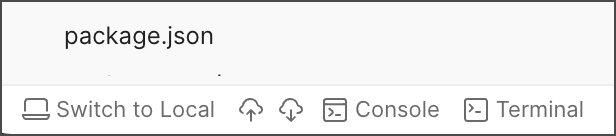
-
Ensure you’re in
 Local items.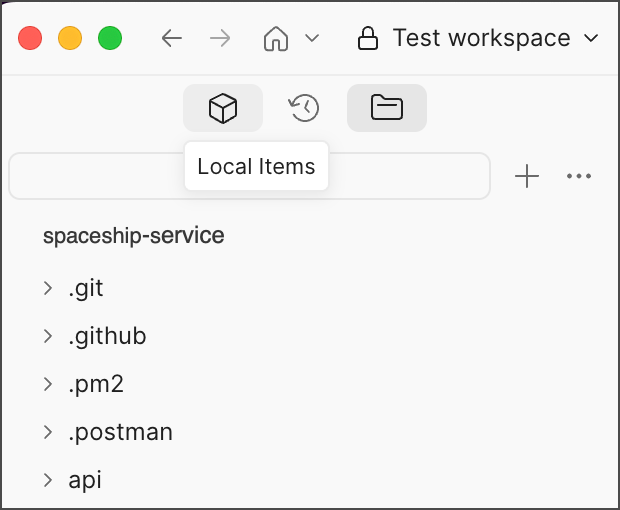
-
Select the collection or specification for which you want to generate an SDK.
-
Click
View more actions and select More > Generate SDKs. -
Select your preferred language (Python, TypeScript, Java, Kotlin, C#, Go, PHP, or all).
-
Click Generate.
You can also create one-off SDKs using the postman sdk generate command. For more information, see the command reference and examples.
Generation time may vary depending on the complexity of your API and the selected programming language.
Local file system structure
When you generate SDKs locally, they’re organized in your file system as follows:
Each SDK folder contains the complete generated SDK code, ready for integration into projects.
Pull SDKs from Postman Cloud
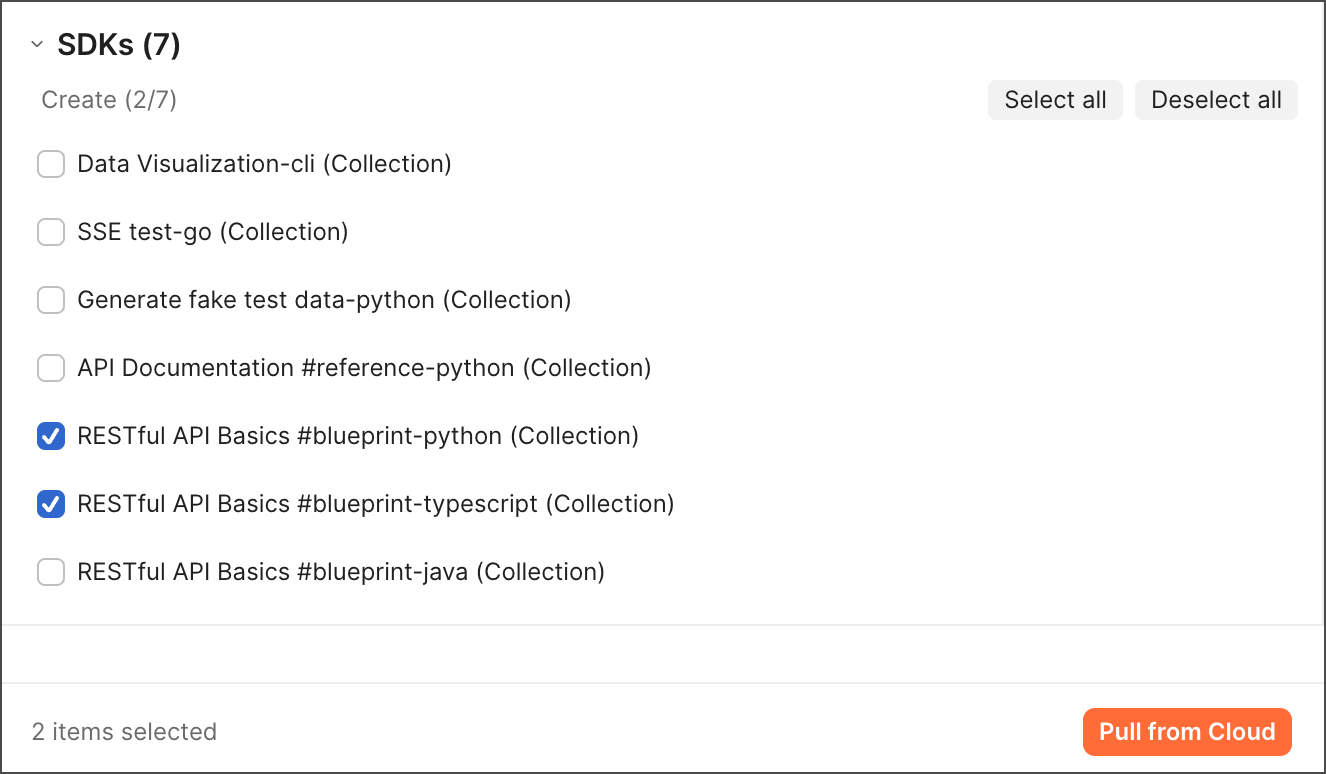
You can pull existing SDKs from your Postman Cloud collections.
-
From the footer, click
 Pull from Postman Cloud.
 -
Select the SDKs you want to pull into your local workspace.
-
Click Pull from Cloud.
The SDKs will be downloaded and integrated into your local file system.
Next steps
After generating your SDKs, explore these resources to get the most out of your generated code:
- Use SDKs generated in Postman — Learn how to integrate and use your generated SDKs in your projects.
- Configure SDK generation in Postman — Customize your SDK generation settings and options.
- Generate CLI from your collection or specification — Generate command-line interfaces with built-in authentication and AI agent integration.
- Troubleshoot SDK generation — Resolve common issues and get help with SDK generation problems.
- SDK CLI commands — Learn how to use the Postman SDK CLI for generating and managing your SDKs.