
Create a dashboard using Postman Flows
Dashboards are useful for visualizing and simplifying large amounts of data. For example, you can create an internet-of-things (IoT) dashboard that displays information about your home’s thermostat, door locks, security cameras, and environmental sensors. Or you can create a dashboard that compares a stock’s price to a market index to evaluate the stock’s performance. The dashboard can visualize data with a true/false display and a line chart.
This tutorial shows you how to create a stock performance dashboard using test data from a Postman mock server. You can view the completed flow in the Utility Flows workspace.
Goal
Create a flow that quantifies a stock’s performance by comparing it to a market index.
Prerequisites
- A Polygon.io account.
- A Polygon.io API key.
Creating the flow
-
Begin by forking (copying) the stocks collection and the stocks-tutorial environment from the Utility Flows workspace to your workspace. In your fork of the stocks-tutorial environment, replace the
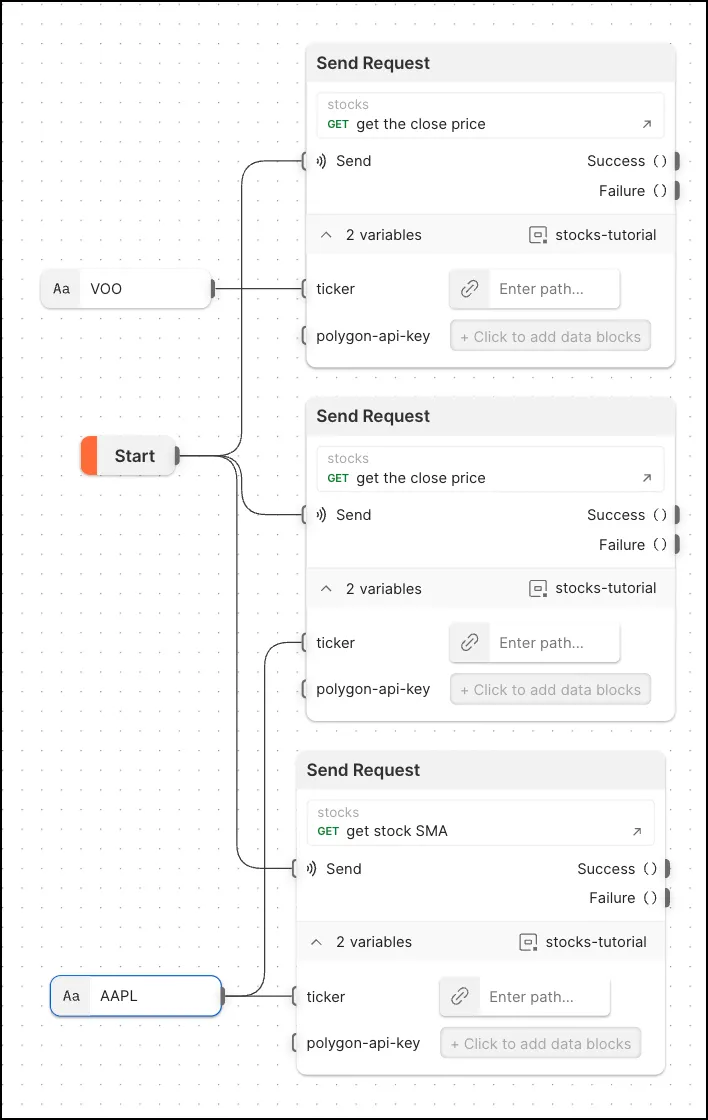
<your-api-key>value with your Polygon.io API key and select Save.- Create a new flow and connect three HTTP Request blocks to the Start block.

-
In the first two HTTP Request blocks, select the get the close price request. In the third HTTP Request block, select the get stock SMA request.
-
In the first HTTP Request block, select the stocks-tutorial environment. Flows prompts you to select the same environment for the other two HTTP Request blocks. Select Update All.

-
Add a String block to assign the
VOOmarket index to thetickervariable in the first request. The flow will compare your stock’s performance to this index to check if your stock is outperforming the market. -
Add another String block to assign
AAPLto thetickervariables in the second and third HTTP Request blocks.
-
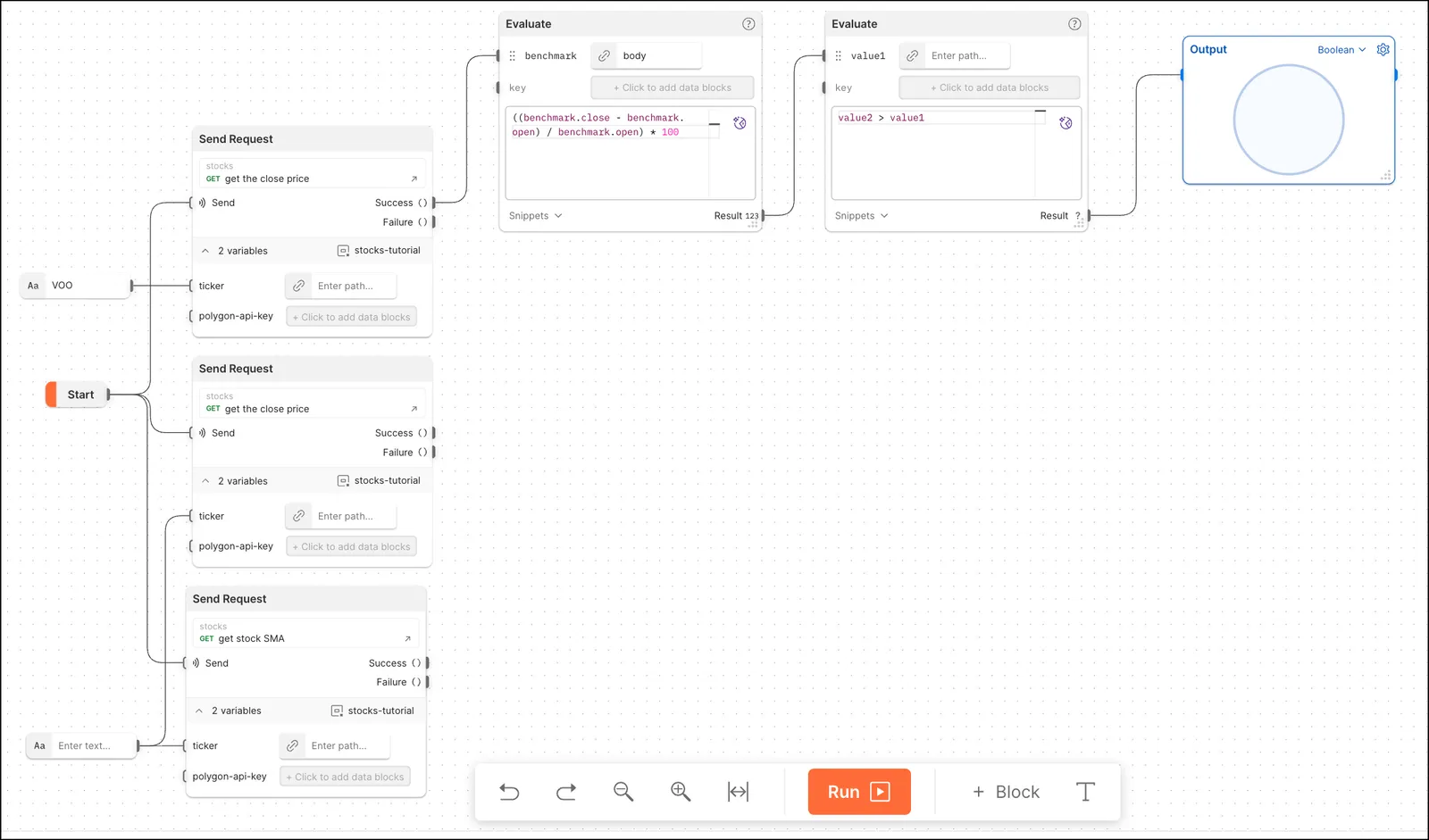
Connect an Evaluate block to the first HTTP Request block. Change
valuetobenchmarkand selectbody.-
In the FQL window, enter “((benchmark.close - benchmark.open) / benchmark.open) * 100”. This will get a percentage of the difference between the
VOOindex’s open and close price. -
Connect another Evaluate block to the Evaluate block you created. In the FQL window, enter “value2 > value1”. You’ll add
value2in a later step. -
Connect a Display block to the
value2 > value1Evaluate block and select Boolean from the dropdown list.
-
-
Go back to the second HTTP Request block and connect an Evaluate block to it. In this new Evaluate block, change
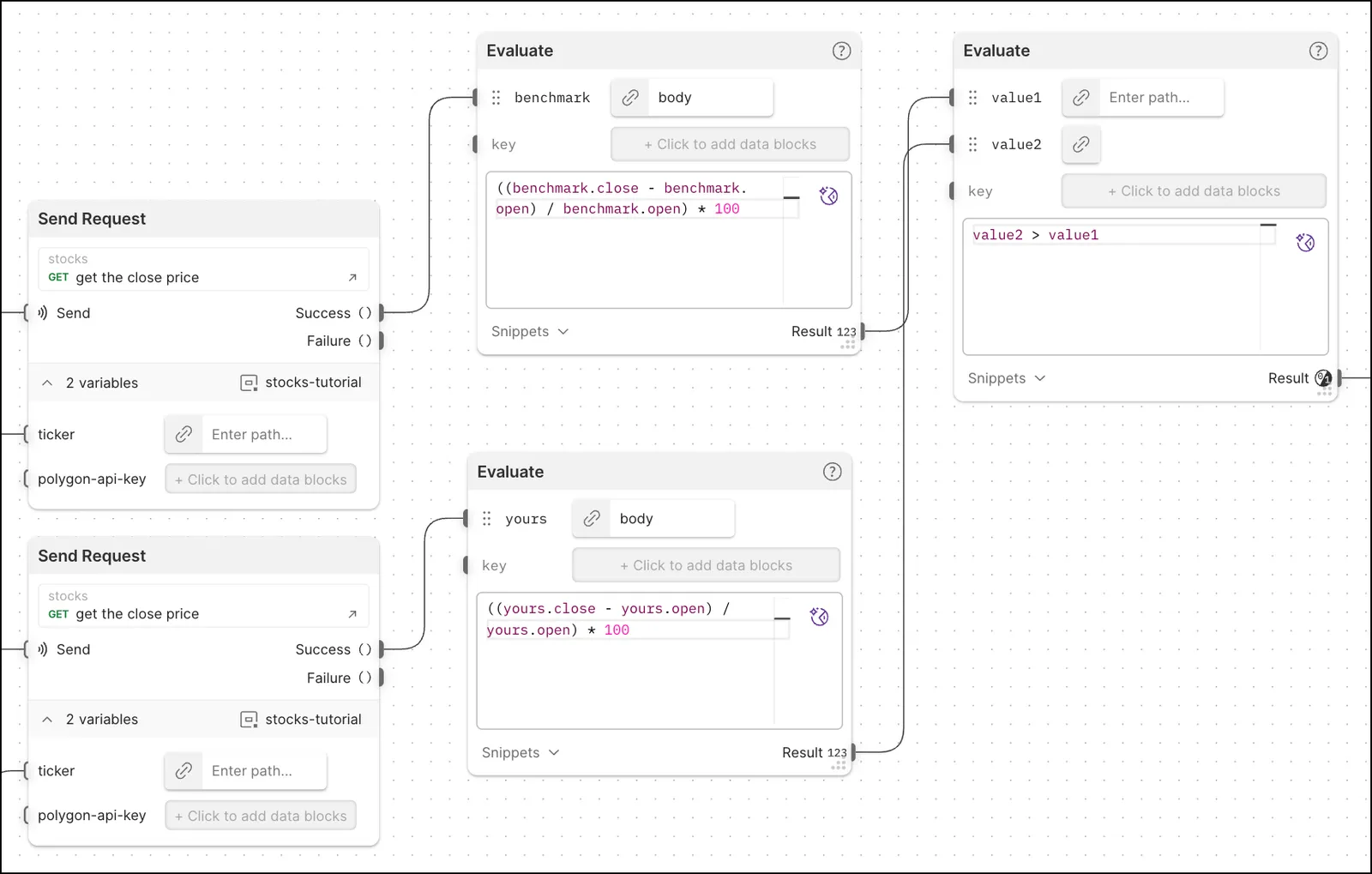
value1toyoursand selectbody. In the FQL window, enter “((yours.close - yours.open) / yours.open) * 100” to get a percentage of the difference between this stock’s open and close price.- Connect this block’s Result output to the
keyinput on thevalue2 > value1block. Flows automatically renames the variablevalue2.
- Connect this block’s Result output to the
-
Connect the
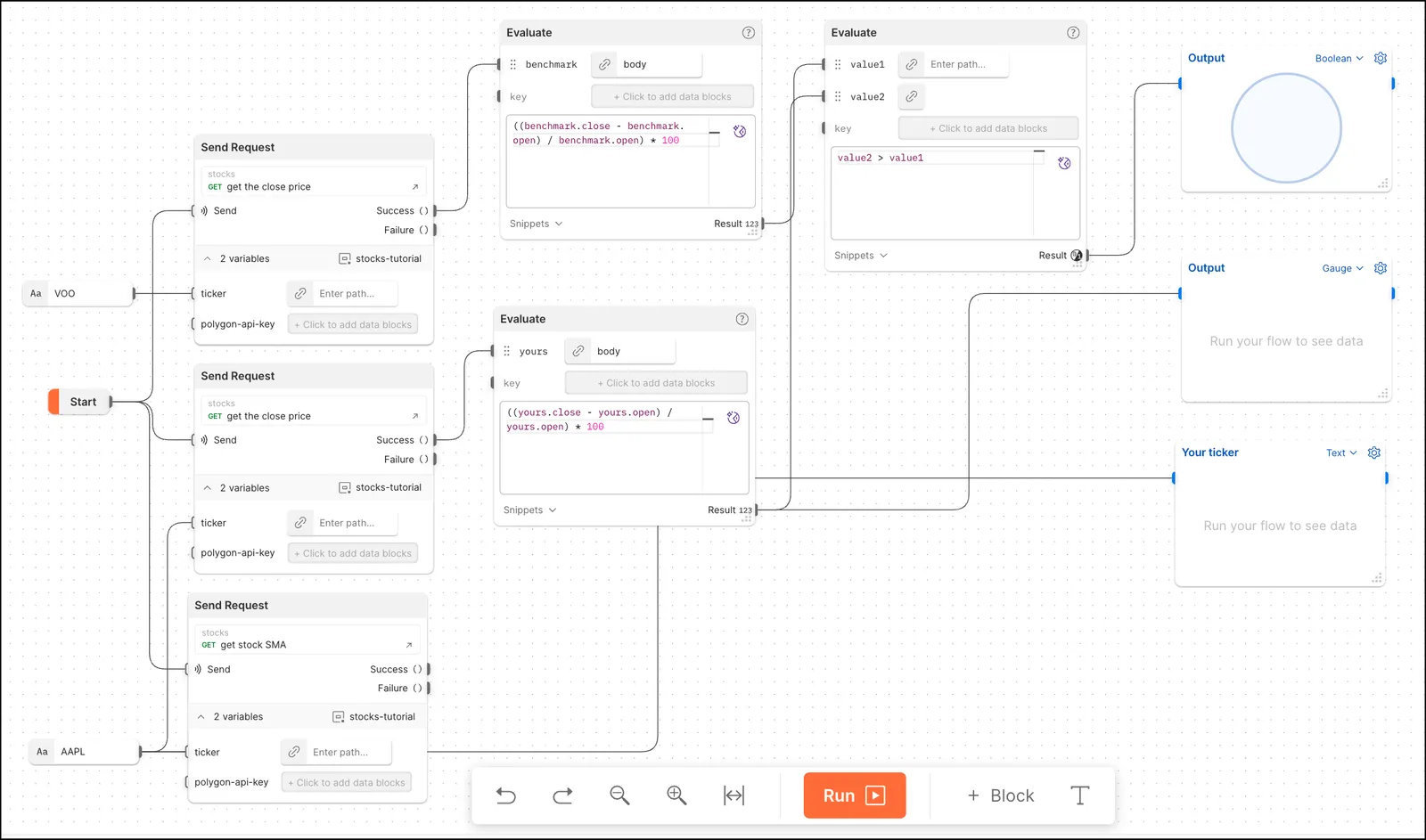
yoursEvaluate block to a new Display block and select Gauge from the dropdown list. Set the Gauge output block’s minimum value to-5and its maximum value to5.
- Connect the
AAPLString block with to a Display block and rename the Display blockYour ticker.
- Connect the
-
Go back the third HTTP Request block and connect a Select block to it. In the Select block, select
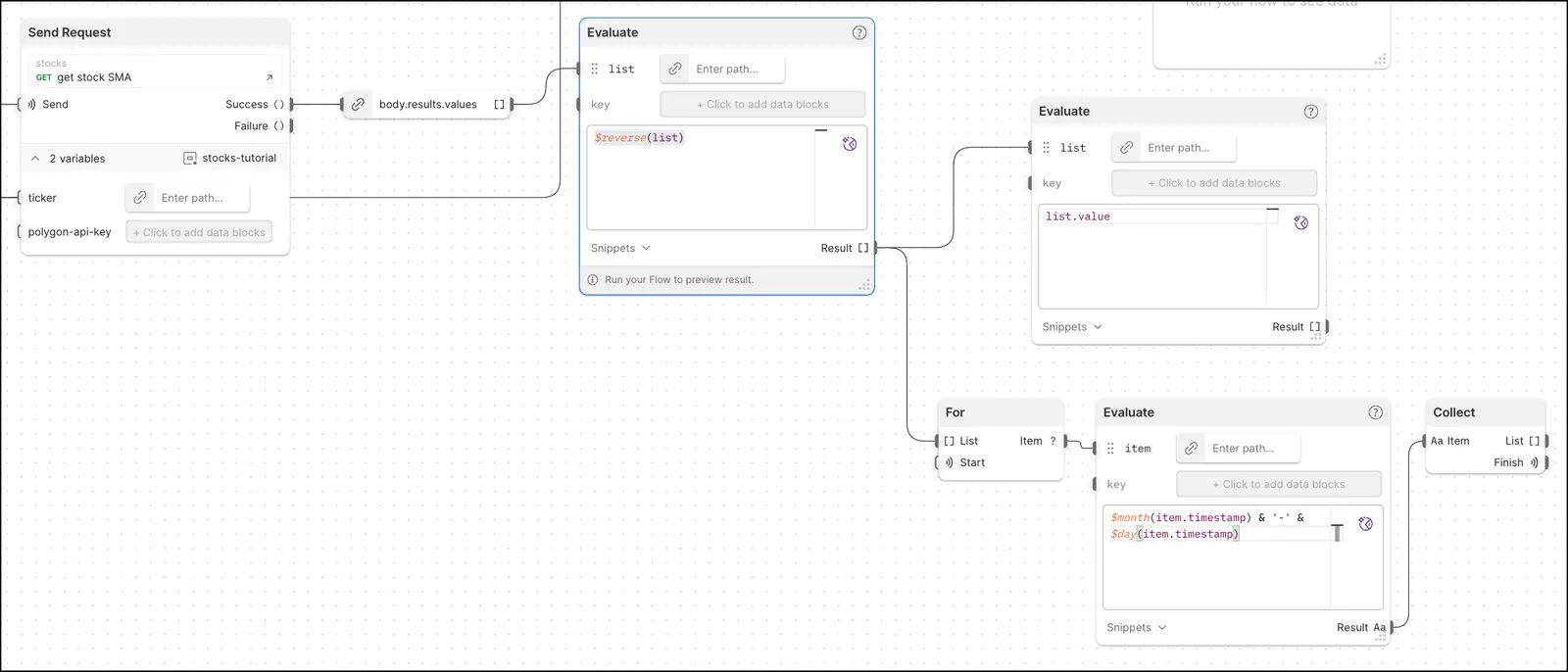
body.results.values. Connect an Evaluate block to the Select block and renamevalue1tolist. In the FQL window, enter “$reverse(list)”. This arranges the dates in the results in chronological order.-
Connect a For block to the
$reverse(list)Evaluate block, then connect an Evaluate block to the For block. In the Evaluate block, changevalue1toitem. In the FQL window, enter “month(item.timestamp) & '-' & day(item.timestamp)”. This converts timestamps in the results to a readable date format. Connect a Collect block to the Evaluate block’s Result output. -
Connect another Evaluate block to the
$reverse(list)Evaluate block and renamevalue1tolist. In the FQL window, enter “list.value”.
-
-
Create a List block and add two Select blocks to it. Connect the
list.valueEvaluate block to the List block’s0input. Connect the Collect block’s List output to the List block’s1input.
- Connect the List block’s output to a Display block. select Line Chart from the dropdown list and rename the block
Simple moving average.
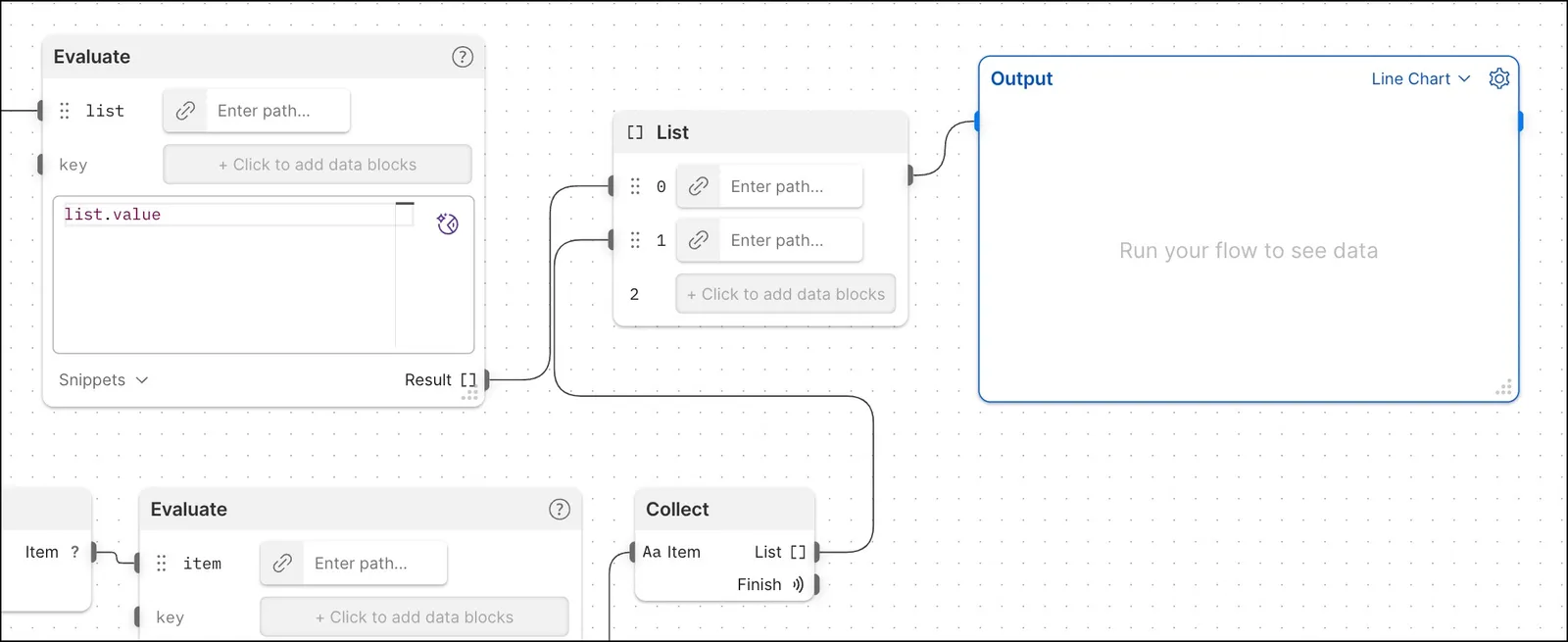
- Connect the List block’s output to a Display block. select Line Chart from the dropdown list and rename the block
-
Run the flow and check your dashboard of Display blocks. Use it to view your stock ticker, if your stock is outperforming or underperforming the market, and how much it’s outperforming or underperforming. You can also view a chart displaying the stock’s simple moving average.
