
Publish documentation in Postman
Publishing your documentation makes it publicly available to anyone with the link to the documentation. Publish your documentation to help people around the world learn how to use your collection or interact with your public API.
Public documentation automatically includes details for each request or endpoint in the published collection, along with sample code in various client languages. As you update your collection, the published documentation automatically stays in sync with your latest changes. There’s no need to publish the documentation again after making changes.
Your public documentation also includes the Run in Postman button so users can interact with your collection or API directly in Postman. For an example, check out the Postman API documentation which was published from a Postman Collection.
Make your documentation public
To publish documentation, it must be part of a collection. You can publish documentation for any collections you’ve created or have permission to edit.
Publishing is only supported for collections with HTTP requests.
To publish the documentation for a collection, do the following:
-
Click
 Items, then expand Collections and choose a collection.
 -
In the collection’s Overview tab in the workbench, click View complete documentation.
-
Click
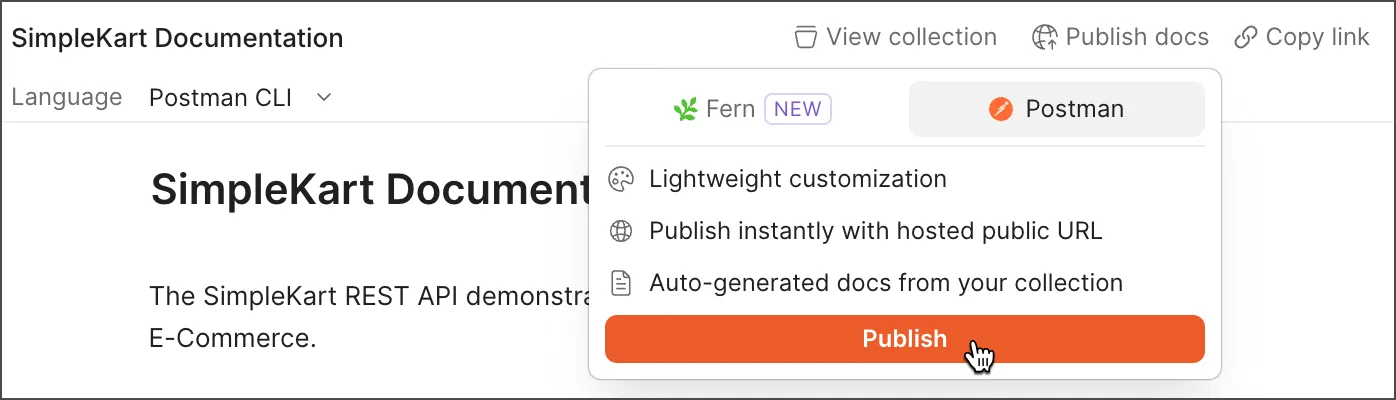
 Publish docs, then select Postman.
 -
Click Publish to navigate to the Publish Documentation interface.
Update publication settings
In the Publish Documentation interface, change any publication settings as needed.
Content
Choose the content that you want to publish with your docs:
-
Version — This defaults to CURRENT. You can’t create versions or releases for collections in Postman v10 and later.
-
Environment — Select an environment to publish environment variables with your documentation.
CautionThe shared values of all variables are published with your documentation, so make sure they don’t contain sensitive information such as passwords or tokens.
URL
Choose a custom domain from the Custom domain dropdown list where you want to publish your documentation.
Appearance
Choose the appearance settings for your published docs. You can preview any changes you make in the sample layouts in this section before you publish your docs.
-
Default layout — Choose a default layout style for your documentation. Double column displays sample code in a column next to the documentation. Single column displays sample code inline beneath each request. Your documentation uses the chosen layout by default, but users can choose their preferred layout style when viewing your published documentation.
-
Default Theme — Choose a light or dark theme for your documentation. You can also choose to use the system theme. Your documentation uses the chosen theme by default, but users can switch between themes.
-
Logo — By default, public documentation uses your team logo. You can use different logos for each collection you publish. Logos must be 2 MB or less in size and must be in JPEG or PNG format. The logo can be any aspect ratio (square or rectangle). You can also choose a custom logo for each theme (light and dark).
- To add a logo, click
 , then click Upload. Drag and drop an image file, or choose an image file. Drag the handles to adjust the part of the image you want to display, then select Upload.
 - To delete a logo, click and select Delete.
- To add a logo, click
-
Colors — You can customize the colors (in hex format) for the light and dark themes:
- Header background — Specify a color for the header at the top of the documentation window.
- Code background — Specify a color for sample code blocks.
- Highlight — Specify a color for hyperlinks.
SEO
Add metadata to your documentation to make it more discoverable on the web.
- Title — Add a title for your documentation (60 characters or less). The title appears in web searches and in browser tabs.
- Description — Add a brief description to let users know what your documentation is about (160 characters or less). You can also add relevant keywords to help users find your documentation when searching the web.
Preview your documentation
To preview your documentation using the current settings, click Preview Documentation. The preview automatically updates as you change settings.
If Postman detects a possibly sensitive token or other secret, a warning appears at the top of the preview window. Postman also highlights the token so you can remove it from the documentation before publishing.
Publish your documentation
When you’re finished changing your documentation’s settings, click Publish to publish.
-
Postman Free, Solo, and Team plans — You can optionally select a public workspace to move the collection to. This makes the collection discoverable on the Postman API Network. When you’re ready, click Publish. You can view your public documentation at the provided URL.
-
Postman Enterprise plans — Your Community Manager controls the Postman elements your team makes public. Enter a note for your Community Manager and click Request Publish. When your request is approved, you’ll receive an email notification with a link to the public documentation. To retract your publish request, change the pending publication settings and click Retract request.
Share your public docs
To share your public documentation, share the published URL with your team members, other users, or the community. To get the URL of your published documentation, do the following:
- Click Items, then expand Collections and choose a collection with published documentation.
- In the collection’s Overview tab in the workbench, click View complete documentation.
- Click
 Docs published, then select Copy published link.
If your collection is in a public workspace, others can search for and find your collection on the Postman API Network, along with its documentation. If you haven’t already moved your collection to a public workspace, you can do so at any time by changing the publication settings.
By sharing your documentation with the Postman API Network, you increase the visibility of your API to a wider range of consumers in the Postman community. Learn more about public workspaces.
Change publication settings
Change the publication settings for your documentation to update your documentation’s look or make your collection public. You can change the publication settings at any time after publishing your documentation. To update publication settings, do the following:
- Click Items, then expand Collections and choose a collection with published documentation.
- In the collection’s Overview tab in the workbench, click View complete documentation.
- Click Docs published, then select Edit published documentation to navigate to the Publication Settings interface.
- Click Edit settings, then change the publication settings as needed.
- Click Save and republish.
Unpublish your docs
If you no longer want your documentation to be publicly available, you can unpublish it.
- Click Items, then expand Collections and choose a collection with published documentation.
- In the collection’s Overview tab in the workbench, click View complete documentation.
- Click Docs published, then select Edit published documentation to navigate to the Publication Settings interface.
- Click Unpublish.
If you change your mind, you can publish your documentation again at any time.