Set up and manage a Postman Sandbox
Learn how to set up and manage a Postman Sandbox for an Enterprise organization. A sandbox is an isolated environment that includes standard Postman features so that they can be used for testing. It appears as a distinct team in the account switcher (labeled SANDBOX) and has its own members and resources. Use the sandbox to test and evaluate features before rolling them out to your full team.
Here are the key characteristics of the Postman Sandbox:
- The sandbox environment is fully isolated. Workspaces, collections, and API definitions that users create don’t appear in the parent organization and vice versa.
- A blue banner at the top of the window, along with a SANDBOX tag in the account switcher, is a persistent visual indicator that you are operating inside the sandbox context, not your main organization. The banner also displays the sandbox’s next reset date.
- Each sandbox has a recurring reset date. On that date, all workspace, collection, and API data in the sandbox is cleared. User accounts, roles, and settings are preserved. After each reset, the next reset date is set 90 days out. Because of this, don’t use the sandbox to store anything you need to keep long-term.
- You can manage sandbox team members from the parent organization’s Organization resources settings only. The sandbox’s own invite flow doesn’t support generating invite links.
- You can’t configure new SSO/SAML, SCIM provisioning, or domain verification/capture settings inside the sandbox. These are managed from your production team and inherited automatically, so existing SSO sign-in still works for testing. Some other features are subject to lower usage limits than your production Postman instance. For more information, see Limitations.
Prerequisites
To set up and manage a Postman Sandbox, you need the following:
- Be on a qualifying Enterprise plan. If your team downgrades from Enterprise or cancels, your sandbox is deprovisioned.
- Have Admin access to the parent Enterprise organization.
- Enable the sandbox feature for your organization under Organization resources.
- Accept the sandbox terms of use and understand that the sandbox is intended for testing and evaluation purposes, not for production use.
Manage sandbox team members
Invite generation isn’t allowed for sandbox teams. Attempting to use the Copy Invite Link option in the invite dialog produces an error. Users can only join the sandbox through team assignment or a separate SSO authentication flow.
To add members to the sandbox, do the following:
-
In the upper right, go to
 Settings > Organization settings > Organization resources. Then, expand Manage sandbox team to reveal the Sandbox team members panel.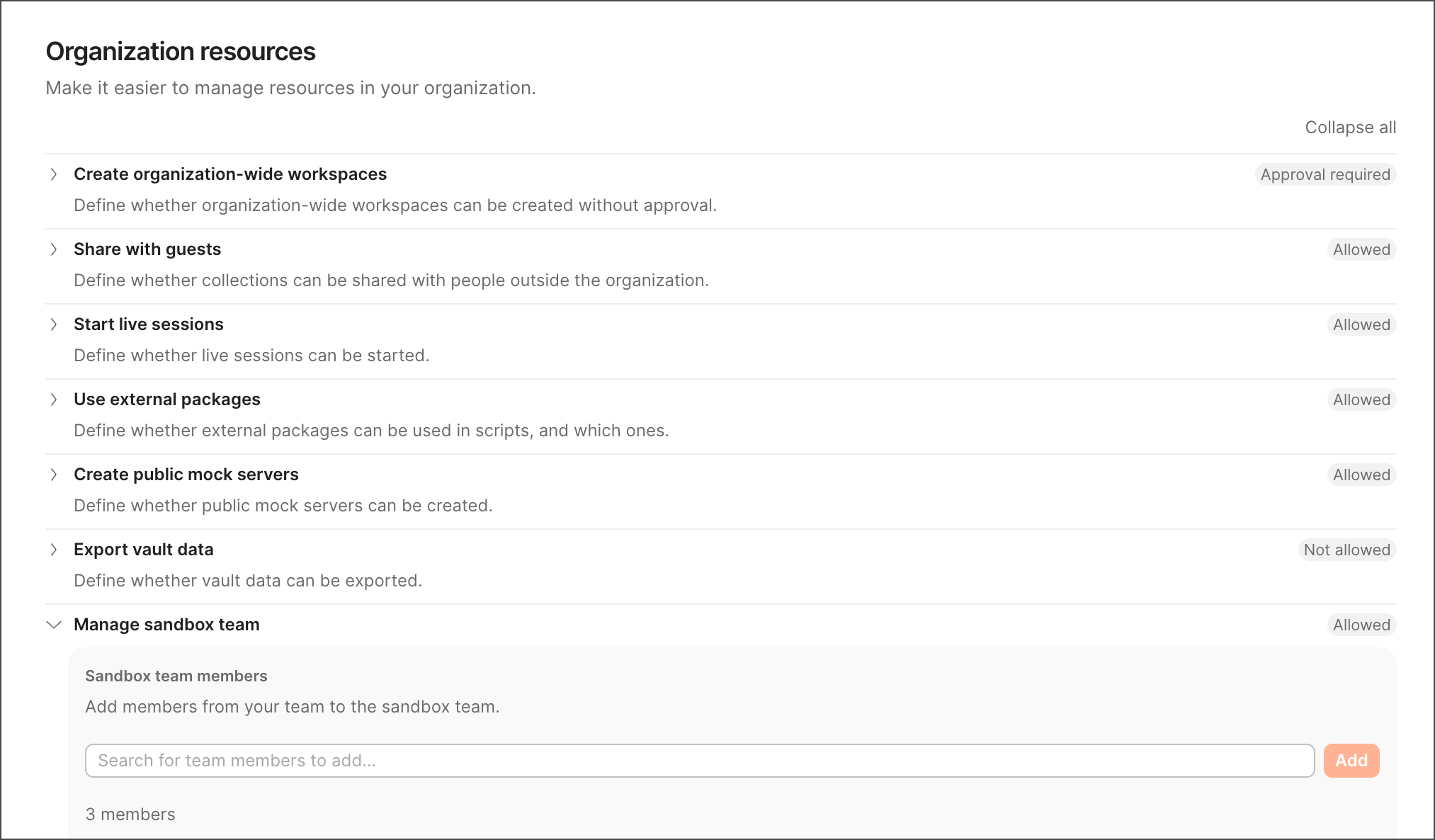
-
Click the search field and select a member from the dropdown list.
-
Click Add.
-
Read the terms and click Accept & activate.
If you decline the terms, you’ll be able to accept them later, when you try to switch to the sandbox team. However, you won’t be able to access the sandbox until you accept the terms.
To remove members from the sandbox, go to the sandbox’s membership page ( Settings > Organization settings > Members) and click  next to a member’s name. Removing a member from the sandbox doesn’t remove them from the parent organization.
Switch to the sandbox team
Once configured, users can access the sandbox by switching teams:
- Click your avatar or team name in the top-right corner to open the account menu.
- Click Switch to and select the sandbox team in the list of all teams and organizations associated with your account.
The home page updates to reflect the sandbox status with the SANDBOX badge in the top-right corner. The Pick up where you left off section shows No recent items, since the sandbox starts empty.
Limitations
Certain limitations and restrictions apply to Postman Sandboxes, including access and control limitations and permitted use limitations.
Access and control
- Postman may delete sandbox data at any time, with or without notice.
- At its discretion, Postman may restrict the number of users, limit the duration of access, or restrict usage.
- Auto-Flex isn’t available.
- Content can’t be transferred from the sandbox to your production environment.
Permitted use
- Strictly for use with test data.
- Strictly for evaluation, testing, development, demonstration, or other non-commercial internal use.
- Provided “as-is”, with no service level commitments, indemnities, or warranties.
- May not include all features or functionality available in production.