Set working directory
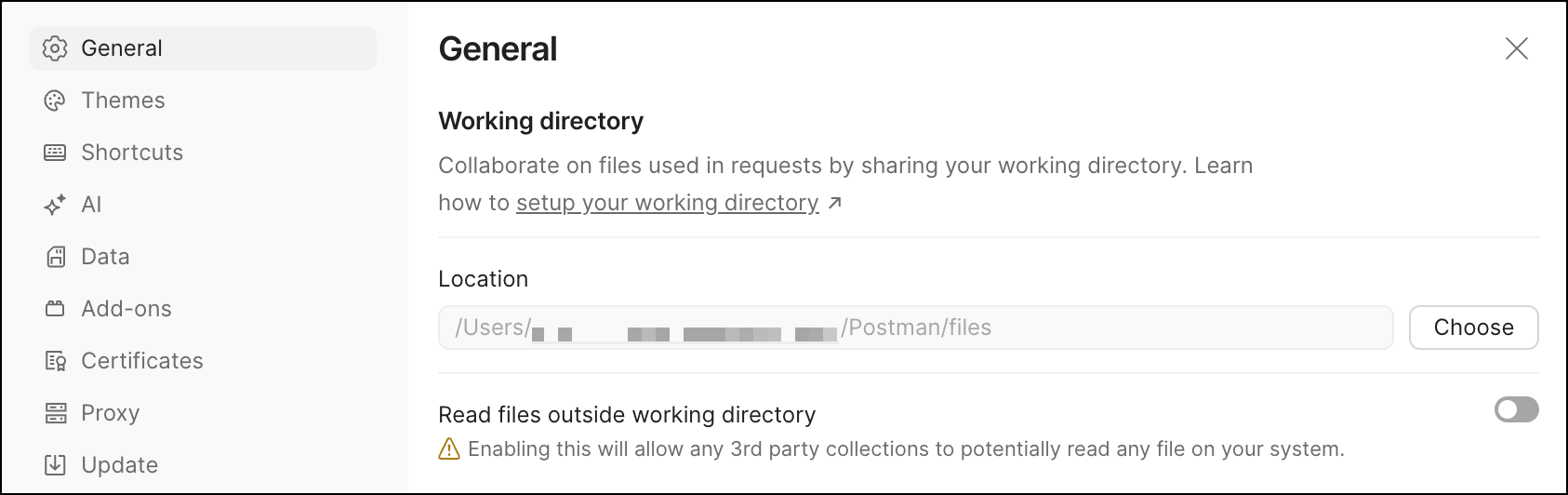
When you send a form-data or binary file with a request body, Postman saves a path to the test file as part of the collection. The file path is relative to your working directory. On macOS and Linux, you can find the default working directory at ~/Postman/files. On Windows, you can find the default working directory at %userprofile%\Postman\files (File Explorer and Command Prompt) or ~/Postman/files (PowerShell). To use a different working directory, click Choose and then select the directory you want to use.
Storing files in your working directory ensures that requests in shared collections always work. As long as you and your teammates use the same files and working directory location, shared requests will run across everyone’s systems. Learn more about sending body data.
To make collaboration easier, upload test data files to your Postman team. You can use files uploaded to your team as form data or binary data when sending a request. If you share the request in a workspace, other team members can send the shared request without needing to copy the files to their local working directory. Learn more about uploading files for shared requests.
You can’t change the working directory in the Postman web app. When you send a file with a request, the Postman web app creates a new folder with a random name in the ~/Postman/files directory. Postman stores a copy of the file in the new folder so you can use it when sending requests. To automatically sync files from the Postman web app with your local working directory, make sure you are using the Postman Desktop Agent.
Change your working directory. If you choose a different working directory than ~/Postman/files for the Postman desktop app, you will still be able to work between the Postman desktop app and the Postman web app by taking the following steps:
- To access a file from the Postman desktop app using the web app, copy it from the desktop app’s working directory into
~/Postman/filesso the web app has access to it. - To access a file from the Postman web app using the desktop app, find the file in
~/Postman/files. When you add a file to a request using the web app, it creates a folder with a random name in~/Postman/files. Copy this folder into your desktop app’s working directory so the desktop app has access to it. - If you’re sharing a request with others, each team member must have the files present in the correct working directory. If one team member adds a file to a request using the Postman web app, they need to share the folder and file that’s created with everyone who wants to use the request, and this folder must be copied to each team member’s working directory.
- Instead of copying files to your local system, you can upload test data files to your Postman team to make collaboration easier. All team members can use the uploaded files to send requests without needing to place the files in their working directory. Learn more about uploading files for shared requests.
The working directory is also used by Newman. Store files you want to use with Newman in the working directory path saved in the collection. Learn more about file uploads in Newman.
Use caution with files located outside your working directory. To use files located outside your working directory when sending requests, turn on Read files outside working directory. This option gives third-party collections the ability to read any file on your system. Use caution, and make sure you trust all third-party collections you are using before enabling this option.