
Use vault secrets in Postman
Use vault secrets to securely access sensitive data, such as API keys and tokens, in your Postman requests and scripts. Vault secrets are stored in your Postman Vault and can be used at runtime without exposing their values in your collections or requests. Use vault secrets in requests by setting them as the value of global, environment, or collection variables.
You can also access vault secrets from your Postman Local Vault in scripts using the pm.vault object. Vault secrets stored in your local vault can also be referenced directly using the {{vault:vault-secret-name}} syntax.
Use vault secrets in requests
To use a vault secret in your request data (such as the URL, headers, parameters, or body), set it as the value of a secure variable. You can use vault secrets stored in your Postman Local Vault or a workspace’s Postman Shared Vault.
To set a vault secret as the value of a secure variable, do the following:
- Open a global, environment, or collection variable.
- Click
 Secure next to the variable name to make it a secure variable.
 - Click the value cell and select a vault secret stored in your local vault (
 ) or your workspace’s shared vault (
 ).
).
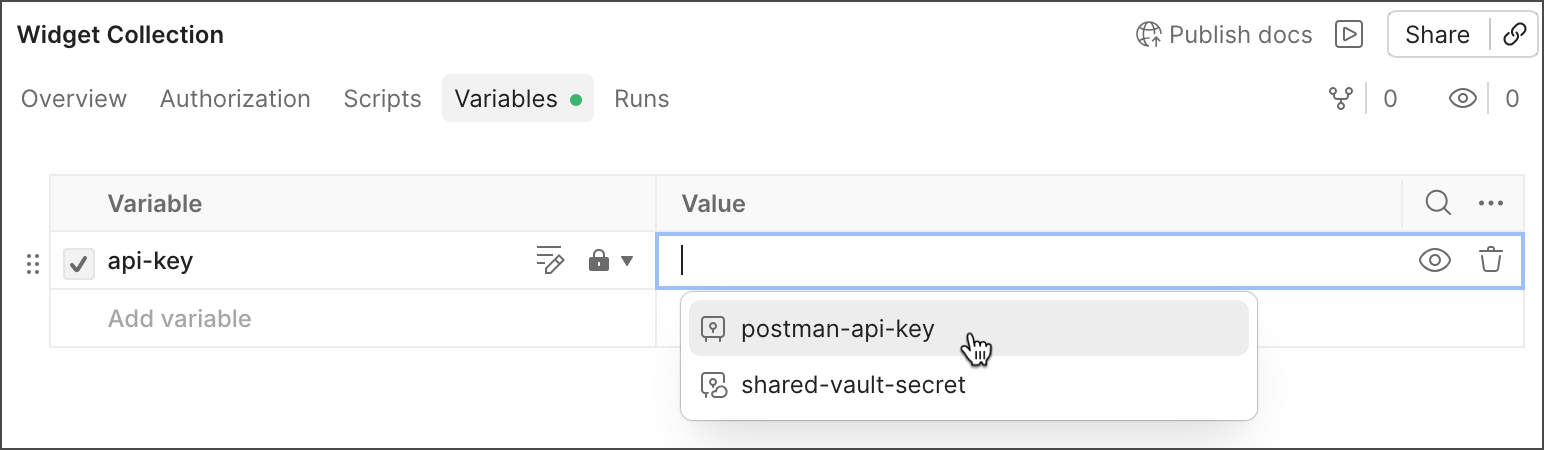
To share the variable with your team, make sure the value is a vault secret in your shared vault, then click  Share next to the secure variable to make it available to your team. Storing the secret in your shared vault and sharing the variable are two separate steps. Referencing a shared vault secret doesn’t automatically share the variable itself. This share step is also what makes the value available to Postman features that run on the Postman Cloud, such as monitors, scheduled collection runs, performance tests, and the Postman CLI. Learn more about sharing variables.
After you set the vault secret as the value of a secure variable, you can reference the variable in your requests. When you send a request that uses the variable, the vault secret’s value is applied at runtime.
Reference a vault secret using a secure variable
To reference a secure variable that holds a vault secret, do the following:
- Open an HTTP request.
- Enter the reference for a secure variable that holds a vault secret, such as the URL builder or Authorization tab. For example, if you have a collection variable named “api-key” that holds a vault secret, use the
{{api-key}}syntax. - Send the request to use the vault secret’s value.
Learn more about using variables.
Use vault secrets in scripts
You can access vault secrets stored in your local vault from your scripts using the pm.vault object. Use pm.vault.get() to retrieve the value of a vault secret at runtime.
The pm.vault methods are asynchronous and return a Promise. Use the await operator to ensure the value is resolved before using it in your script.
Before you can use pm.vault methods in scripts, you must enable support and grant access to your vault secrets. Learn how to enable support for vault secrets in scripts and manage access.
Direct vault secret references
You can reference vault secrets stored in your local vault directly in your requests. Direct references use the {{vault:vault-secret-name}} syntax and can be entered in request fields or selected in supported features, such as the Authorization tab. You can also use direct references to try vault secrets in a request before adding them to your local vault.
Postman doesn’t support directly referencing vault secrets stored in your shared vault. Learn how to reference vault secrets stored in your shared vault using variables.
-
Open an HTTP request.
-
Enter the vault secret reference in any field that accepts variables, such as the URL builder or Params tab. For example, to reference a vault secret named “api-key”, use the following syntax:
-
Send the request to use the vault secret’s value.
Vault secrets stored in your Postman Local Vault are masked by default when they’re logged to the Postman Console. To edit whether vault secrets are masked in the Postman Console, click  Settings, then turn on or off the Mask vault secrets setting in the Settings tab.
To learn how to troubleshoot empty or unresolved vault secrets, see Troubleshoot vault secrets.
Use vault secrets in the Authorization tab
If you specified an allowed domain for a vault secret and you’re sending a request to the domain, you can select a vault secret from the Authorization tab. You can only select a vault secret this way from the request level.
- Open an HTTP request.
- Click the Authorization tab.
- Select an authorization from the Auth type dropdown list.
- Click a field that holds sensitive data, such as a password or token.
- Select a vault secret from the dropdown list. You can click
 Show to show the vault secret’s value in the dropdown list.
Try a vault secret in a request
Try a vault secret in a request before adding it to your local vault. You can also create placeholder vault secrets to share with your API consumers. Your consumers can use placeholder vault secrets to add their own sensitive data. The value you enter is stored locally and only available in the request it’s set in.
To try a vault secret locally, do the following:
- Enter a vault secret reference in the URL builder, Params tab, Authorization tab, or Headers tab using the vault secret syntax. Use a name that isn’t already associated with a vault secret.
- Hover over the vault secret reference, click Enter value, then enter a value for the vault secret.
- Send the request to see if the value you entered for the vault secret works as expected.
Values for vault secrets you try are stored locally in a request until you close its tab or sign out of Postman. When you open the request again, the vault secret’s value is empty.
After you try a vault secret in a request, you can add it to your local vault. Hover over the vault secret reference, then click  Add to Vault.
Postman feature availability
Vault secrets are supported across many Postman features.
A checkmark in the Shared Vault column means the feature can use a secret stored there. It doesn’t mean any secure variable that references it is automatically available. Monitors, scheduled collection runs, and the Postman CLI run on the Postman Cloud and can only access a variable’s shared value. Before using a secure variable with these features, share the variable in addition to storing its secret in your shared vault.