
Use variables
You can use double curly braces ({{ and }}) to reference variables throughout Postman. For example, to reference a username variable in your request’s authorization settings, use the following syntax:
When you run a request, Postman resolves the variable and replaces it with your value. For example, you could have a request URL referencing a variable:
Postman sends the value stored for the cust_id variable when the request runs. If cust_id has a 3 value, the request is sent to the following URL with the query parameter:
To access a variable from within a request body, wrap its reference in double-quotes:
You can use variables in request URLs, parameters, headers, authorization, body, and header presets. When you hover over a variable, Postman displays its value and its scope. As you add variables to your requests, Postman displays any existing variables.
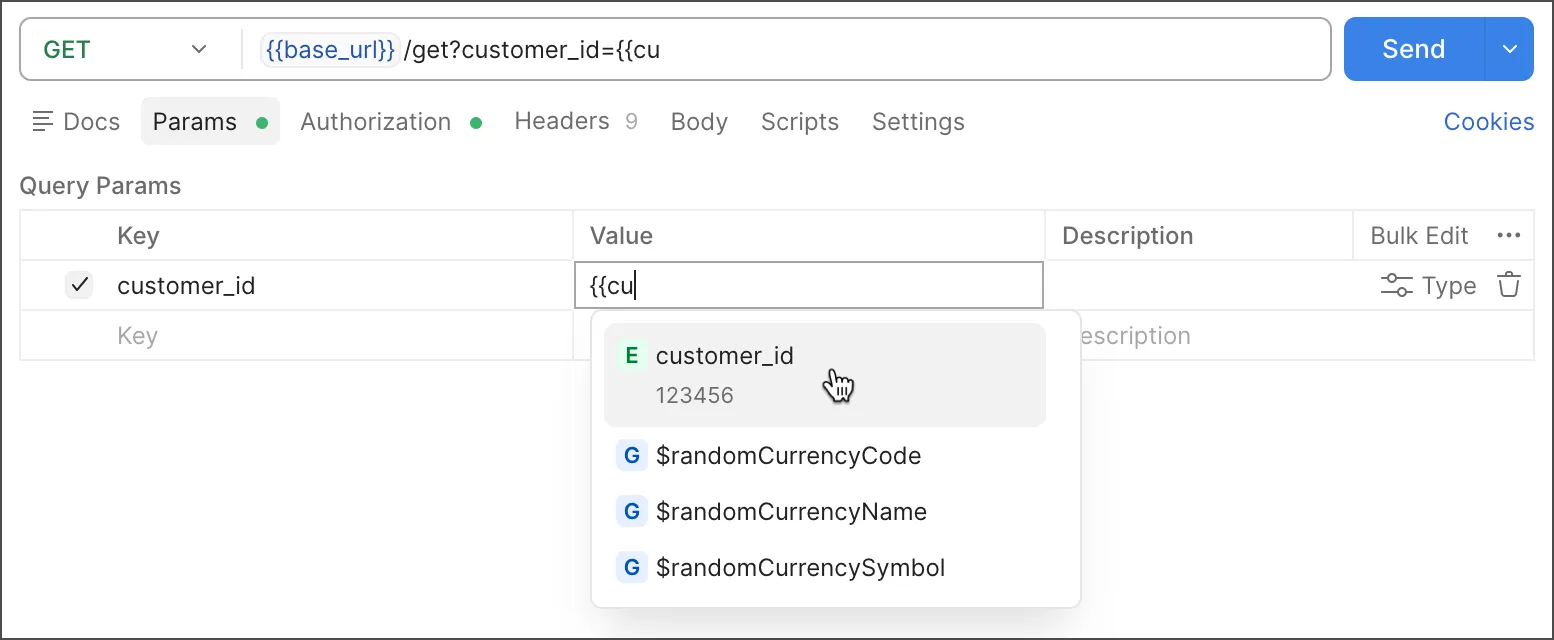
The prompt indicates the local value, scope (highlighted by color), and  Overridden status where relevant. If a variable is set as secure, you can hover over the variable and click
  to show its value. You can also press and hold ⌘ or Ctrl to show the values for all variables set as secure.
If a variable doesn’t have a value, Postman highlights it in red. Also, a red exclamation point displays on  Variables in the upper-right of the workbench. For information on how to fix this, see Fix empty variables.
Use dynamic variables
Postman provides dynamic variables you can use in your requests. Examples of dynamic variables include:
{{$guid}}— A v4-style GUID.{{$timestamp}}— The current Unix timestamp, in seconds.{{$randomInt}}— A random integer between 0 and 1000.
For a full list of values, see Use dynamic variables to return randomly generated data.
Use variables in scripts
You can retrieve your local value of a variable in your scripts using the object representing the scope level and the .get method:
Using pm.variables.get() to access variables in your scripts gives you the option to change variable scope without affecting your script functionality. This method returns the variable that has the highest precedence (or narrowest scope).
Postman doesn’t support using pm.variables to access and manipulate vault secrets.
To use dynamic variables in pre-request or post-response scripts, use pm.variables.replaceIn(). For example:
See Postman Sandbox API reference for more details about scripting with variables.
Log variables
You can log variable values to the Postman Console while your requests run. Use the following syntax in your script to log the value of a variable:
To view the results, click  Console in the footer. You can also access the Console by selecting View > Show Postman Console.
Use data variables
The Collection Runner lets you import a CSV or a JSON file and use the values from the data file inside requests and scripts. You can’t set a data variable inside Postman because it’s pulled from the data file, but you can access data variables inside scripts, for example using pm.iterationData.get("variable_name").
For more details, see working with data files and the Postman Sandbox API reference.