
About Postman Context Graph
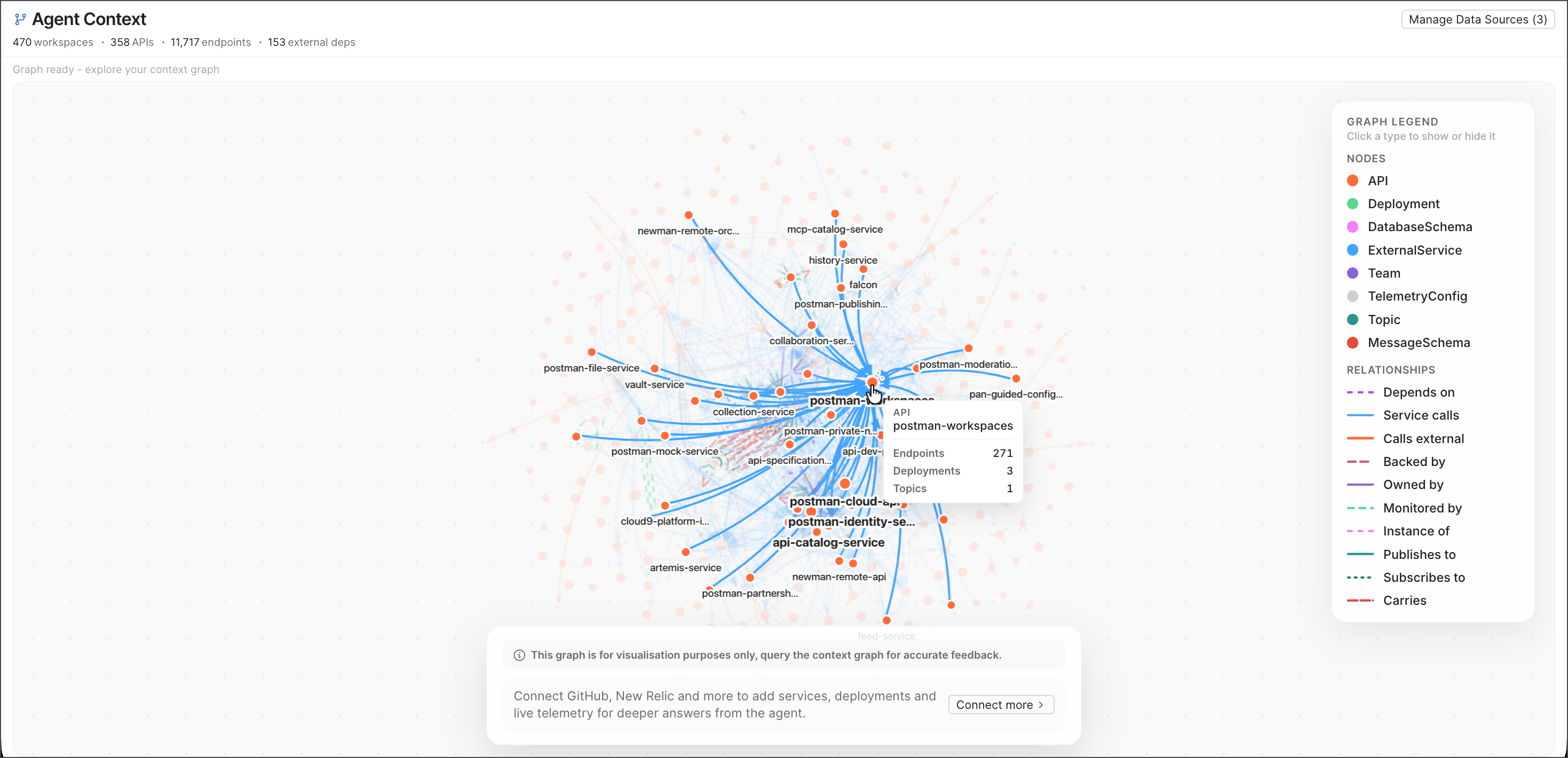
Postman Context Graph (also known as Agent Context) maps your organization’s APIs, deployments, database schemas, external services, and teams into a single dependency graph. Use it to answer questions about how your services relate to each other, and to give AI agents grounded, queryable context about your architecture.
Data model
Context Graph is built from one base source and any number of connected sources:
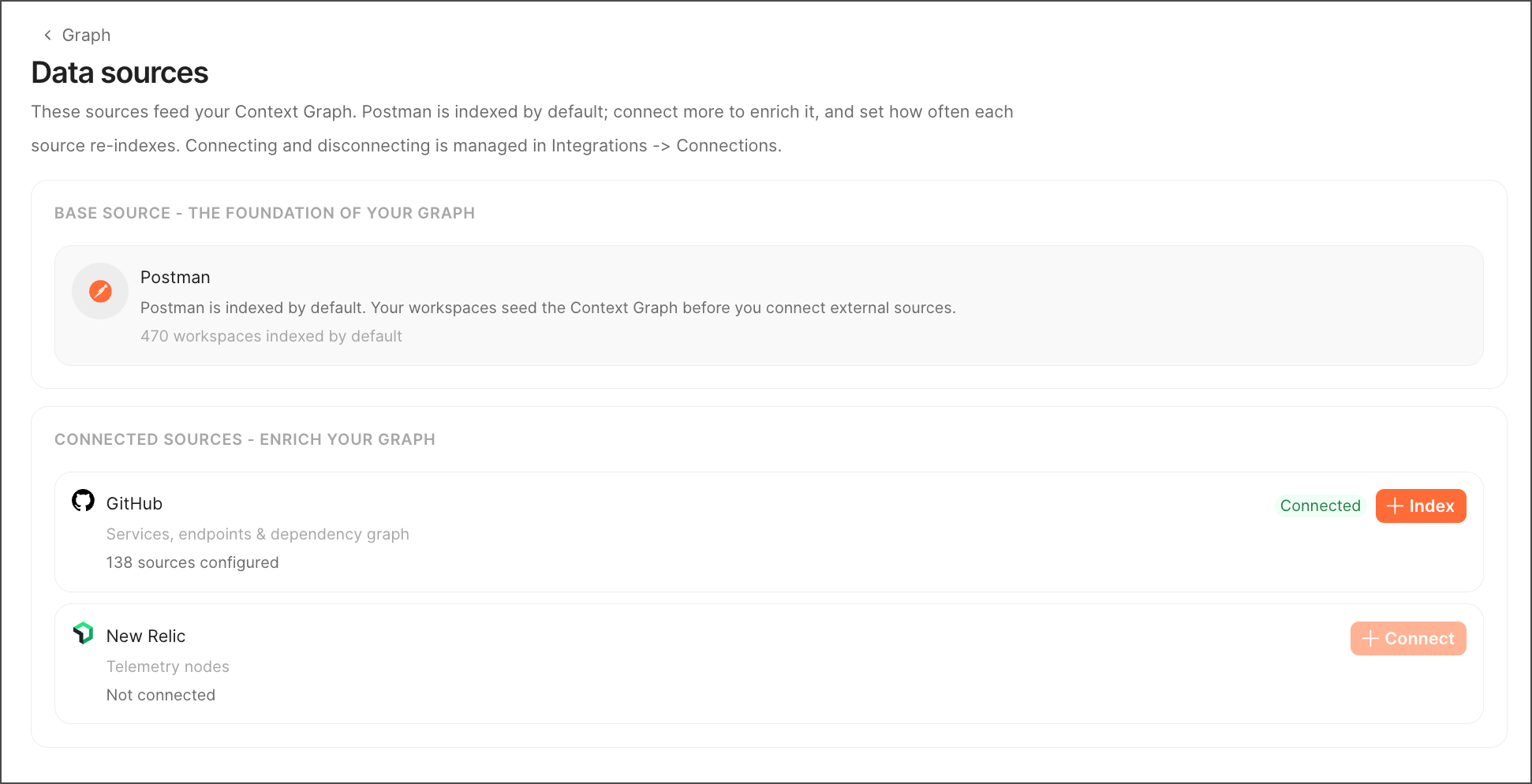
- Base source (indexed by default if already connected) — Git-connected Postman workspaces, APIs, collections, and specifications.
- Connected sources (connected and then indexed) — External systems like New Relic.
The graph’s node types cover APIs, deployments, database schemas, external services, teams, telemetry configs, topics, and message schemas. They’re connected by relationships that capture dependencies, service calls, ownership, monitoring, and pub/sub messaging (publishing to and subscribing to topics, and topics carrying message schemas).
Get started
To get started, do the following:
- Go to
 Home > Agent Context.
 - Click Manage Data Sources to connect the sources you want to index in the context graph.
- Click Index to start indexing the connected sources.
Indexing runs as background jobs. You can continue to use the graph while indexing is in progress. Results may be incomplete until indexing finishes.
Connecting GitHub requires selecting an organization and one or more repositories to index. Only repositories you have push access to, and that aren’t archived or inactive, are eligible. If you don’t see a repository you expect, check that it meets these criteria or go to Integrations to connect it.
Query the graph
The recommended way to get answers from Postman Context Graph is to query it, rather than reading conclusions off the graph visualization, which is for exploration only.
You can query the graph using Agent Mode, Agent Tasks, the Context Graph API, the Postman CLI, or an MCP client.
Use Agent Tasks to query the graph
Agent Tasks, which are part of Agent Mode on Cloud automations, run natural-language questions you ask against the graph asynchronously and return an answer grounded in actual graph queries.
For example, you can ask which service has the most dependents, and the agent will return an answer grounded in the graph data.
Use the Context Graph API to query the graph
The Postman API’s Context Graph endpoints provide a read-only HTTP API for the same capability.
Use the Postman CLI to query the graph
You can query the Context Graph from your terminal with the Postman CLI’s postman context-graph ask command. For example, the following command asks a question and waits for the answer:
See Query Context Graph with the Postman CLI for details on how to set up your repository and query the graph from a coding agent.
Query the graph with an MCP client
You can query the Context Graph using an MCP client. This allows you to submit natural-language questions and receive answers grounded in the graph data, similar to using Agent Tasks but through the MCP protocol. See Query Context Graph with an MCP client for details on how to set this up.