
Use Agent Automations
Postman’s agent automations let you create persistent cloud agents that run automatically based on triggers you define, including GitHub pull request and branch activity, and deliver their output to a destination you choose, such as Slack or pull request comments. Use automations to run API governance tasks continuously as part of your development workflow: design review, breaking change detection, and recurring audits. View the team’s automations and their run history in the Team tab.
An automation is made up of the following key parts: a trigger (what starts it), agent instructions (what the agent does), and a delivery target (where the output goes).
You can start from scratch or use one of the templates featured on the Automations page.
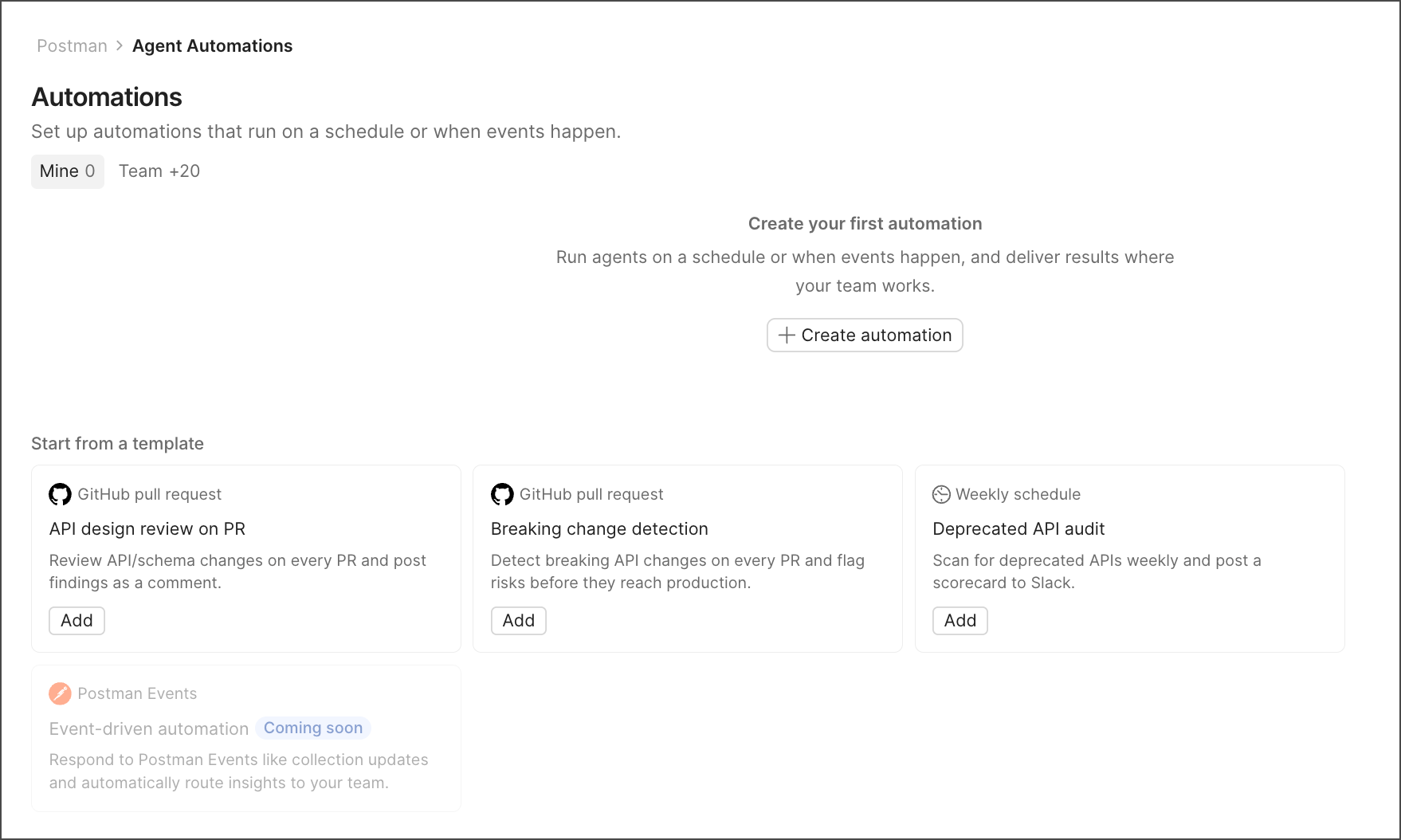
Create an automation
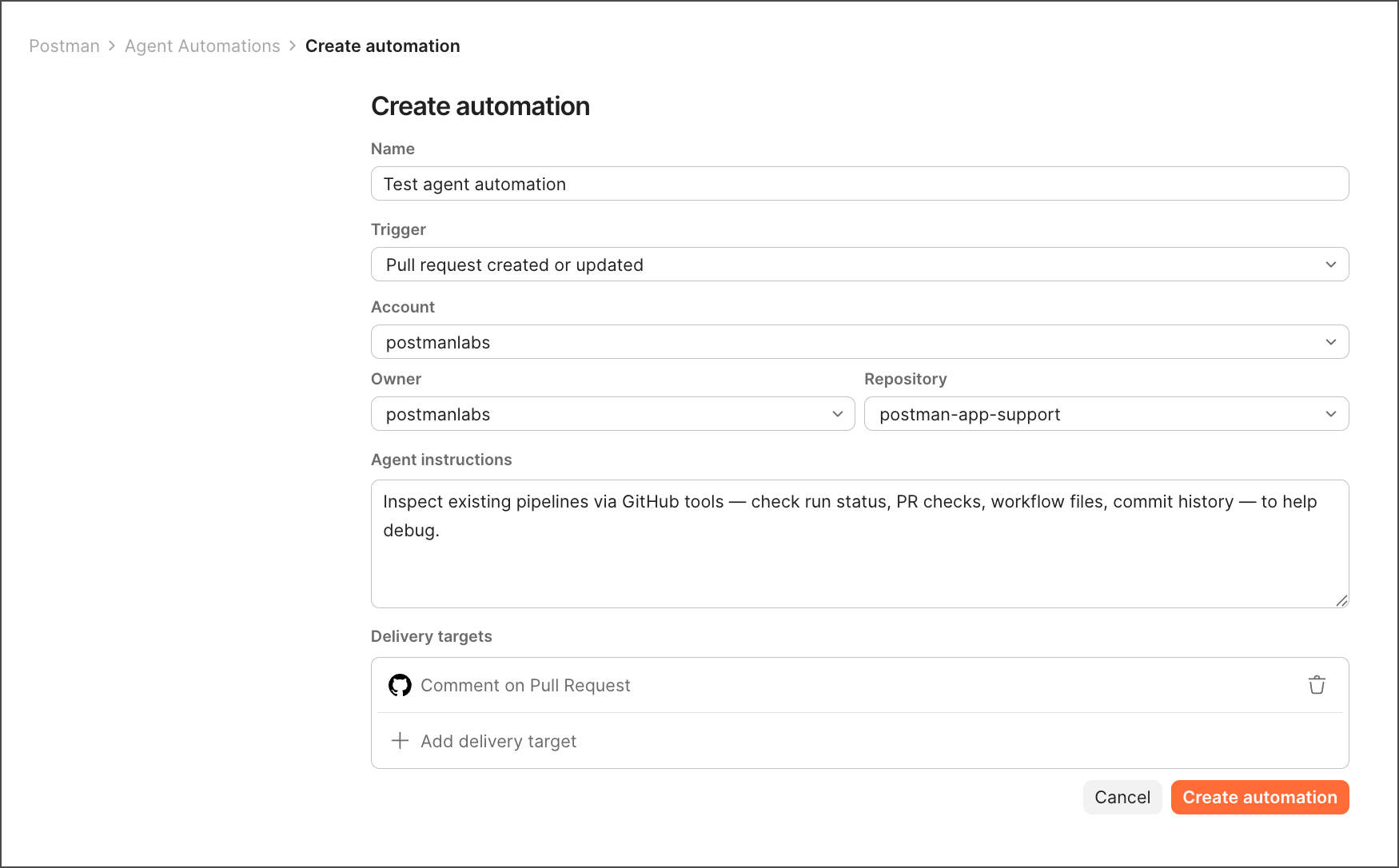
To create an automation from scratch, do the following:
- From
 Home, go to Agent Automations and select Create automation.
 - Give the automation a name.
- Choose a Trigger. (See Triggers.) Each automation supports one trigger.
- Write Agent instructions describing what the agent should do. You can reference specific APIs, workspaces, and collections in your instructions.
- Choose Delivery targets for the output. (See Delivery targets.)
Start from a template
Rather than building an automation from scratch, you can start from one of the templates featured on the Automations page. Each template comes pre-filled with a trigger, name, and prompt for a common use case, such as a deprecated API audit or a design review workflow. Select a template tile to open the create flow with those fields already populated, then adjust as needed.
Triggers
An automation runs when its trigger condition is met. You can choose from the following trigger types:
Delivery targets
After an automation runs, its output can be delivered to one or both of the following:
- Comment on a pull request — The agent posts its output directly as a comment on the triggering pull request, so reviewers see it immediately.
- Send to Slack — The output is delivered to a Slack channel once the run completes (not streamed mid-run). You must authorize Slack before you can select a channel.
Manage automations
Click the Team tab to see every automation your team created, showing the name, status, trigger, time of last successful run, and creator.
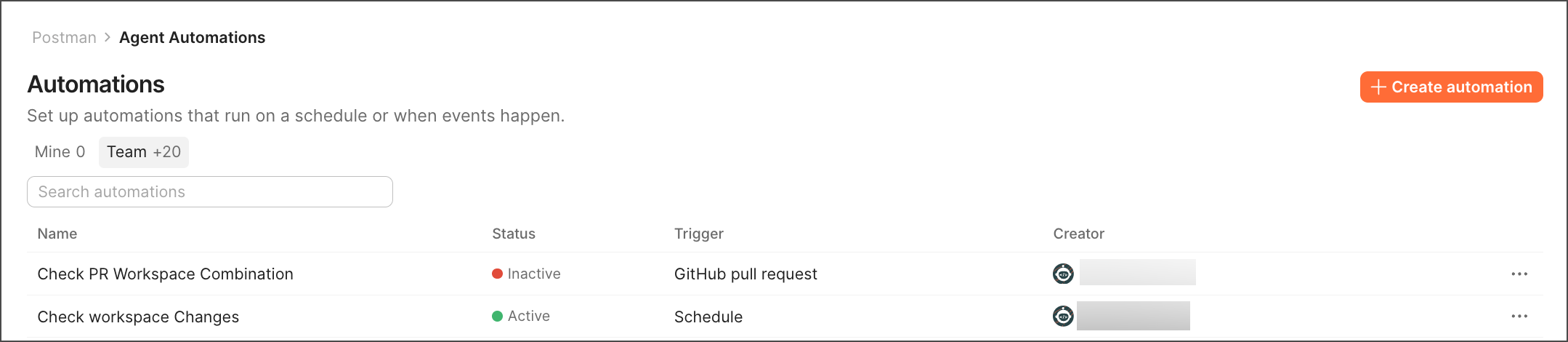
From this list, you can click an automation to view the run history and check the settings.
Each automation’s run history shows the trigger, start time, status, and duration of each run.
You can copy the run and task ID to reference them in support requests. You can also click Refresh to see the latest run history.