Get notifications in Microsoft Teams
Notifications keep you up to date on what’s happening in Postman. In addition to in-app and email notifications, you can get Postman notifications and alerts in Microsoft Teams. Once you connect your Postman account to Microsoft Teams, you can customize the types of notifications you’ll receive. You can choose to get personal notifications in Microsoft Teams about updates to any Postman workspace you belong to.
You can also connect a Postman workspace to Microsoft Teams to get notifications about team activity and communicate workspace updates.
Set up personal notifications in Microsoft Teams
You can choose to get the following notifications in Microsoft Teams:
- Comment mentions and replies - Get notified in Teams when teammates mention you in a comment or reply to one of your comments.
- Security alerts - Get an alert in Teams if you publicly expose a token in Postman, or if you expose a Postman API key in your repository.
- System alerts for monitors - Get notified in Teams when there are system events that affect scheduled monitor runs.
To get personal notifications in Microsoft Teams, do the following:
-
Click
 Notifications in the Postman header and click
  Manage notifications.
 -
If Microsoft Teams isn’t already connected to your Postman account, click Install in the Microsoft Teams Notifications integration panel.
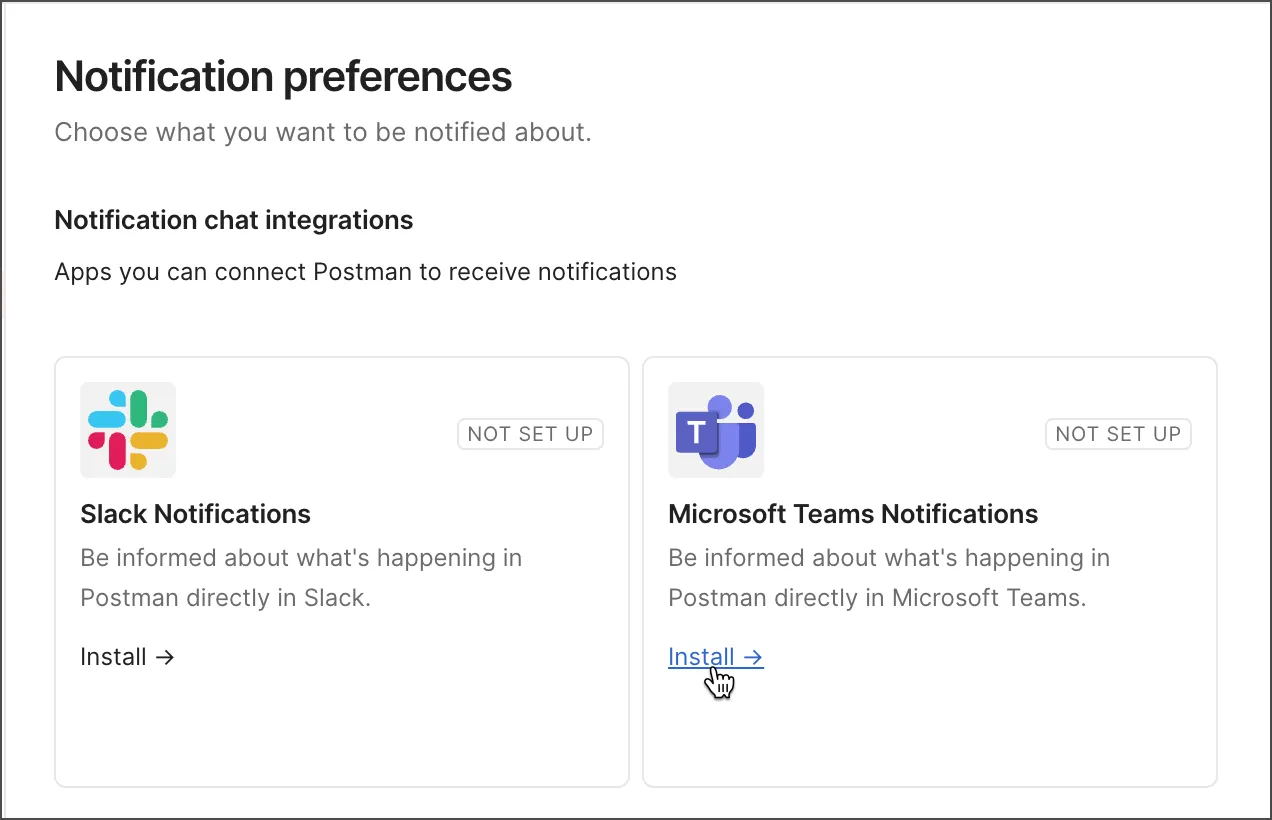
-
A browser tab opens asking you to sign in to Microsoft Teams. Click Continue, then enter your Microsoft Teams workspace URL and sign in with your email or SSO.
-
Click Allow to give Postman permission to view content and perform actions in Teams. Close the tab to continue in Postman.
-
In the Microsoft Teams column, select or clear the checkbox next to each item, then click Update Preferences to save your changes.
To view a list of available personal notifications, see Personal notification types.
Manage personal notification preferences in Teams
To manage your personal notification preferences, do the following:
- In Postman click Notifications and in the Notifications panel, click Manage notifications.
- Select or clear the checkboxes next to each type of notification you want to receive or stop receiving in Teams.
- Click Update Preferences to save your changes.
Uninstall the Teams integration
To uninstall the Microsoft Teams integration and stop receiving personal notifications in Teams, do the following:
- In Postman, click Notifications and in the Notifications panel, click Manage notifications.
- On the Notification preferences page, on the Teams integration panel, click
 to uninstall Teams.
 - Click Delete Integration to confirm.
When you delete the Teams integration from your account notification settings, you no longer receive personal notifications from the Postman app in Microsoft Teams. However, workspace notifications will continue to be sent to the connected Teams channel unless the workspace connection is also removed.
Set up workspace notifications in Microsoft Teams
You can connect a Postman workspace to a Microsoft Teams channel. Once you connect the two, Postman sends updates to the Teams channel when someone posts a workspace update, or adds, edits, or deletes a request, collection, or environment. Each update in Teams includes options to take actions, such as adding a comment or watching a collection.
You can connect internal and Partner Workspaces to Microsoft Teams. You can’t connect public workspaces. Learn more about changing workspace visibility.
To get workspace notifications in Microsoft Teams, do the following:
- In Postman, click

 Connect from your workspace Overview tab.
 - Click Connect Microsoft Teams.
- A browser tab opens with a warning that you are being redirected to complete the authorization on the Microsoft site. Click Continue. If the app has been correctly configured in Teams, the authorization is successful and you are redirected back to Postman.
- Configure the Teams integration in Postman to specify which types of workspace notifications you want to receive.
- Select a Microsoft Teams channel or group chat in which to receive notifications.
- Choose whether to receive notifications in real time or periodically as a digest. If you choose real time notifications, select which updates you want to receive as they happen. If you choose digest, select the frequency at which you want to receive the digest notifications.
- Click Connect to establish the connection and begin receiving workspace notifications in Microsoft Teams.
Manage Teams workspace notification preferences
To change the types of workspace notifications you receive in Microsoft Teams, do the following:
- In Postman, click the Teams icon from your workspace Overview tab.
- In the Workspace integrations dialog, click
 Edit next to the channel to which you want to make changes.
 - Make your changes in the Manage Teams integration dialog and click Save changes.
Disconnect a Teams workspace integration
To disconnect a Teams workspace integration, do the following:
- In Postman, click the Teams icon from your workspace Overview tab.
- In the Workspace integrations dialog, click Edit next to the channel that you want to disconnect.
- In the Manage Teams integration dialog, click Disconnect, and confirm that you want to disconnect the channel.