
Generate SDKs from collections and API specifications
Postman SDK Generator is deprecated. To keep generating SDKs, migrate to Fern. For more information about generating SDKs with Fern, see Fern’s SDK generator documentation.
You can use the Postman CLI or the Postman app to generate your SDK.
Before you generate an SDK, review permissions required to generate SDKs.
Generate SDKs from the CLI
-
Get the collection or specification ID. In Postman, open your collection or specification, then click
 Show right sidebar on the bottom right to open the right sidebar. Click
  Info in the right sidebar and copy the ID to use with the
 postman sdk generatecommand. -
Run the
postman sdk generatecommand with the pasted ID. For example, to generate an SDK in TypeScript, use the following command with your ID and output directory:Your SDK downloads into the
sdksdirectory in your current working directory.You can use the
postman sdk listcommand and navigate to the files from your terminal.
Regenerate SDKs from the CLI
After you make edits to your collection or specification or add custom code, run the postman sdk generate command again to regenerate the SDK. For more information on how the generator detects custom code changes and merges them, see Generate an SDK with custom code using the Postman CLI.
Generate SDKs from the Postman app
-
Click Collections or Specs in the sidebar to select the collection or specification for which you want to generate an SDK.
-
Click
 View more actions and select More > Generate SDKs from a collection (or just Generate SDK for API specifications).
 -
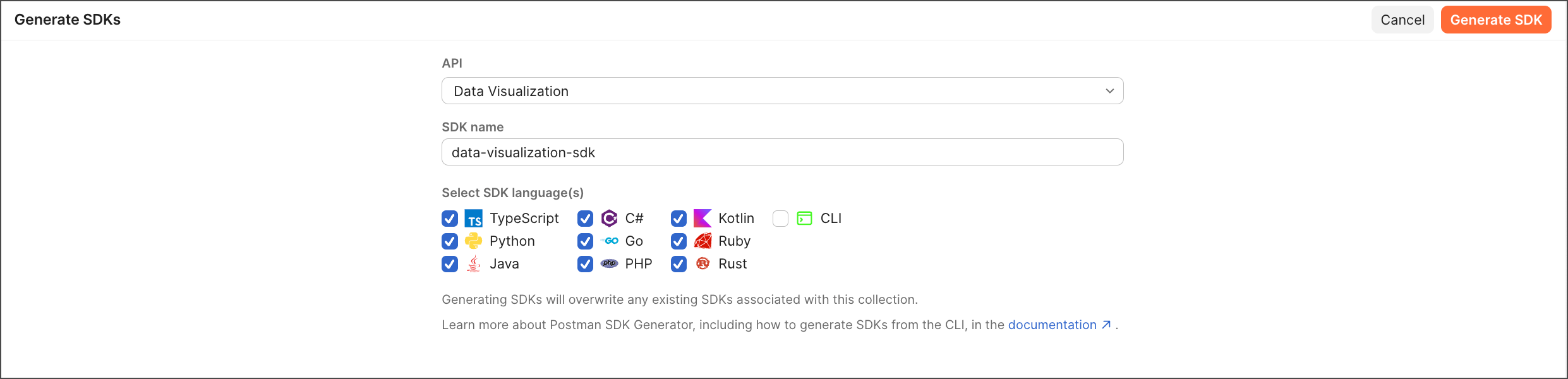
Name your SDK build. You can use the default name or enter a custom one.
-
Select your languages. You can select one or more languages for SDK generation: TypeScript, Python, Java, Kotlin, C#, Go, PHP, Ruby, or Rust. You can also select all to generate SDKs in all supported languages.
Do this with AIGenerate SDKs using AI. Open the right sidebar and start a new chat. Ask the agent to generate SDKs for you. For example, you can enter “Generate SDKs in Python and Java for this collection.”
-
Click Generate SDK.
-
Select the language for your SDK and click Download to get the generated SDK as a zip file. The zip file contains the complete SDK code, which you can integrate into your projects.
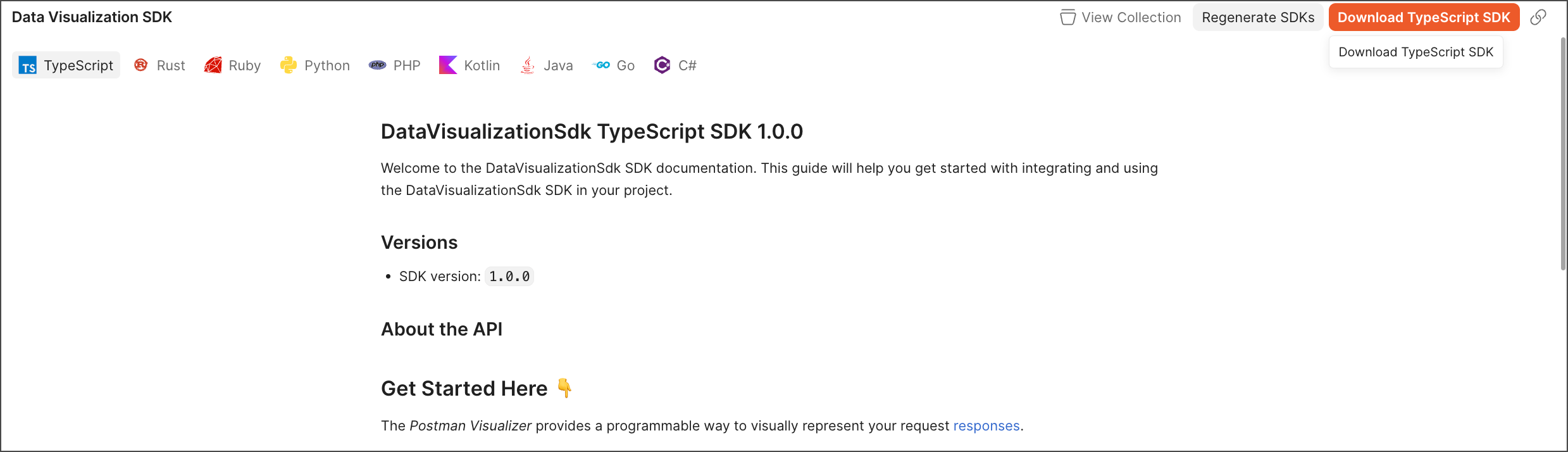
You can also check the generated documentation, which appears in the SDK panel when your SDK is generated.
To regenerate your SDKs or generate new ones in other languages, select the languages and click Regenerate SDKs.
You can access your SDKs in the left sidebar. Click SDKs to view all your generated SDKs. You can also click View more actions on an SDK to view the SDK documentation, download the SDK, or regenerate the SDK.
Copy SDK code snippets
Sometimes you’ll need to copy a request snippet from your SDK and paste it in your IDE. As a developer, you might update a request, test it in Postman, generate an SDK, and want to copy the new snippet.
To copy the snippet, do the following:
-
Open the request from a collection with a generated SDK, then select
 Code in the right sidebar.
 -
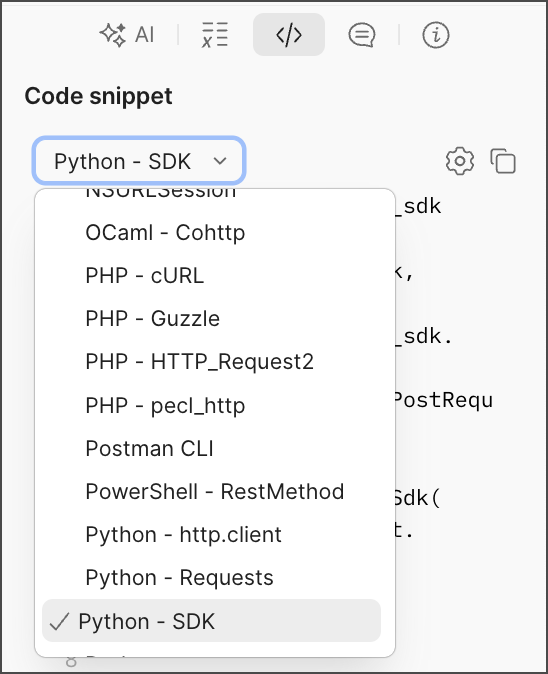
From the dropdown list, select an SDK option (for example, TypeScript - SDK).
-
Click
 Copy snippet to copy the code snippet to your clipboard.
View the SDK docs
The SDK documentation is autogenerated after you generate your SDK. The documentation refreshes with each new generation.
The SDK docs provide important information, such as installation and usage instructions, service and model details, and more.
To access the docs, in the left sidebar, open SDKs, and click the collection.