
Troubleshoot your Postman installation
If you encounter any issues installing and running Postman, see the following tips. If these tips don’t help, refer to the installation posts on the community forum and create a new post if your issue isn’t already covered. You can also contact Postman support for help.
Update Failed error
If you get an Update Failed notification in Postman, you can use the DevTools console to investigate. To open the DevTools console, click View > Developer > Show DevTools (Current View).
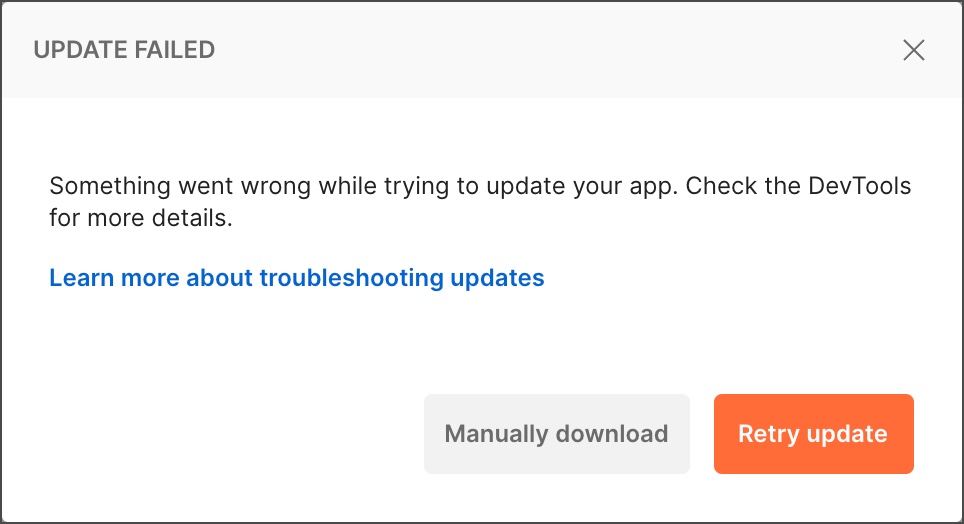
Here are some common error messages:
-
Cannot update while running on a read-only volume- This means that the app user doesn’t have write permission in the directory where Postman is installed. To resolve the problem, move Postman to a directory where the user has write permissions, for example
/Applicationson macOS orhomeon Linux.
- This means that the app user doesn’t have write permission in the directory where Postman is installed. To resolve the problem, move Postman to a directory where the user has write permissions, for example
-
EACCES: permission denied, open '/opt/Postman/Postman-1620288011421.tar.gz- This means that the app user doesn’t have write permission in the directory where Postman is installed. To resolve the problem, move Postman to a directory where the user has write permissions, for example
homeon Linux.
- This means that the app user doesn’t have write permission in the directory where Postman is installed. To resolve the problem, move Postman to a directory where the user has write permissions, for example
-
Code signature at URL file:///... did not pass validation: code object is not signed at all- This means that multiple updates are running at the same time. This can happen if you open the app when one update is about to install itself but another update hasn’t finished yet. To resolve the problem, quit and reopen the app.
Update not available
If you used the Ubuntu Software Center or Snap store to install Postman on Linux, you might not have the Check for Updates option in Settings > Update. This is because the updates are handled by the store, which automatically updates Postman on a regular cadence.
Helper tool dialog
If you’re using Postman for macOS, you may receive the “An update is ready to install. Postman is trying to add a new helper tool.” dialog:

This message indicates that the ~/Applications/Postman.app file is owned by the root user instead of your user account. This can interfere with the auto-update process.
To resolve the issue, do the following:
-
Ensure that you grant Full Disk Access to your terminal app. You can check this by going to System Settings > Privacy & Security > Full Disk Access.
-
Turn on Full Disk Access for your terminal app and quit Postman.
-
Change ownership to your user account using the following command:
-
Restart Postman.