
Define variables in Postman
Variable values are local by default and only available to you in your instance of Postman. These values aren’t synced to the Postman Cloud. Once you’ve defined a local value, you can optionally share variable values, syncing the value to the Postman Cloud.
Remember to delete variables you’re no longer using.
To define variables at any scope in the request builder, do the following:
-
Select the data you need, for example in the address, parameters, headers, or body.
-
Right-click the selection and click Set as variable.
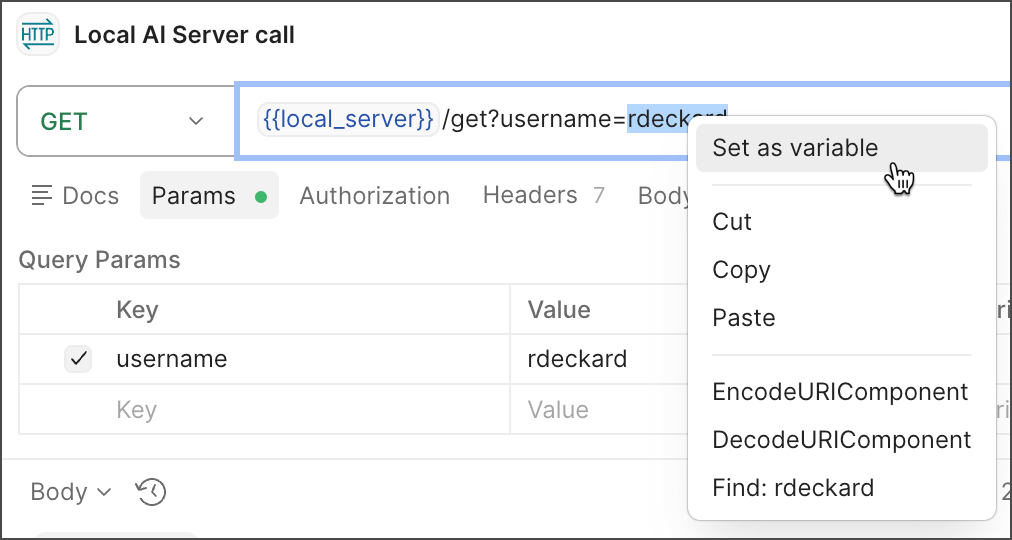
-
Click
 Set as new variable.
 -
Enter a Name, confirm the Value is correct, and select a Scope.
Learn more about variable scopes in Postman.
-
Click Set Variable to save the variable.
You can also define variables in the following ways:
- Try out a variable locally without a scope, then add the variable to a scope.
- Set a response body value as a variable.
- Define a variable in the global, environment, or collection scope.
- Define variables using scripts.
- Define variables from the VS Code extension.
Any changes you make to your variables are automatically saved.
Set values for variables without a scope
Variables without a variable scope are useful for trying out the value before adding the variable to a scope. This is also useful for sending data with requests that isn’t meant to hold a default value. For example, a variable without a scope might send user-specific information that changes each time you send the request. Variables without a scope also enable you to create a placeholder variable to share with your API consumers, without having to define the variable at a specific scope.
In the request builder, you can create a variable without adding it to a variable scope. The value you enter for this variable is stored locally and is only available in the request it’s set in. When you click  Variables, the variable isn’t associated with a scope (highlighted by color) in the variables pane under Variables in request.
To create a variable from the request builder, use double curly braces ({{ and }}) to reference a variable that doesn’t exist or isn’t available from the request. For example, enter {{username}} to create a username variable that doesn’t have a scope.
To set a value for a variable without a scope, hover over it, click the text box, then enter a value. You can also click Variables in the workbench to open the variables pane. Click Enter value next to the variable, then enter a value.
You can use pm.variables.get(variableName) to access variables without a scope in scripts. Learn more about using variables in scripts.
Values for variables without a scope are stored locally in a request until you close its tab or sign out of Postman. When you open the request again, the variable’s value will be empty. If you’d like to store and reuse the value in your requests, you can add the variable and its value to a scope.
Add variables to a scope
From a Postman element, such as a request or collection, you can create a variable and add it to a specific variable scope to reuse it across your requests. You can also add a variable without a scope to a specific variable scope in your team. From the element, you can add a value that’s stored locally for the variable.
You need Editor access to an environment or collection to add variables to it.
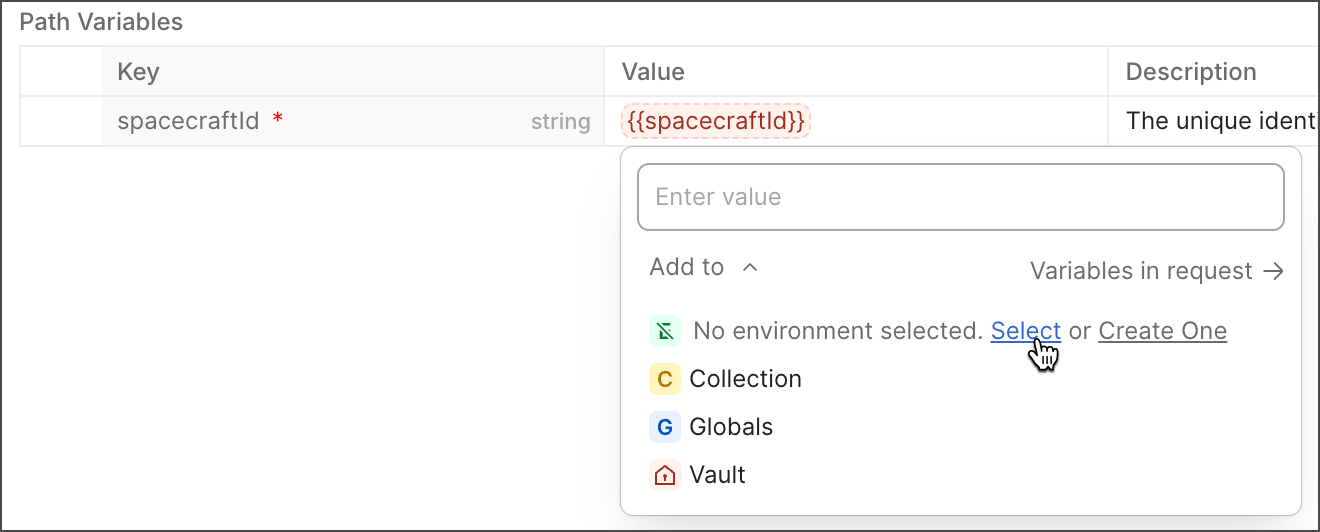
Use double curly braces ({{ and }}) to reference a variable that doesn’t exist or isn’t available from the element. Hover over the reference to the variable, click the text box, then enter a value if you haven’t already. Select the Add to dropdown list, then select the scope you’d like to add the variable to.
You can define variables at any scope from the Authorization tab. Select the Auth Type dropdown list, select an authorization, then enter a value in a field that holds sensitive data, such as a password or token. Hover over  Sensitive value, click Set as Variable, enter a name for the variable, then select the scope you’d like to add it to.
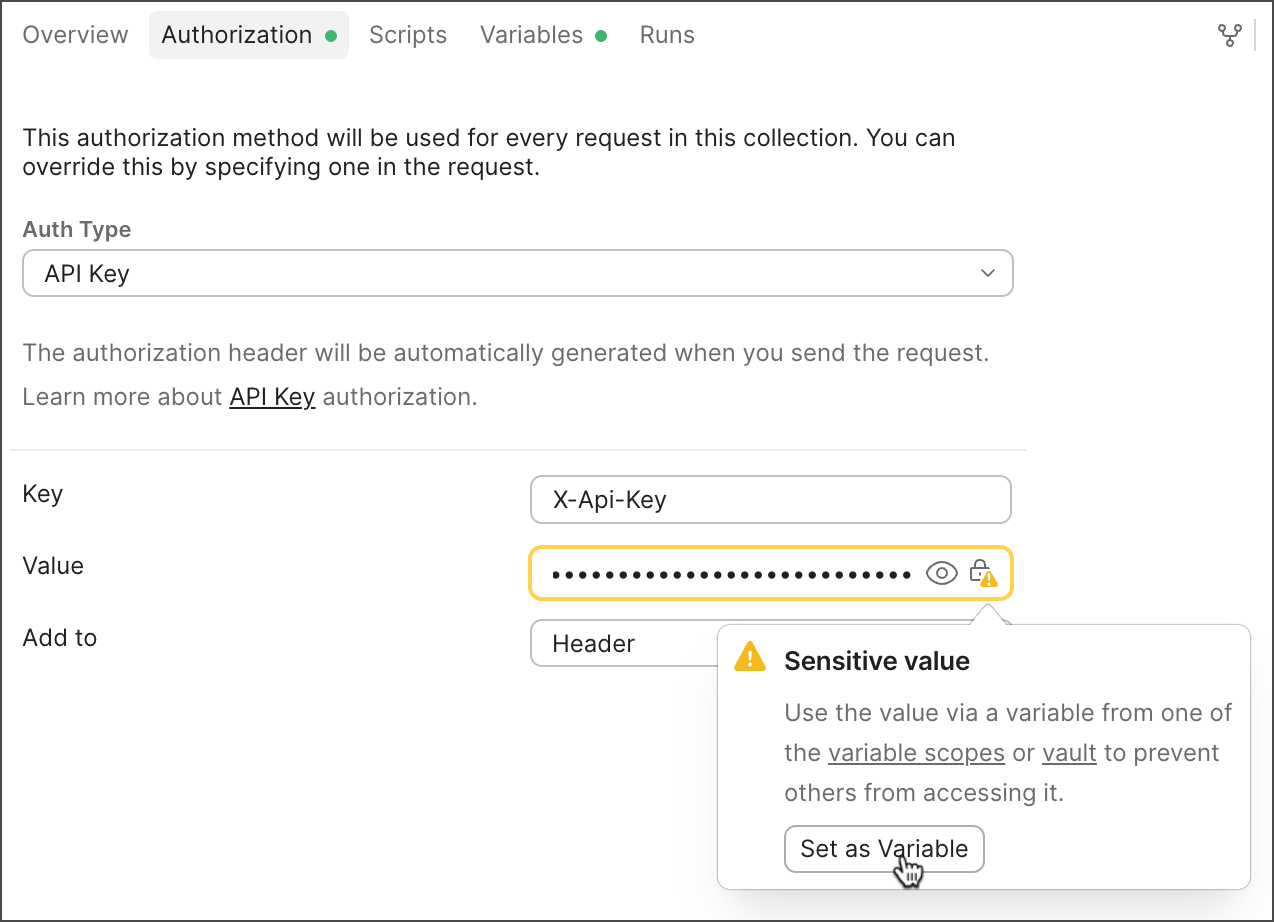
You can also click Variables in the workbench to view the variables and vault secrets used in your request. Click the text box, enter a value for the variable without a scope, click Add to, then select the scope you’d like to add it to.
You can also choose to add sensitive data as a vault secret in your Postman Vault. To add it as a vault secret in your Postman Vault, first open your Postman Vault.
The environment you want to add a variable to must be active in the environment selector. If an environment isn’t active, you can add a variable to an environment using one of the following options in the dropdown list:
- Select an existing environment — Click Select, then choose an environment to make it active. The variable is added to the selected environment.
- Create a new environment — Click Create One, enter a name for the environment, then select Create. The variable is created and added to the new environment.
You can secure variables, encrypting the value in Postman.
If the variable without a scope has the “vault:” prefix (for example, “vault:postman-api-key”), you can only add it to your Postman Vault as a vault secret.
To add a local value to a variable that you can share with collaborators, learn how to edit variables directly in the global, environment, and collection scope.
Set response body values as variables
To define variables at any scope from a request’s response body, do the following:
- (Optional) If you’re setting the value for an environment variable, select the variable’s environment from the dropdown list located in the top right of the workbench.
- In the response, right-click the selection and click Set as variable.
- Click Set as new variable.
- Enter a Name, confirm the Value is correct, and select a Scope.
- Click Set Variable to save the variable.
Define global variables
To view global variables, click Globals in the footer.
To add a new global variable, do the following:
- Click the Add variable text box and enter a variable name.
- (Optional) Click
 Secure next to the variable name to make it a secure variable. Learn more about securing a variable value.
 - Enter the variable’s value.
- (Optional) Click
 Add description next to the variable name and enter a description of the variable. To display the description in a separate column, click
  More and select Description.
 - (Optional) Click
 Share next to the value to share it with teammates and use it with monitors and scheduled runs. To display the shared value in its own column, click More and select Shared Value.
To edit an existing global variable, change the desired variable name, value, or description. To search for a global variable by name or value, click  Search, and enter your search.
To download global variables, click  Export in the upper right of the workbench.
You can also learn about defining global variables in scripts and viewing and editing variables directly from a Postman element.
Define environment variables
To view environment variables, click Environments in the sidebar and select the environment you want to view.
To add a new environment variable, do the following:
- Click the Add variable text box and enter a variable name.
- (Optional) Click Secure next to the variable name to make it a secure variable. Learn more about securing a variable value.
- Enter the variable’s value.
- (Optional) Click Add description next to the variable name and enter a description of the variable. To display the description in a separate column, click More and select Description.
- (Optional) Click Share next to the value to share it with teammates and use it with monitors and scheduled runs. To display the shared value in its own column, click More and select Shared Value.
To edit an existing environment variable, change the desired variable name, value, or description. To search for an environment variable by name or value, click Search, and enter your search.
To download environment variables, click View more actions next to an environment and select Export.
You can add and edit variables if you have Editor access to an environment. If you have Viewer access, you’re restricted to updating the local value of existing variables. Any variables you edit are available to you, but not to collaborators in your workspace. Learn about working with environments in your team and defining environment variables in scripts.
You can also learn about viewing and editing variables directly from a Postman element.
Define collection variables
To add a new collection variable, do the following:
- Click Collections in the sidebar, select a collection, and select the Variables tab.
- Click the Add variable text box and enter a variable name.
- (Optional) Click Secure next to the variable name to make it a secure variable. Learn more about securing a variable value.
- Enter the variable’s value.
- (Optional) Click Add description next to the variable name and enter a description of the variable. To display the description in its own column, click More and select Description.
- (Optional) Click Share next to the value to share it with teammates and use it with monitors and scheduled runs. To display the shared value in its own column, click More and select Shared Value.
To edit an existing collection variable, change the desired variable name, value, or description. To search for a collection variable by name or value, click Search, and enter your search.
To download collection variables, click View more actions next to a collection, then click More and select Export collection. Learn more about exporting a collection.
With Editor access to a collection, you can add new collection variables, share values with your teammates, and update shared values. You can also define collection variables in scripts. If you have Viewer access to a collection, you can only update the local value of existing collection variables. Learn how to request Editor access to a collection.
You can also learn about viewing and editing variables directly from a Postman element.
Define variables in scripts
You can set variables and vault secrets programmatically in your request scripts.
If you don’t have Editor access to an environment, your script code affects the local value, but won’t be synced or shared with your team.
Make sure you enable scripts to access your vault secrets. Otherwise, you’ll receive an error in the Postman Console, and any code that comes after the method won’t run. Also, you must use the await operator before each pm.vault method for it to run in your script.
For instructions on how to use variables in pre-request or post-response scripts, see Use variables in scripts.
Secure a variable value
With Editor access, you can set a global, environment, or collection variable as secure. Variable values set as secure use the same encryption process as Postman Local Vault. This means secure variables are encrypted using the Advanced Encryption Standard (AES) with a 256-bit key length.
To set a variable as secure, do the following:
- Set up your Postman Local Vault with your vault key, if you haven’t already. Your vault key is required to access secure variable values.
- Open a global, environment, or collection variable.
- Click Secure next to the variable name to make it a secure variable.
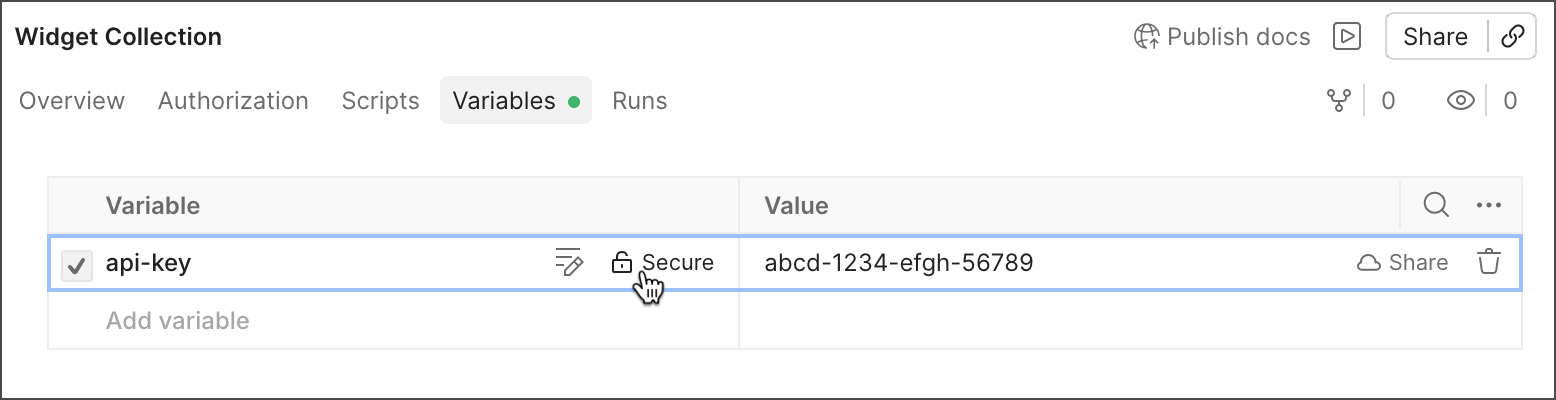
Variables set as secure are stored locally and aren’t shared with your team. Storing the value in a workspace’s Postman Shared Vault makes it eligible to share, but you still need to share the variable itself before your teammates or cloud-based Postman features can access it. Learn how to share a secure variable.
If you already have a vault secret in your local or shared vault, you can reference it as the value of a secure variable. This enables you to reference vault secrets in your requests using the variable name. Learn how to use vault secrets.
To unset a variable as secure, click  > Not a secret next to the variable name. The value is no longer encrypted.
You can also learn how to set a value as secure from the VS Code extension.
Previous way of defining variables
Postman no longer supports maintaining multiple independent values for your collection, environment, and global variables. Previously, you could provide a current value (local) and initial value (shared) for your variables and update them separately.
Initial and current values are supported in the Postman VS Code extension. Learn more about variables in the VS Code extension.
With this change, you only need to provide a single value for your variables that’s local by default (previously the current value).
You can choose to share a variable’s value with your teammates (previously the initial value), based on the local value at the time of sharing. You can continue to update and use your local value without sharing it. Updates to your local value are only shared with your teammates if you intentionally choose to share the new value.